






















Most of the time, you look at the processor speed (in GHz) and the number of cores when you buy a new computer. But the CPU cache, which is a hidden feature, also has a big impact on how fast your computer feels. Do you know how cache memory works? If not, you will not understand why some processors are better at gaming and multitasking than others.
What Is CPU Cache?
The CPU cache is a small, very fast memory area built directly into the processor chip. Its only job is to keep copies of the data and instructions the CPU needs most often. By keeping this important data close to the processing cores, the CPU does not have to go to the main system memory (RAM) and wait for information to load. CPU cache is like a small workbench right in front of you, and RAM is like a big file cabinet across the room.
How CPU Cache Works
You need to know how a processor handles data to understand why cache is important.
Cache Hits vs Cache Misses
When the CPU needs to do some math, it first looks in the cache for the data it needs. Getting the data from the cache is known as a “cache hit“, and the processor finishes the job very quickly. A cache miss happens when the data is not in the cache. This wastes time because the CPU has to stop and wait for the data to come all the way from the RAM.
Why Cache Is Faster Than RAM
Cache memory uses a different kind of physical technology called Static RAM (SRAM), which does not need to have its electricity charged all the time. Standard system RAM is Dynamic RAM (DRAM), which is much slower but much cheaper to make in large quantities. The cache and processor cores are physically on the same silicon die, so data only has to travel a very short distance. This means that there is almost no latency.
Why Frequently Used Data Stays in Cache
These days, processors use complicated prediction algorithms to figure out what information you will need next. When you play a game, the CPU stores the player coordinates and physics calculations in the cache because it knows it will need them at every frame. This is especially important in small systems like mini PCs, where each part has to work well within stricter temperature limits. We will talk more about this below.
CPU Cache Speed: L1, L2 and L3 Explained
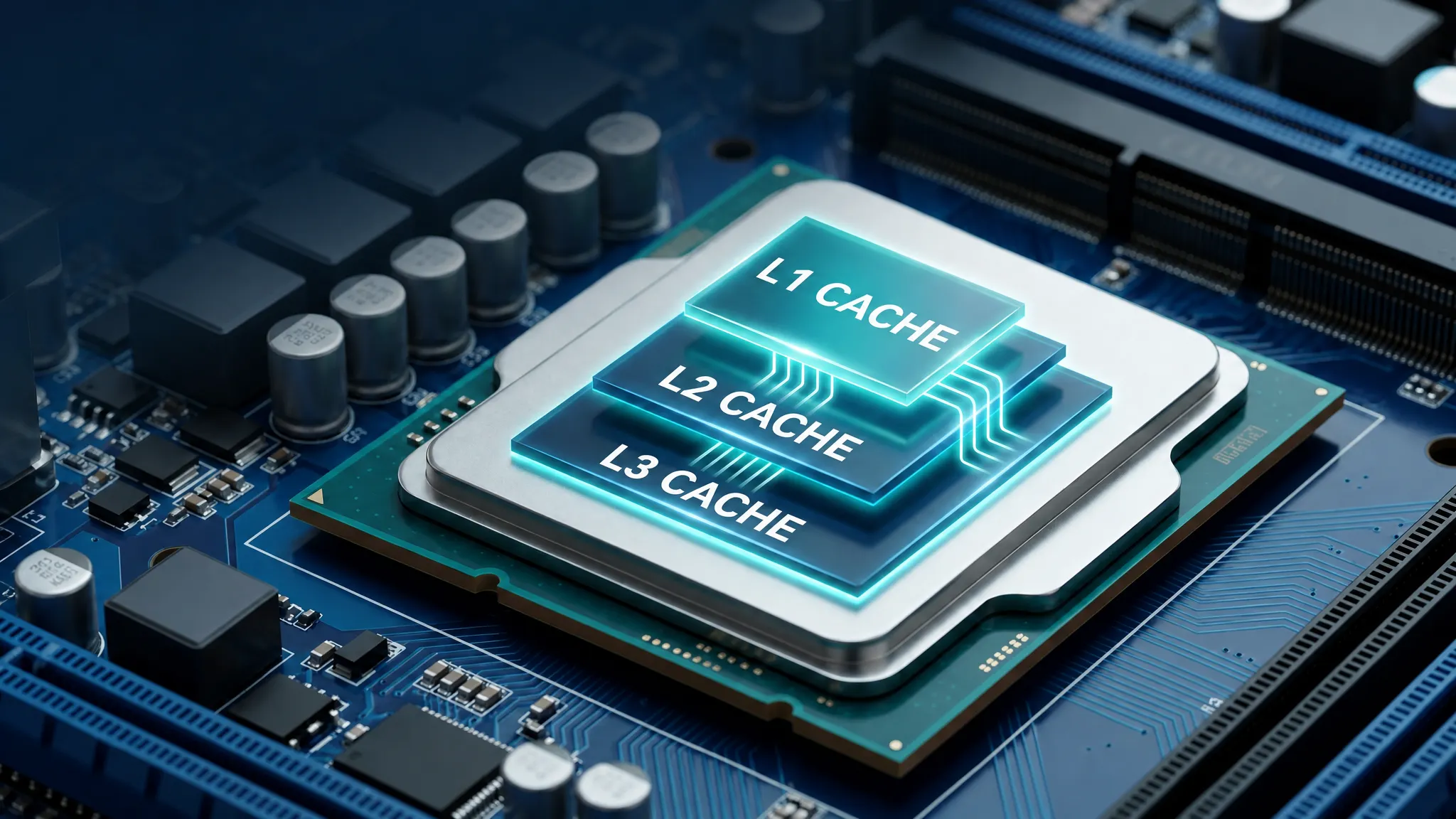
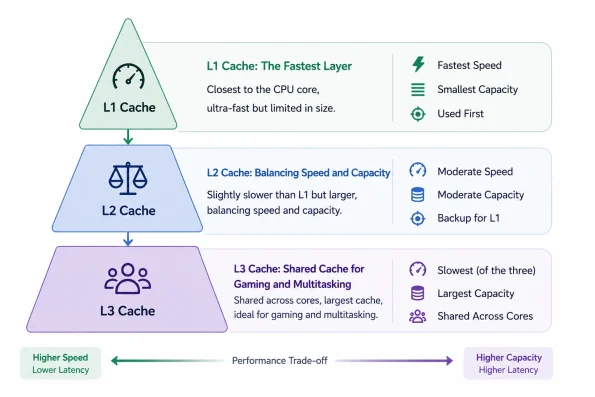
Processors have more than one pool of cache. For speed and size reasons, they separate the cache into three separate levels.
L1 Cache: The Fastest Layer
Level 1 (L1) cache is the chip’s smallest and fastest memory. The L1 cache is fully dedicated to each processor core. Each core can hold anywhere from 32KB to 128KB of data. The CPU always checks L1 first when it needs information. It only takes about 1 to 2 nanoseconds to get to L1 cache.
L2 Cache: Balancing Speed and Capacity
The Level (L2) cache is bigger than the L1 cache, but it is a little slower. It is a backup plan. If there is a miss in L1 cache, the CPU checks L2 next. These days, processors give each core its own L2 cache, which can be anywhere from 512KB to 2MB. It takes about 3 to 5 nanoseconds to get to L2 cache.
L3 Cache: Shared Cache for Gaming and Multitasking
The third type of cache is Level 3 (L3), which is the biggest and slowest. However, it is still much faster than RAM. L3 cache is different from L1 and L2 cache in that it is usually shared by all processor cores. On high-end chips, it can be anywhere from 16MB to a huge 128MB. Sharing the design makes it easy for cores to quickly send data to each other, which is important for complex tasks like a gaming scenario.
Why Do CPUs Have Multiple Cache Levels?
Engineers use more than one level to find the best balance between speed, cost, and space. SRAM costs a lot of money and takes up a lot of space on the silicon chip. It is not possible to make a processor with 100MB of L1 cache because the chip would be too big and get too hot. The tiered system keeps the most important data in L1, and the extra data stays in L3.
| Dimension | L1 Cache | L2 Cache | L3 Cache |
| Speed (Access Latency) | Fastest (~1 ns / 3-4 cycles) | Fast (~3 ns / 10-12 cycles) | Slower (~10-15 ns / 40-50 cycles) |
| Typical Size | 32-128 KB per core | 256 KB – 2 MB per core | 4 MB – 128 MB (shared) |
| Location | Inside each CPU core | Inside each CPU core | Shared across all cores |
| Memory Type | SRAM (highest grade) | SRAM | SRAM (denser, slower) |
| Sharing Model | Private to each core | Private to each core | Shared by all cores |
| Structure | Split: L1i (instructions) + L1d (data) | Unified (data + instructions) | Unified (data + instructions) |
| Cost per MB | Very high | High | Moderate |
| Hit Rate Impact | Highest impact on single-thread speed | Strong impact on per-core workloads | Strong impact on multi-core and gaming workloads |
Note: Latency values are typical figures for modern x86 CPUs and may vary slightly between architectures and clock speeds. Cache sizes shown are per-core for L1/L2 and total shared for L3.
CPU Cache vs RAM: What’s the Difference?
A lot of newbies get CPU cache and system RAM mixed up because they both store temporary data. But they do different things.
Cache Memory vs System Memory
| Feature | CPU Cache (SRAM) | System RAM (DRAM) |
|---|---|---|
| Location | Built directly inside the CPU chip | Installed on the motherboard |
| Speed | Extremely fast (1–15 nanoseconds) | Much slower (50–100 nanoseconds) |
| Capacity | Very small (Megabytes) | Very large (Gigabytes) |
| Cost | Very expensive to manufacture | Relatively cheap to manufacture |
| Purpose | Feeds immediate data to CPU cores | Holds all open programs and OS data |
Why More RAM Cannot Replace CPU Cache
Even if you add 64GB of RAM to your laptop, the CPU will still not be able to handle instructions faster. RAM is just like getting a bigger filing cabinet. The CPU still has a small workbench even if it has a small cache. It has to walk across the room all the time to get files from that huge 64GB cabinet, which slows things down.
How Does CPU Cache Affect Performance?
Cache size dictates how efficiently a processor handles heavy workloads.
Does More L3 Cache Actually Improve Gaming Performance?
Yes, in a big way. The CPU has to keep track of thousands of variables at once, like enemy AI, bullet paths, and physics engines. The CPU can store all of these variables on the chip if it has a very large L3 cache. This keeps the CPU from having to wait for the RAM, which makes frame rates (FPS) much higher and gameplay much smoother with fewer stuttering drops.
How Cache Accelerates Local AI Inference and Video Rendering
Massive amounts of data are processed in a straight line by tasks like editing videos and running local AI models. CPUs can load bigger chunks of the video timeline or AI dataset directly onto the chip when the cache is bigger. Faster AI responses are made, and rendering times are cut down.
Why CPU Cache Matters More in Mini PCs
When you build a huge desktop tower, you can get around inefficiencies by giving the processor more power and adding huge cooling fans. This is not possible with mini PCs.
Compact Systems Have Tighter Thermal Limits
Mini PCs have powerful parts packed into a case that is about the size of a book. The processors have to make less heat because they do not have as much room to cool down.
Efficient Cache Helps Reduce Latency and Power Consumption
Getting information from RAM uses electricity and makes heat. A high “cache hit” rate means that the cache system of a processor works well. This means that the CPU does not have to use the RAM very often. This saves power, lowers the system’s temperature, and keeps it running quietly.
How GEEKOM Mini PCs Benefit from Advanced Cache Architectures
GEEKOM Mini PCs have the newest Intel Core and AMD Ryzen processors, which have L2 and L3 cache structures that work very well. This means that these small computers can do tasks like editing videos, multitasking, and casual gaming just as well as desktop computers without getting too hot or making loud fans.
Intel vs AMD CPU Cache: Which Is Better?
Both of the major processor makers use different technologies to make cache work as efficiently as possible.
Intel Smart Cache Explained
For its L3 layer, Intel uses a technology known as “Smart Cache”. Intel does not forcefully divide the L3 cache among the cores; instead, the cores can share the whole pool as needed. If a single core is doing a heavy task that only needs one thread, it can use the idle cores’ extra cache space to speed up that core.
AMD 3D V-Cache Explained
AMD fixed the cache problem in a physical way. That is why AMD started stacking cache memory vertically on top of the processor die. A processor chip can only be so wide. According to AMD’s official technology documentation, this “3D V-Cache” lets them fit at least 64MB of L3 cache onto a single chip without making it bigger.
Which Is Better for Gaming and Mini PCs?
Right now, AMD’s 3D V-Cache is the best for just gaming.
When you remove RAM bottlenecks with the huge L3 capacity, you get huge FPS boosts in simulation and open-world games. But Intel’s Smart Cache gives you great, balanced performance for everyday multitasking and productivity, so you can choose either one based on your needs.
How to Check CPU Cache Size on Windows?
You do not need to download special software to see your cache specs.
- Right-click the Windows taskbar and select Task Manager.
- Click the Performance tab on the left side.
- Click on CPU.
- Look at the bottom right corner of the window. You will see the exact sizes of your L1, L2, and L3 caches listed clearly.
How Much CPU Cache Do You Need in 2026?
Because you cannot add more cache later, you need to make sure you get the right processor when you buy your computer.
For Everyday Productivity (8–12MB Total Cache)
A simple processor (like an Intel Core i3 or AMD Ryzen 3) with 8MB to 12MB of L3 cache is fast enough if all you do is browse the web, watch YouTube, and use Microsoft Office.
For Multitasking and Gaming (16–24MB Total Cache)
For modern games, photo editing, or having a lot of browser tabs open, you should get a processor in the middle range, like an Intel Core i5 or a Ryzen 5. This processor should have 16MB to 24MB of L3 cache.
For Demanding Workloads and AI (32MB+ Total Cache)
If you edit 4K video, compile code, or play simulation games that use a lot of CPU power, you need a high-end processor with 32MB or more of L3 cache. Examples of these processors are Core i7/i9 and Ryzen 7/Ryzen 9.
FAQs About CPU Cache
Does CPU cache affect FPS?
Yes. A bigger L3 cache makes gaming FPS much better by keeping game physics and engine data on the processor. This cuts down on the time the CPU has to wait for the RAM.
What is the purpose of cache memory in a CPU?
Cache memory’s job is to store the most-used data and instructions directly on the processor chip. This way, the CPU can get to them right away without having to wait for the slower main system RAM.
Is a bigger cache always better?
In general, yes, but only up to a certain point. When a cache gets too big, it takes the CPU a little longer to look through it. Engineers have to find a good balance between index size and search speed.
Can I upgrade my CPU cache?
Not at all. Manufacturers put the cache right into the processor’s very small silicon die. You can not change it or add to it. You have to get a whole new CPU if you want more cache.
Can you clear or reset the CPU cache?
No. At the hardware level, the CPU takes care of its own cache, deleting and adding data millions of times every second. You can not clear it by hand like you can with a web browser.