You are in the middle of an important Zoom call or about to send off an important document when all of a sudden, your home Wi-Fi goes out. Fear sets in. The wireless hotspot on their phone is the first thing most people think of, but there is a much better, more stable option right on your desk.
With just a charging cable, you can use your phone as a direct, high-speed internet connection for your desktop or Mini PC. USB tethering is the name for this method. You will learn how it works, how to set it up in seconds, and why it is the best way to make sure your internet connection always works in this guide.
What Is USB Tethering? And How it Works?
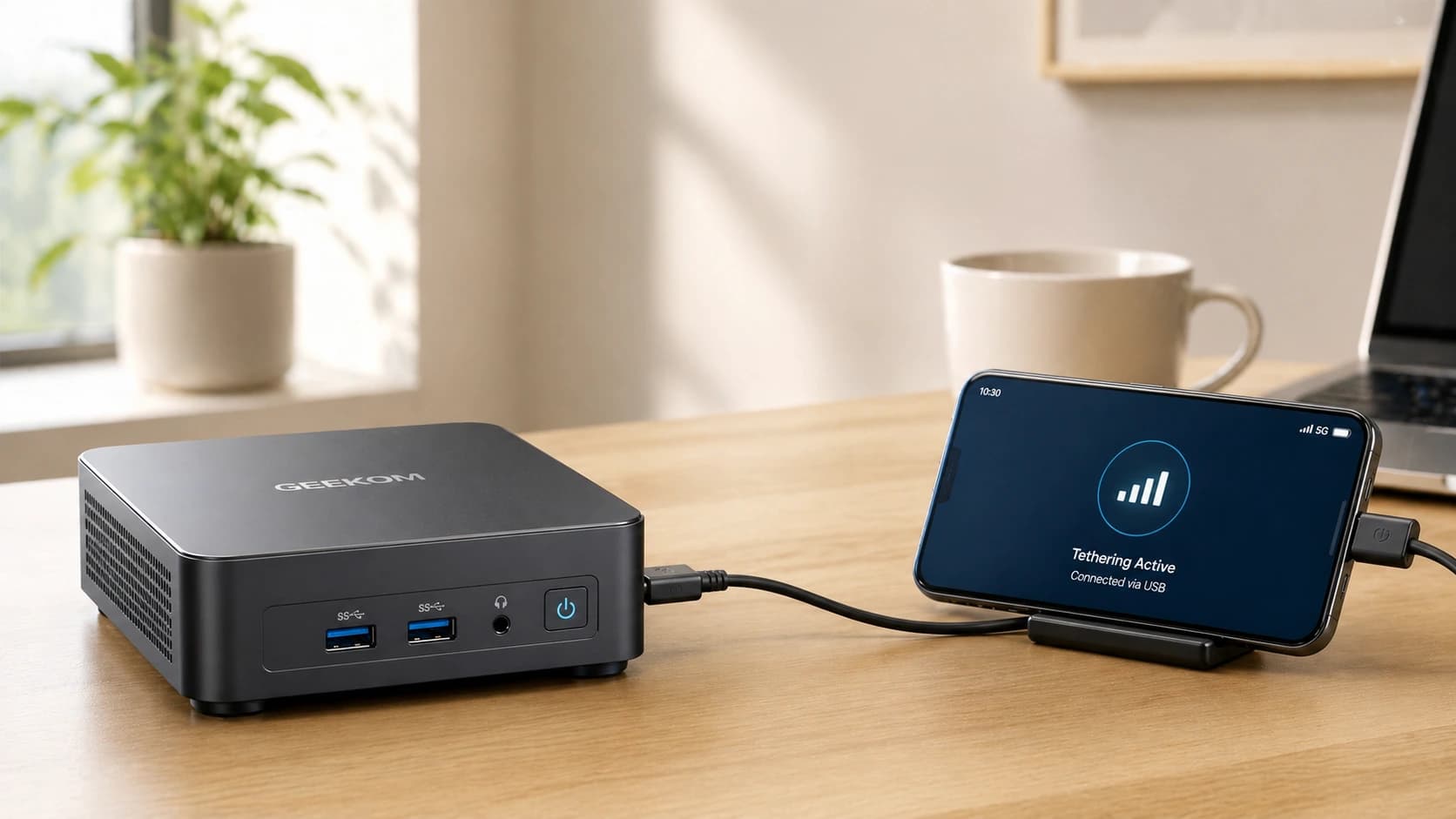
As its name suggests, USB tethering is the act of connecting your phone’s data plan to a computer using a physical USB cable. The internet data does not send a Wi-Fi signal into the air for your PC to pick up; instead, it goes straight through the wire.
If you connect your phone to your computer and turn on this feature, your computer will no longer see the phone as just a storage device. It sees the phone as a “wired network adapter” instead. This magic happens on Android devices thanks to a protocol named RNDIS, which stands for “Remote Network Driver Interface Specification.” Microsoft created RNDIS, which uses a USB connection to make a virtual Ethernet link. In other words, your computer will treat your phone the same way it would if you had plugged a regular Ethernet cable straight into your router.
The wired connection does not have the signal drops and interference that happen with wireless connections, so the experience is much smoother. But how does it really stack up against a regular hotspot? Let us break it down.
USB Tethering vs. Hotspot: Which Is Better?
You usually have two options when you need to connect your PC to the internet using your phone’s data: a wireless hotspot or a wired USB tether. Both use the data plan on your phone, but they send data to your computer in very different ways.
| Feature | USB Tethering | Wi-Fi Hotspot |
| Speed | Faster (Direct wired data transfer) | Slower (Subject to wireless interference) |
| Latency (Ping) | Very Low (Excellent for gaming/calls) | Higher (Prone to lag spikes) |
| Battery Drain | Low (Phone charges from the PC) | Very High (Generates significant heat) |
| Security | Extremely High (Physical connection only) | Moderate (The signal can be intercepted) |
| Device Limit | 1 Device (The connected PC) | Multiple Devices |
A Wi-Fi hotspot is the only way to connect multiple devices, such as a tablet and a laptop, at the same time. But USB tethering is much better if you are only working on one desktop or Mini PC. Low latency makes it possible for video calls and light gaming to work smoothly. Also, since the data travels over a wire rather than through the air, it is much safer to work in public places like airports, coffee shops, and libraries.
Step-by-Step: How to Enable USB Tethering
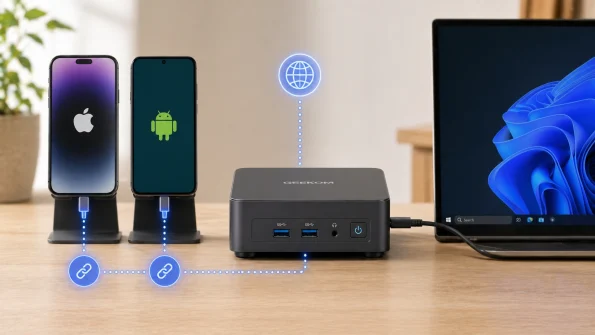
The steps for setting up a wired connection are very simple, but they are a little different if you are using an iPhone or an Android device.
Enabling on Android
- Use a good USB cable to connect your Android phone to your computer. Note: You have to plug in the cable first, or the tethering option will stay grayed out.
- Open the Settings app on your phone.
- Navigate to Network & internet (or Connection & sharing on some brands).
- Tap on Hotspot & tethering.
- Turn on USB tethering by flipping the switch next to it. Within seconds, your PC should be able to see the new network.
Enabling on iPhone
- You can use a Lightning or USB-C cable to connect your iPhone to your computer.
- Open the Settings app on your iPhone.
- Tap on Personal Hotspot.
- Toggle Allow Others to Join to the “On” position.
- If your phone asks you to, enter your passcode and tap Trust This Computer. Now, your computer and iPhone will be able to talk to each other.
It is easy to turn on the feature on your phone, but the connection will work better if you use a certain operating system on your computer.
Setting Up USB Tethering on Windows and Mac
Setting up the phone and computer may be as easy as plugging them in and turning them on, or you may need to download some extra software.
Android + Windows
This is the most straightforward mix. It is fully plug-and-play because Windows already supports the RNDIS protocol that Android uses. After you turn on USB tethering on your phone, Windows 10 or 11 will connect you to the internet and install the drivers you need in the background.
Android + Mac
This combination needs a little extra work. It is not built into Apple’s macOS to support the RNDIS protocol. Tapping on tethering on an Android phone will not do anything. It is necessary to install a different driver to fix this. Another popular and reliable choice is HoRNDIS, a free and open-source driver that connects Android and macOS and lets your Mac see the phone as a network adapter.
iPhone + Mac or Windows
When you connect an iPhone to a Mac, the process is smooth because Apple makes its products to work well with each other. To connect an iPhone to a Windows PC, you must have the official iTunes software from Apple on your computer or the Apple Devices app on newer versions of Windows. Windows needs these programs to get the drivers for Apple mobile devices so that it can send internet traffic through the iPhone.
When Should You Use USB Tethering on a Desktop or Mini PC?
You can move laptops around to find the best Wi-Fi signal, but desktop computers and Mini PCs usually stay in one place. Because of this, networking becomes more difficult, and a wired phone connection is very helpful.
For example, a lot of modern PC cases are made with thick metal frames. The metal and wood in a heavy wooden desk or against a wall can create a “Signal Shielding” effect that makes the Wi-Fi signal weaker when it reaches the computer’s antennas.
This is the best time for a wired backup. For lightning-fast wireless speeds, high-end devices like GEEKOM Mini PCs come with advanced Wi-Fi 6E and Wi-Fi 7 cards. However, USB tethering is still the best “Plan B”. If you are out in the field, in a hotel with a weak router three rooms away, or if your home internet provider suddenly goes down, plugging your phone directly into your Mini PC will keep you online.
Read more: Everything You Need to Know About GEEKOM Mini PCs (Complete Guide 2026)
Why USB Tethering Works Better on Mini PCs
The Mini PC’s physical design makes it perfect for this setup. Mini PCs often sit right on top of your desk, right under your monitor, because they have a small form factor (SFF). That means your phone can be right next to the computer. Because the cable is only 1 foot long, it is easy to manage. This is better than having to run a wire all the way down to a big tower PC on the floor, which would be messy. It gives you a direct, lag-free link that does not take up any space in your workspace.
Of course, like any technology, this method has its trade-offs.
Pros and Cons of USB Tethering
Before you remove your home router completely, you should think about the pros and cons of using your phone’s wired connection.
The Pros:
- Unmatched Stability: Wireless interference from microwaves, Bluetooth devices, or thick walls does not affect wires.
- Lower Latency: Because data moves faster through copper than through air, gaming and video calls have lower ping times.
- Continuous Power: When you tether, your phone slowly charges from the PC’s USB port. This means that your battery will not die as quickly as it would with a wireless hotspot.
The Cons:
- Physical Restriction: You can not separate your phone from your computer. You can not go into the kitchen and text at the same time if your phone is connecting your PC to the internet.
- Heat Generation: Your phone’s battery can get hot if it handles a lot of data traffic while it is charging at the same time.
- Hidden Data Drain: PCs are known to download huge updates in the background, like Windows Updates or game patches. You can quickly use up all of your monthly mobile data on your PC if you do not have an unlimited data plan.
Before you plug in, make sure you’ve thought about the pros and cons. If the internet still will not connect, do not worry. It only takes seconds to fix most problems.
USB Tethering Not Working? 5 Quick Fixes
Follow these quick steps to fix the problem if your computer will not connect to your phone’s internet:
- Check the Cable: Not every USB cable is the same. A lot of cheap cables can only charge and not send data. Use the cable that came with your phone instead.
- Turn Off Wi-Fi: This can happen when your phone is trying to connect to Wi-Fi on your PC. This will force your phone to use cellular data. Turn off the Wi-Fi switch on your phone.
- Update Drivers: On Windows, open Device Manager, find your phone under “Network adapters,” right-click, and select “Update driver.”
- Trust the Computer (iPhone): If you ignored the “Trust This Computer” pop-up on your iPhone, the connection will be blocked. Unplug the phone, plug it back in, and ensure you tap “Trust.”
- Restart Both Devices: It may be a well-worn piece of advice, but it really does work. A quick restart of your phone or computer can resolve temporary software glitches that are preventing a connection.
Frequently Asked Questions
Is USB tethering faster than a Wi-Fi hotspot?
Yes. As the data moves along a physical wire, it avoids interference from wireless networks. This makes download speeds faster and latency (ping) much lower.
Does USB tethering use more data?
It does not use more data to tether. On the other hand, desktop computers often do heavy tasks in the background, like OS updates or cloud syncing, that can use up your mobile data much more quickly than a smartphone would.
Can USB tethering damage my phone’s battery?
Even though it will not hurt the phone right away, doing heavy data transfers all the time while it is charging can make it too hot. Over many months, this heat can slightly speed up the normal wear and tear on batteries.
Does USB tethering work on all desktop OS (Windows, Mac, Linux)?
It works right out of the box on Linux and Windows. On the other hand, Mac computers need third-party drivers (like HoRNDIS) to connect to Android phones. They work with iPhones directly, though.
Stay Connected No Matter What
One of the most reliable but little-used tools in modern computing is USB tethering. You can avoid the problems that come with unstable Wi-Fi hotspots, cut down on latency, and keep your phone charged all at the same time by connecting your phone to your PC with a data cable. This wired connection makes sure that your work never stops, even if your home internet goes out suddenly or if you are working from a coffee shop.
There is no better backup plan than tethering, but your main computer for everyday use should always have the best networking hardware. Check out the premium line of GEEKOM Mini PCs if you want a small but powerful desktop with the newest Wi-Fi 6E and Wi-Fi 7 technology for lightning-fast wireless speeds. For any workspace, they are the perfect mix of cutting-edge connectivity and design that saves space.