
















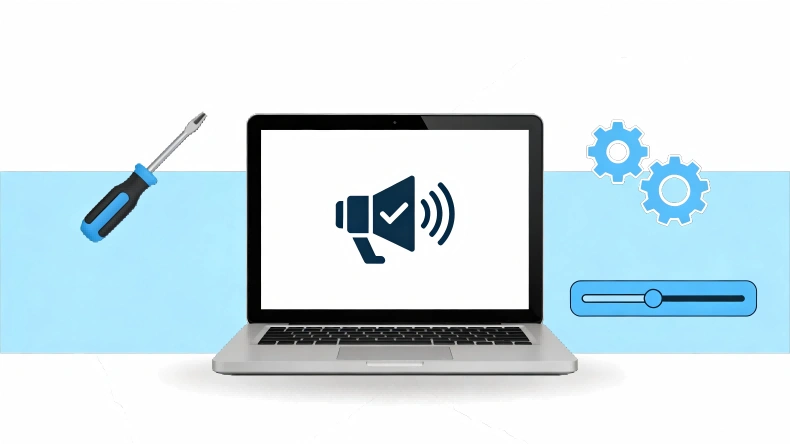
When you sit down to watch a movie, join an important video call, or listen to a favourite playlist, your laptop is completely silent. Even though you press the volume up key, nothing changes. It is really annoying when your laptop does not have sound, especially when you need it to work right away.
Fortunately, a laptop that refuses to power on doesn’t necessarily indicate a permanent malfunction. The problem is usually a small software bug or a mistake in the settings that you can fix quickly.
In this guide, you will find out exactly why your laptop lost its voice and how to fix no sound on a laptop.
Why Your Laptop Has No Sound?
Some people get scared when their laptop stops making noise all of a sudden and think the speakers have broken. There are, however, many pieces of hardware and software that work together to make up the audio system in your laptop. Even a single broken or mixed-up link in that chain can halt the sound.
Hardware vs Software Causes of Audio Issues
There are two main types of audio problems: hardware and software.
Some examples of hardware problems are a broken headphone jack, a frayed wire, or internal speakers that will not work. On the other hand, software problems happen a lot more often. Some of these are settings that mute the sound, Windows updates that make audio incompatible, drivers that are not working right, or your laptop sending the sound signal to the wrong device.
Following a few straightforward steps to fix software problems should fix the vast majority of sound problems, according to Microsoft’s official support guidelines.
4 Common Causes of No Sound on a Laptop
Before you look at how to fix it, it is helpful to know why laptops usually go silent. In most cases, these are the ones to blame.
4 Common Causes of No Sound on a Laptop
Know what’s wrong before you fix it.


 Tip: Always check the simplest cause first — muted volume or the wrong output device is the most common culprit.
Muted Audio or Incorrect Output Device
When there is no sound, the most common and easiest reason is that the volume is turned down or the laptop is trying to play sound through a device that is not currently active. When you disconnect Bluetooth headphones or a laptop from an external monitor, your system may still be trying to send sound to those devices.
Outdated or Corrupted Audio Drivers
Drivers for audio devices are the software that connects your laptop’s operating system to its speakers. If these drivers are outdated, broken after a recent update, or incompatible with other software, people can’t talk.
Audio Enhancements Causing Conflicts
Many new laptops have “audio enhancements” built in that can make your speakers sound better or louder. These features usually work fine, but occasionally they can go wrong or not work at all with some programs or system updates, stopping the sound from coming out.
Physical Connection Problems
If you are using wired headphones or external speakers, the problem could be with the hardware. If there is a loose connection, a broken cable, or something stuck in the headphone port, the sound signal might not get to your ears.
6 Fixes to Restore Sound on Your Laptop
These step-by-step fixes will help you figure out why your laptop will not play sound and resolve the problem.
6 Fixes to Restore Sound on Your Laptop
Step-by-step solutions to get your audio working again.


Check Volume and Mute Setting
Please remember to start with the basics. On Windows, find the speaker icon in the bottom right corner of your screen. On Mac, find it in the top right menu bar and click it. Make sure the slider for the volume is all the way up, and there is no “X” or slash showing that the sound is muted. You should also check the app you are using, like YouTube or Zoom, to make sure the video or call is not muted.
Verify the Correct Audio Output Device
The sound from your laptop might be going to the wrong place. On your taskbar, click the speaker icon. Windows users can see a list of connected audio devices by clicking the arrow next to the volume slider. You can find your built-in speakers by looking for something like “Realtek High Definition Audio” or a similar name. If you want to use an external monitor but are not sure how to connect it, you might want to look at a DisplayPort vs. HDMI picking guide to make sure your cable can send audio.
Run the Built-in Audio Troubleshooter
Windows and macOS both come with tools that can automatically find and fix common issues. When you are on Windows, go to Settings > System > Troubleshoot > Other troubleshooters and click “Run” next to Audio. The system will check for muted devices, driver problems, and services that are not running. Often, it will fix the issue without you having to do anything else.
Update or Reinstall Audio Drivers
It is necessary to update your drivers if they are malfunctioning. Click the Start button and then right-click on it. Then choose Device Manager. Make the section called “Sound, video, and game controllers” bigger. To update the driver, right-click on your main audio device and choose “Update driver”. If that does not work, choose “Uninstall device”, restart your laptop, and Windows will install a new driver for you when it starts up.
Disable Audio Enhancements
Disabling enhancements can resolve software conflicts that may be causing the silence. Enter Settings > System > Sound on Windows. Pressing on your output device will bring up its settings. Locate the “Audio enhancements” section and pick “Off” from the dropdown menu. Test your sound again to see if this fixes the problem.
Inspect Physical Ports and Cables
If your headphones are wired, take them out and firmly plug them back in. Looking for lint or dust in the audio port with a flashlight can make the laptop think the headphones are plugged in when they aren’t. Learning about the different types of headphone jacks and how they are used can help you make sure you plug into the right output if you are not sure which port to use.
How to Prevent Future Audio Problems on Your Laptop
When your sound works again, you will want to keep it that way. If you want to avoid future audio dropouts, do these things on your laptop:
- Keep Drivers and Operating Systems Updated: Check for Windows or macOS updates on a regular basis. These updates often include fixes for known audio bugs.
- Safely Remove External Devices: Make sure you switch your audio output back to the internal speakers before disconnecting Bluetooth speakers or HDMI cables so the system does not get confused.
- Keep Ports Clean: Every once in a while, blow dust out of your headphone jacks and USB ports with compressed air.
Avoid Sketchy Audio Software: Be careful when downloading third-party apps that boost volume or equalise sound, as these often mess up your computer’s built-in audio drivers.
Frequently Asked Questions
Q1: Why Does My Laptop Suddenly Have No Sound?
A: A sudden loss of sound is usually caused by a software update running in the background that turned off your audio driver for a short time or by the laptop switching its default audio output to a Bluetooth device or monitor that is not connected.
Q2: What To Do if Volume Is Full but No Sound on Laptop?
A: If you turn up the volume all the way to 100% and still cannot hear anything, your laptop is probably sending sound to the wrong output device. Select your built-in speakers as the active playback device by clicking the speaker icon in the taskbar.
Q3: How Do You Reinstall Audio Drivers on a Laptop?
A: In Windows, open the Device Manager, expand “Sound, video, and game controllers”, right-click your audio device, and select “Uninstall device”. This will install the drivers again. When you restart your computer, the operating system will get a new driver and install it for you.
When It’s Time to Replace Your Laptop Instead of Fixing It
It is usually easy to fix a laptop that does not have sound by checking the volume, choosing the right output device, or reinstalling the audio drivers. But if you have tried all of these software fixes and your laptop is still dead silent, you may have a broken motherboard or internal speakers that have stopped working. It might not be worth the money to fix the hardware if your laptop is also slow, overheating, or has old hardware.
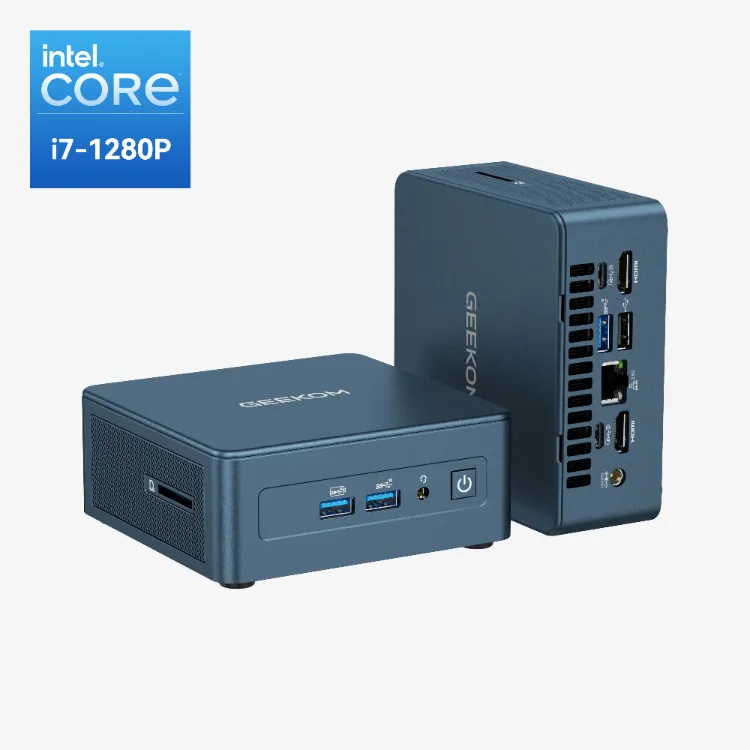
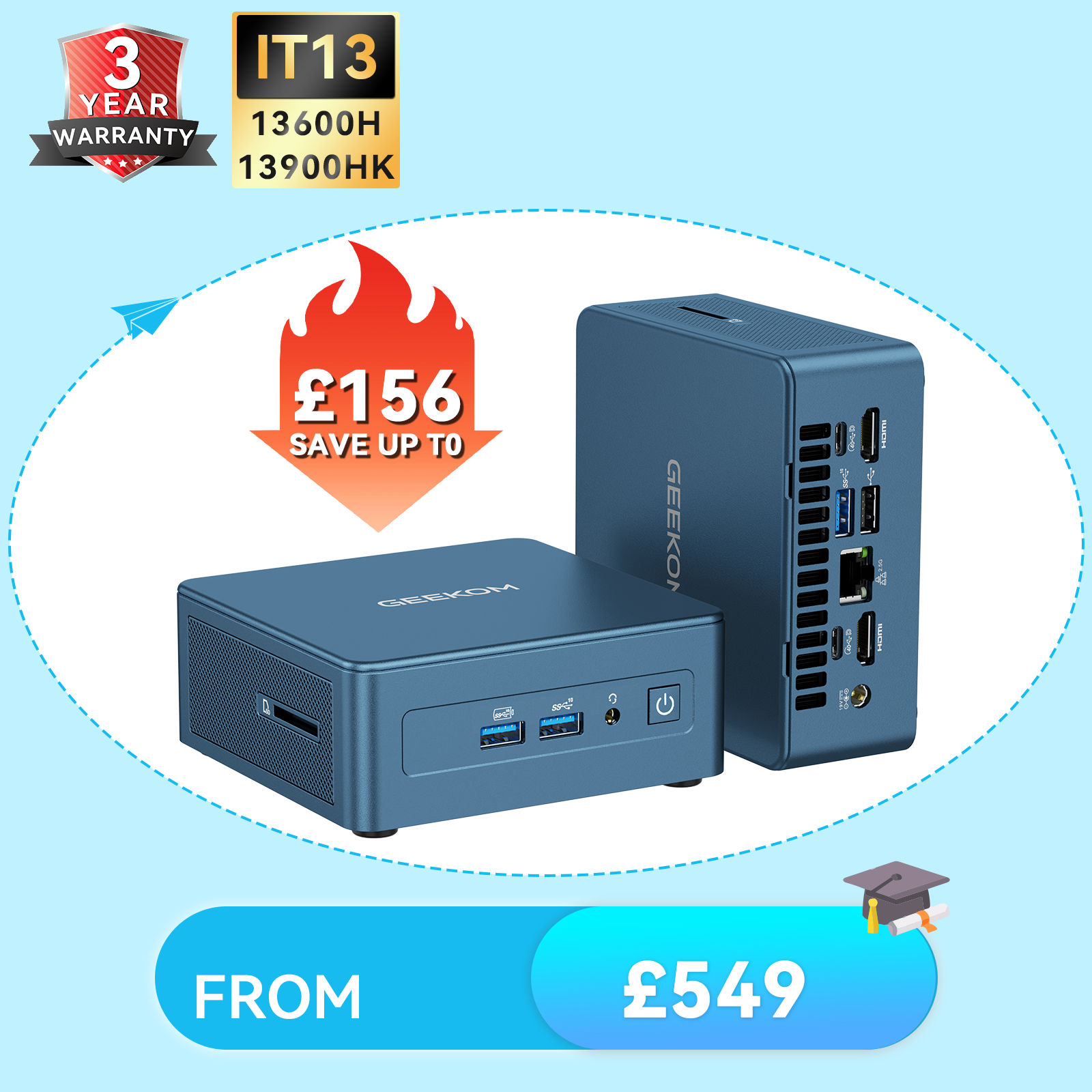
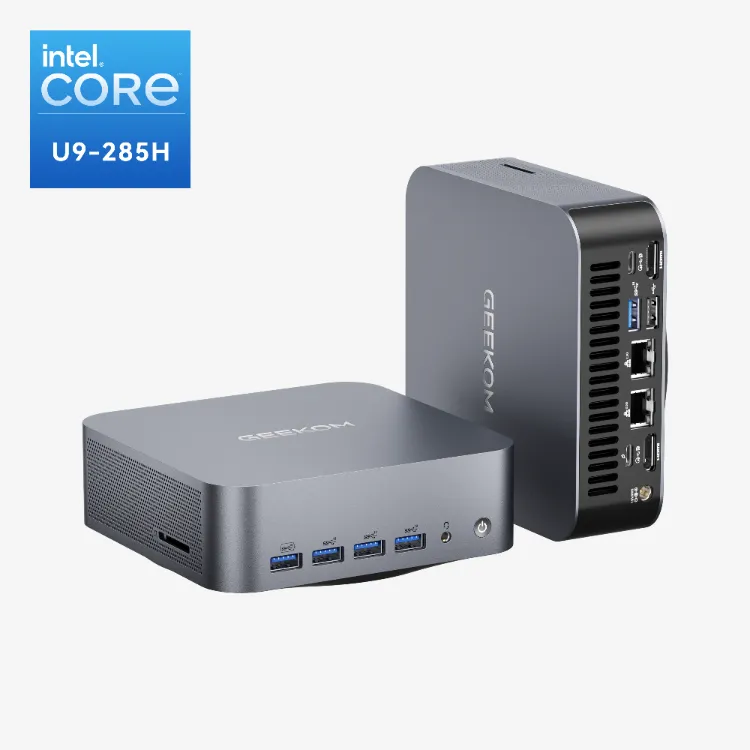
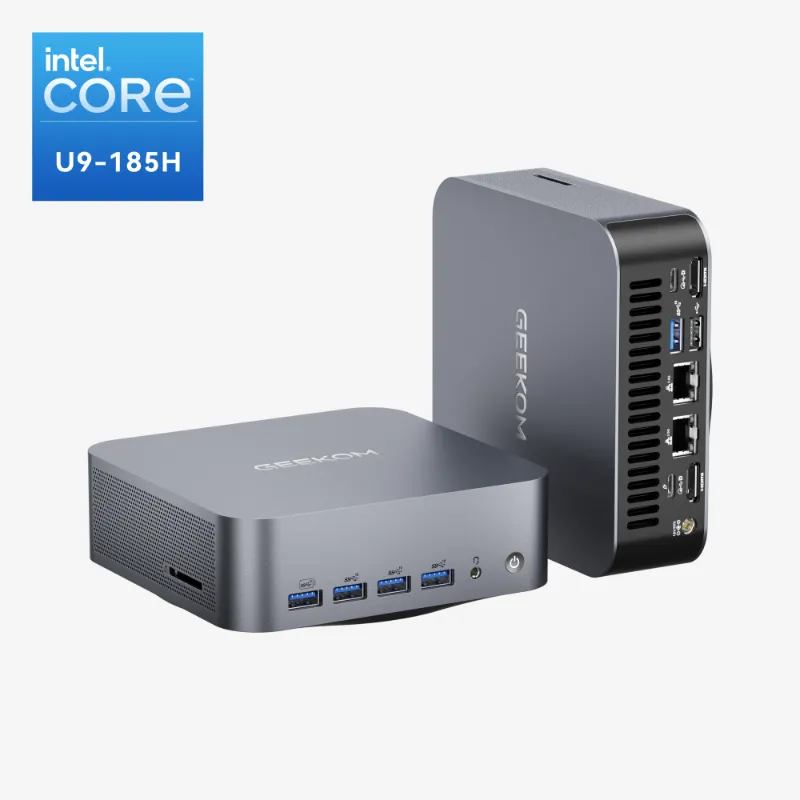
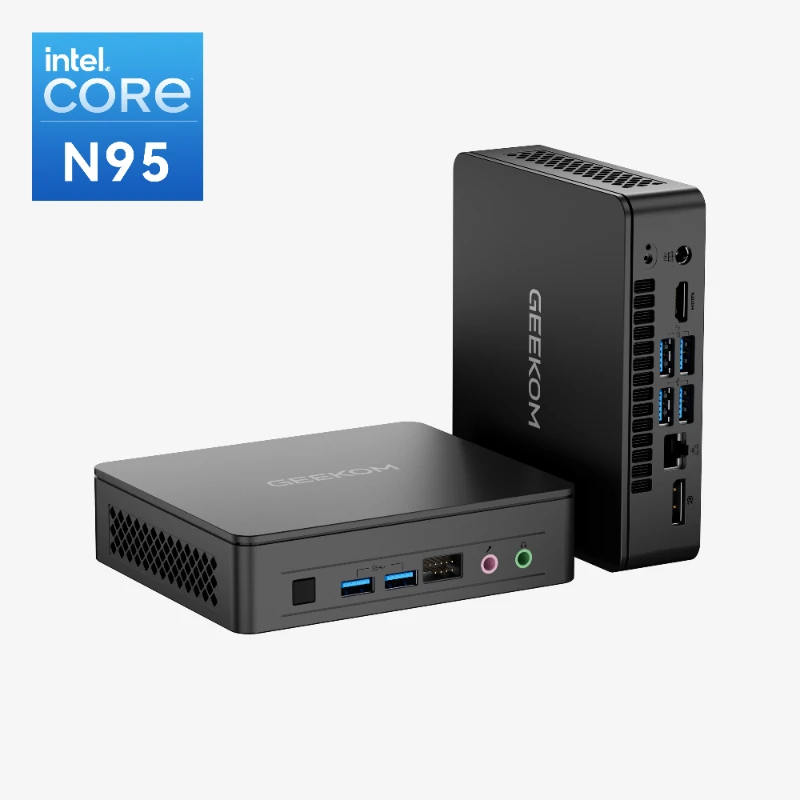
For example, if you have an older display and are wondering what the difference is between HDMI 1.4, 2.0 and 2.1, it might not be worth the cost. When your old computer starts to cause you more trouble than it is worth, it is time to think about getting a new one. Check out GEEKOM‘s newest high-performance mini PCs as an alternative to laptops for a reliable, up-to-date, and space-saving computing experience.