What is DisplayPort?
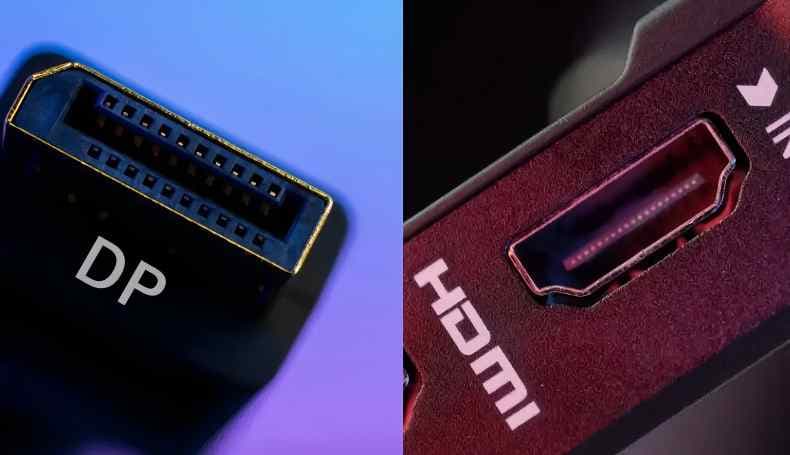
DisplayPort is a standard for connecting video devices like PCs to monitors. The PC industry’s top leaders came together to make VESA as a replacement for older standards like VGA and DVI. DisplayPort was designed from the start to work in professional and high-end PC settings. Its biggest strength is its large bandwidth, which makes it great at supporting both high resolutions and high refresh rates. Transporting the video signal in packets makes it possible to assign bandwidth in a variety of ways.
This design makes it easier to get smooth visuals even at high resolutions like 4K and 8K. This makes it a perfect fit for displays used by creative professionals and gamers. Multi-Stream Transport (MST) is another feature of DisplayPort that lets a single port send signals to more than one display. Connecting monitors that work with daisy chains is a neat way to set up multiple screens without a lot of cables. A lot of graphics cards come with more than one DisplayPort port because of these benefits. This makes DisplayPort the standard interface for PCs.
What is HDMI?
HDMI, on the other hand, was made for home theatre gear like TVs, recorders, and game consoles. When it first came out, it quickly became the standard connector for home use because it could send both video and audio through a single cable. Most modern TVs have a row of these thin, horizontal ports that you can see behind the screen. HDMI can now connect Blu-ray players, game consoles, streaming devices, and PCs.
Furthermore, HDMI has audio features like ARC (Audio Return Channel) and control features like CEC that let devices talk to each other. Because these systems work together, you can use your TV remote to control both your soundbar and recorder. Since making the standard compatible with home theatre systems was a big part of the process, HDMI is much easier to use in the living room.
Though DisplayPort is still better for PC-specific needs like high refresh rates and setting up multiple monitors. Which one you choose will depend on your specific needs.
The Differences Between DisplayPort and HDMI

Here are the main differences between DisplayPort and HDMI. It is easier to see where each one stands when you view them through the lens of design philosophy, specifications, and modern technology.
Core Differences and Feature Comparison
The purpose of each standard is the first thing to think about. This is a good way to sum up the main differences:
| Feature | DisplayPort | HDMI |
|---|---|---|
| Primary Field | PC & Professional Use | General Home AV Equipment |
| Main Devices | PC Monitors, Pro Displays | TVs, Projectors, AV Amps, Game Consoles |
| Design Focus | Prioritises high resolution, high refresh rates, and multi-display setups | Prioritises a single cable for video, audio, and control, with a focus on interoperability between consumer electronics |
| Key Functions | MST (Multi-Stream), Adaptive-Sync | ARC/eARC, CEC, VRR (in 2.1) |
| Common Areas | PC, Workstations, Gaming | Living Rooms, Conference Rooms, Home Gaming |
DisplayPort’s main goal is to make a stable link between a PC and a high-performance monitor, with a focus on supporting multiple displays and high resolutions. This was possible by giving it a lot of bandwidth and features like MST. HDMI is a simple way to connect home electronics like TVs, recorders, and game consoles. It has a lot of features that make it useful for home theatre and living room setups, like ARC and CEC, and it combines video and audio into one cable.
Although both can send video and audio, their different backgrounds—one focused on PCs and the other on consumer electronics—have led to different feature sets and areas of expertise.
Resolution and Refresh Rate Comparison
Now compare resolution and refresh rate, which is something that people often talk about. Check out what the different versions can do:
| Standard | Max Bandwidth (Approx.) | Common Supported Resolutions/Refresh Rates |
|---|---|---|
| DP 1.2 | ~17 Gbps | 4K@60Hz, Full HD@144-240Hz |
| DP 1.4 | ~32 Gbps (with DSC) | 4K@120Hz, 8K@30Hz; with DSC, 4K@144Hz & 8K@60Hz |
| DP 2.0/2.1 | Up to 80 Gbps class | Multiple 8K@60Hz displays, or 4K@240Hz class |
| HDMI 1.4 | ~10 Gbps | 4K@30Hz, Full HD@60Hz |
| HDMI 2.0 | ~18 Gbps | 4K@60Hz, Full HD@120-240Hz |
| HDMI 2.1 | ~48 Gbps | 4K@120Hz, 8K@60Hz |
If you look at the numbers, the newest version of DisplayPort has more bandwidth than the old one. This means it will be better able to handle future high-resolution needs. Getting these maximums, though, depends on the PC, the monitor, and the cable all working together as they should.
Related article: HDMI 2.0 vs 2.1: Which One Should You Choose?
HDMI 2.1 vs. DisplayPort 2.0
Finally, let’s briefly compare the cutting-edge features of the latest generation standards.
- ✓ VRR – Variable Refresh Rate for smooth gaming
- ✓ ALLM – Auto Low Latency Mode
- ✓ eARC – Enhanced Audio Return Channel
- ✓ Ideal for gaming & home theatre setups
- ✓ Designed for 8K resolution and beyond
- ✓ Multi-monitor daisy-chain support
- ✓ Ultra-high-resolution workstation focus
- ✓ PC-centric design for multi-display configurations
The HDMI 2.1 standard increased its bandwidth to 48 Gbps, which made it possible to support 4K at 120Hz and 8K at 60Hz. It also made a big difference in gaming, with features like VRR and ALLM becoming standard. With its eARC support, you can send high-quality surround sound from your TV to a soundbar or AV amplifier without any loss of quality.
The huge 80 Gbps class bandwidth of DisplayPort 2.0/2.1 makes it easy to handle 8K and even higher resolutions. It can power multiple 8K monitors from a single PC and works well with VR and AR apps that need both high resolution and high frame rates.
To put it simply:
- HDMI 2.1 is driving the evolution of living room and console gaming.
- DisplayPort 2.0/2.1 is pushing the boundaries of ultra-high-resolution, multi-display PC setups.
Which One Is Right for You?
Now comes the important question: which one do you pick? Whether you are using your monitor to edit videos, play games, or watch TV, the best way to connect can change.
Professional Use: Video Editing and More
When you are editing videos, photos, or making 3D models for work, resolution and colour accuracy are very important. A DisplayPort connection is the best way to make sure you have enough bandwidth to see every detail on a 4K or 5K monitor. It also makes working with 10-bit colour or HDR content more stable, especially with DP 1.4 or later.
You may also need to output to a TV to watch your footage. In that case, it would make sense to use DisplayPort for your editing screen and HDMI for your review TV. For business use, think of it as using DisplayPort for making things and HDMI for checking them out.
Casual and General Use
For normal PC tasks like watching videos, surfing the web, or using Office software, you do not have to be too cautious about which one you choose. A simple way to connect your PC and monitor is if both of them have an HDMI port.
If you have an extra DisplayPort port, you could use it to connect two monitors, one on DP and one on HDMI. You probably will not be able to tell the difference between the two if you only have one monitor. If you want to upgrade to a 144Hz or 4K monitor in the future, getting a monitor and cable that work with DisplayPort now will give you more choices later on.
Watching TV
HDMI is the only way to connect your TV to your computer and stream movies, TV shows, or music. Almost all home entertainment devices, like TVs, recorders, game consoles, streaming devices, and soundbars, connect via HDMI. Commonly, you will connect your PC to the TV using a single cable that goes from the PC’s HDMI port to the TV’s HDMI input.
You can still connect your PC to a TV with a DP-to-HDMI adapter, even if your PC only has DisplayPort. It just takes one more step. If your main goal is to watch on TV, make sure that your TV setup always uses HDMI, and you should not have any problems.
Gamers
DisplayPort is a great tool for PC gamers who want to enjoy high frame rates. DP connections make it easier to use technologies like G-SYNC and FreeSync, which let you change the refresh rate, on gaming monitors with 144Hz or 240Hz refresh rates.
If you want to get the fastest frame rates at Full HD or WQHD, you might want to connect with DisplayPort first. On the other hand, HDMI is the standard you need to use when playing on a home console. With the newest game consoles and a TV that works with HDMI 2.1, you can get 4K at 120Hz and VRR.
As a general rule, DisplayPort is better for PC games, and HDMI is better for console games.
Recommended PCs for DisplayPort and HDMI
As examples of mini PCs that make great use of both DisplayPort and HDMI, let’s look at the GEEKOM Air 12 and A8.
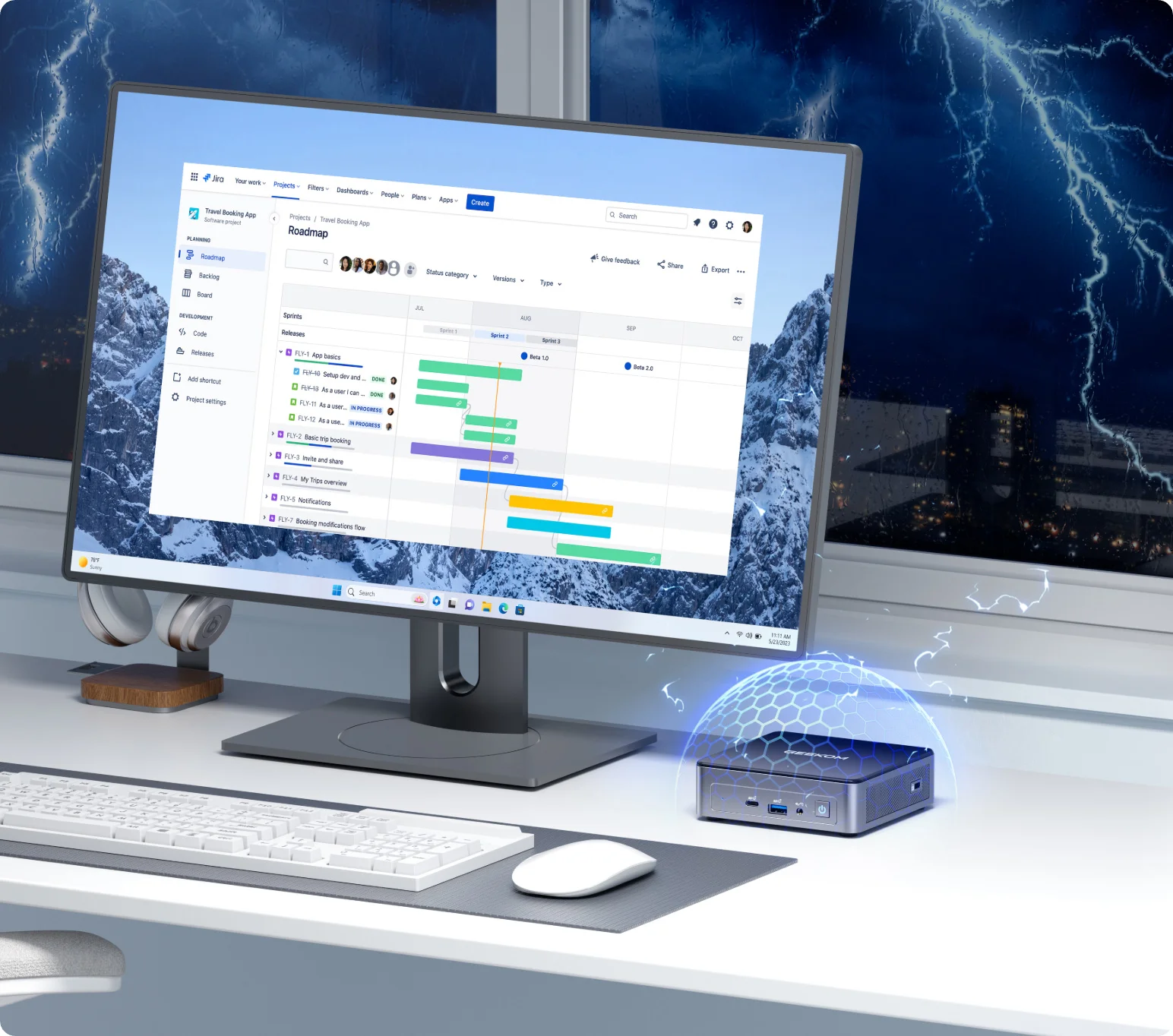
GEEKOM Air12 Mini PC
- Sturdy Metal Frame: Can withstand up to 440 lbs (200 kg) of pressure, providing ultimate stability and long-lasting durability.
- Rich interfaces: 5 USB ports, SD card reader and Kensington Lock, and supports 3 displays expansion
- 339 rigorous tests: Tested through 339 rigorous tests, it can run stably for over five years.
- Dual-copper heatpipes: Equipped with a dual copper heat pipe cooling system, which ensures twice the heat dissipation efficiency.
- Ready-to-use: Pre-installed with Windows 11 Pro and compatible with multiple operating systems.
The GEEKOM Air12 is a small mini PC with an Intel N-series CPU that uses little power. It has both an HDMI 2.0 and a Mini DisplayPort 1.4 port, which makes it a good choice for regular users and light creators who want to use a 4K monitor. It is possible to upgrade in stages with this setup. For example, you can connect a Full HD monitor via HDMI now and then switch to a 4K monitor via DP later. Its design makes it perfect for use 24 hours a day, seven days a week as a home server or in an always-on home office.
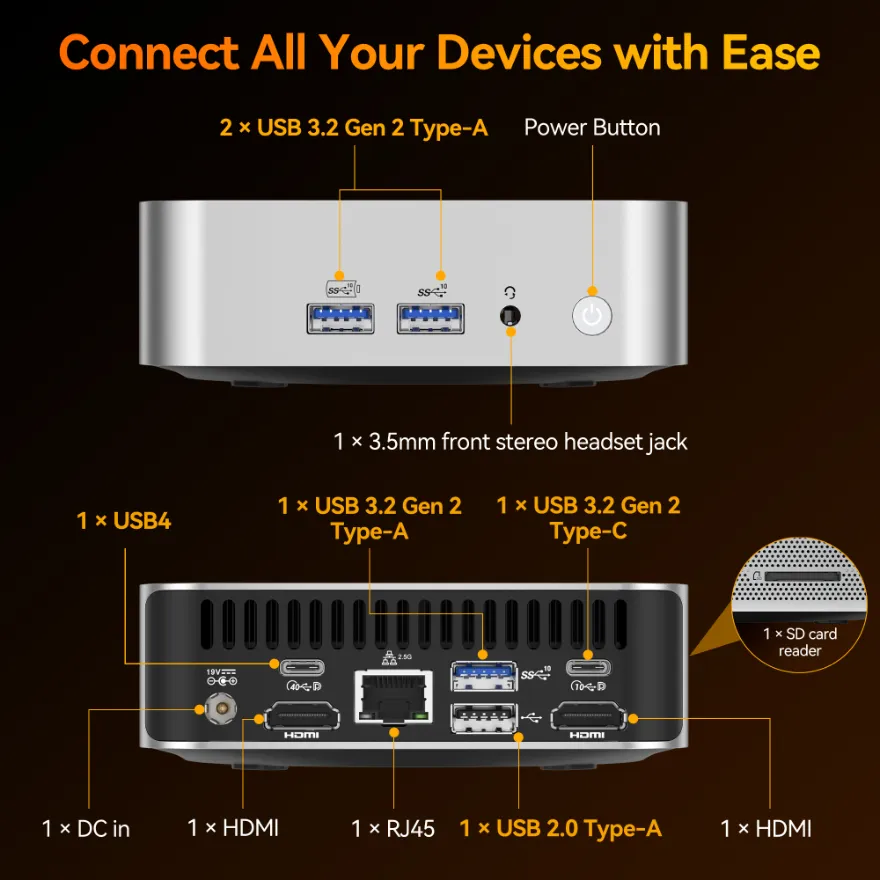
The GEEKOM A8 is a mini PC with an AMD Ryzen HS-series CPU and a high-performance GPU built in. It is more powerful. As well as two HDMI 2.0 ports that can handle 4K at 60Hz, it has four USB4 ports that can output a DisplayPort signal, so you can use up to four displays at the same time. This makes it good for people who want to edit videos on multiple 4K monitors or for business people who need to show charts and dashboards on multiple screens. Its appeal lies in how flexible it is; it has a base that is focused on HDMI and can be expanded with high-performance monitors using a USB4-to-DisplayPort connection when needed.
Converting Between DisplayPort and HDMI
DisplayPort and HDMI are not directly compatible because they are physically and signal-wise different standards. If you need to switch between them, here’s what you should look for in a cable or adapter.
When Do You Need to Convert?
More often than not, your monitor or TV will only have an HDMI input and your PC will only have a DisplayPort output. A desktop graphics card might have more than one DP port, but the monitor might only have one HDMI port. At this point, you will need a DP-to-HDMI adapter or cable to connect.
You can also connect a laptop or game console with an HDMI output to a monitor with a DisplayPort input. You will need a less common and more expensive HDMI-to-DP converter for this direction.
A quick way to remember is that an HDMI-to-DP converter is used to connect a game console to a PC monitor, while a DP-to-HDMI converter is used to connect a PC to a TV or general-purpose monitor.
Choosing a Conversion Cable
In order to choose the right conversion cable or adapter, you should first look at the direction of the change. Even though they look alike, a “DP-to-HDMI” converter and a “HDMI-to-DP” converter are not the same thing at all. Once you are sure of the direction, check to see what the highest resolution and refresh rate are. Most products can handle Full HD at 60Hz without any problems, but if you want to go for 4K at 60Hz or higher, you need to make sure the adapter can handle it. For extra peace of mind, you should also make sure that it supports audio and HDR. Most of the time, it is easier to connect devices that use the same standard directly instead of using an adapter. It is best to buy your gear so that you do not need any adapters if you want to upgrade to a high-resolution or high-refresh-rate setup in the future.
Summary
DisplayPort and HDMI are both important interfaces for sending video and audio, but they came from different places and have different strengths. DisplayPort is usually the best way to connect a PC to a high-performance monitor so that you can use high resolutions, fast refresh rates, or more than one display. As of now, HDMI is the standard way to connect home theatre electronics like TVs, game consoles, and soundbars.
You can easily get the best of both worlds if you choose a mini PC like the GEEKOM Air 12 or A8 that supports both standards. If you know the difference between DisplayPort and HDMI and use the right port for your needs, you can make a comfortable viewing area even with a small PC. This will save you a lot of time and effort when picking out a monitor and setting up your cables.
Frequently Asked Questions (FAQ)
Are DisplayPort and HDMI directly compatible?
No, they have different connector shapes and signal formats, so you can’t just swap the cables. You can connect them using a conversion adapter or cable, but you need to choose the right one by checking the conversion direction (e.g., DP-to-HDMI only, or a bi-directional converter).
Will using a conversion adapter degrade picture or sound quality?
Since the signal is converted digitally, there is generally no degradation in the picture or sound quality itself.
Why are HDMI-to-DisplayPort conversion cables so rare?
Converting an HDMI output to a DisplayPort input requires a converter circuit to change the signal format itself. It can’t be done with a simple wiring change, which is why these products are less common and tend to be more expensive than their DP-to-HDMI counterparts.
Is DisplayPort better than HDMI?
Neither is definitively superior; their value depends on the use case. For PC-specific needs like high resolutions, high refresh rates, and multi-display configurations, DisplayPort often has the advantage.
If my PC has both DisplayPort and HDMI, which one should I use?
It’s best to choose based on what you’re connecting to and what you want to achieve. If you want to use a high refresh rate or Adaptive-Sync with your PC monitor, prioritise DisplayPort.
Which standard, HDMI or DisplayPort, will be more common in the future?
In the world of home AV equipment, HDMI is expected to remain the dominant standard for the foreseeable future.