Whether you’re after private media streaming, processing large photo and video libraries, or scalable file sharing for collaborative projects, NAS can be a real game-changer at home, in home offices, creative studios, and small businesses — if it weren’t for the various drawbacks that come with traditional NAS solutions.
With a conventional NAS, you’re locked into the manufacturer’s proprietary operating system, and despite the hefty price tag, you get relatively modest CPU performance and underwhelming energy efficiency. Using a mini PC as a NAS aims to solve these problems. In this article, we explore whether a mini PC makes a sensible NAS alternative and how to make the switch.
Why Use a Mini PC as a NAS?
A NAS (Network Attached Storage) device is an excellent alternative to cloud storage, widely used in homes and small to medium-sized businesses alike. It creates a central server on your local network (LAN/Wi-Fi) that multiple users and devices can access simultaneously.
Whilst the market offers plenty of off-the-shelf NAS solutions from the likes of Synology, QNAP, and Western Digital, they’re not without their shortcomings. With a ready-made NAS, you’re tied to the manufacturer’s software, the CPU performance tends to be rather limited, and scaling up means investing in pricey proprietary expansions — all on top of what is already a considerable initial outlay.
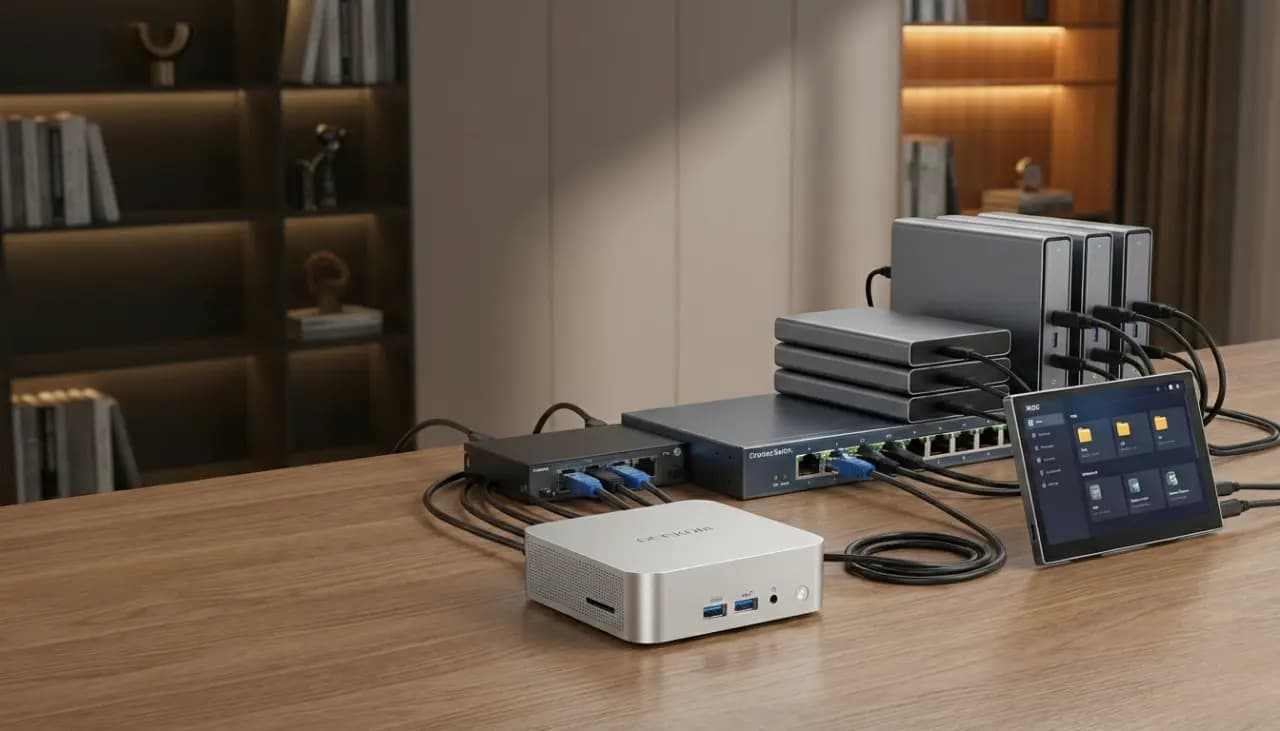
Using a mini PC as a NAS addresses several of these issues. Set up a mini PC as a home server, and you’ll benefit from genuine PC-grade performance, freedom to choose your own software, and far greater flexibility when it comes to expansion. What’s more, mini PCs solve some of the aesthetic issues with traditional NAS units, which can be rather bulky and unsightly.
Advantages of a Mini PC NAS vs Traditional NAS
Is using a mini PC as a NAS worthwhile? Here are the key advantages:
- Freedom of software choice: With a mini PC NAS, you’re not locked into the manufacturer’s proprietary operating system. You can run whichever NAS software suits your needs.
- Genuine PC performance: Unlike dedicated NAS devices, mini PCs typically offer considerably better CPU performance and more generous RAM.
- Superior scalability: Rather than investing in costly manufacturer-specific expansions, you can upgrade a mini PC NAS in a targeted and flexible manner.
- Compact footprint: Mini PCs are scarcely larger than a paperback book and tuck away neatly on a desk or shelf without drawing attention.
- Lower running costs: A NAS runs round the clock. With a mini PC, you benefit from lower power consumption and quieter operation — a real consideration given UK electricity prices.
Mini NAS vs Cloud Storage: Cost and Control
Setting up a mini PC as a NAS may sound like a lot of effort, but here’s when a mini NAS makes more sense than cloud storage:
- One-off cost vs ongoing subscriptions: With a mini NAS, you pay once for the hardware and setup. Cloud storage services charge monthly, and those costs add up considerably over time — particularly if you’re running multiple devices. Anyone who’s watched their iCloud or Google One bill creep up will appreciate the appeal.
- Offline vs online access: To access files in the cloud, you need an internet connection. A mini NAS gives you full access to your data and media even when your broadband goes down — something that happens more often than any of us would like.
- Control and data privacy: With cloud storage, you’re placing the security of your data in the hands of the provider. A mini NAS keeps you in full control — and with UK GDPR considerations, that’s an increasingly important factor for small businesses.
Common Use Cases for a Mini PC NAS
The use cases for a mini PC NAS in households and small businesses are remarkably varied. Here are five of the most popular:

- Home media server: A mini PC NAS can serve as a home media server, providing device-independent access to your photos, films, and music collection across smart TVs, tablets, and laptops.
- Central file storage: Photographers and videographers can use a mini NAS to manage and collaboratively edit large volumes of data without relying on third-party cloud services.
- Development and testing environments: Software developers can use a mini NAS to test projects in an isolated environment without taxing their main workstation.
- VPN and ad blocking: A mini NAS can double as a VPN server and network-wide ad blocker (such as Pi-hole), so everyone on your home network browses more securely and with fewer intrusive adverts.
- Backups and data protection: Regular backups from your devices to the mini NAS ensure your data is safely stored and recoverable — far more reliable than hoping you remembered to plug in that external hard drive.
Key Requirements for a Mini PC NAS
One thing we can say straight away: yes, you can absolutely set up a mini PC as a NAS, and it can bring some genuine advantages. That said, there are a few important considerations when choosing a mini PC for this purpose.
Here are three key requirements to bear in mind:
Processor and RAM: What You Actually Need
We’ve already mentioned that mini PCs outperform traditional NAS devices in terms of processing power and memory. But how much CPU and RAM do you really need?
The precise requirements naturally depend on what you intend to use your NAS for. As a general rule, however, you should ensure your mini PC has a capable processor with at least 4 cores and 8 GB of RAM. For more demanding workloads — such as running Plex transcoding or Docker containers alongside your NAS duties — 16 GB or more is well worth considering.
Networking: 2.5GbE for Fast Data Transfer
For speedy data access and file transfers, you’ll need Gigabit Ethernet at an absolute minimum — that’s 1GbE. However, for the sort of performance that makes network storage genuinely pleasant to use, look for a mini PC with at least a 2.5GbE Ethernet port.
Whilst you’re checking connectivity, have a look at additional LAN ports, USB connections, and Thunderbolt support as well. These come into play for link aggregation, network segmentation, and expanding your storage capacity with external drives.
Power Consumption for Always-On Operation
A NAS runs twenty-four hours a day, seven days a week. That means you absolutely must consider the mini PC’s power consumption before purchasing — otherwise you risk building yourself an electricity bill trap, and with UK energy costs where they are, that’s no small concern.
Mini PCs are generally more energy-efficient than standalone NAS units, but there can be notable differences between individual models. Look for a mini PC with an idle power draw of less than 15 watts. Over the course of a year running 24/7, even a few watts’ difference can translate to a meaningful sum on your electricity bill.
The Best Mini PCs for NAS Use in 2026
For home use, an entry-level solution is often perfectly adequate. For larger data archives, you’ll want room for expansion. For growing numbers of users and more demanding workloads, it’s worth investing in more capable hardware. We’ve had a look at what mini PC manufacturer GEEKOM has to offer.
Here are the best mini PCs for NAS across three use cases:
Budget Models (under £400): Getting Started with a Mini NAS

The GEEKOM A5 Mini PC is a solid entry-level option for a mini NAS, available from around £425. The GEEKOM A5 offers excellent value for a capable home server, featuring an AMD Ryzen 5 7430U processor, 16 GB of RAM, and at least 512 GB SSD storage. It comes equipped with a 2.5GbE Ethernet port and multiple USB ports for straightforward connection of external drives and network devices. Should you need more, it can be upgraded to up to 64 GB of RAM and 5 TB SSD — ample capacity to manage growing data volumes on your home network and serve as a personal cloud running round the clock.
Mid-Range (£500–£800): Ideal for Home Users
The GEEKOM A5 Pro 2026 Edition is a more capable option for a mini-NAS, available for approximately £520. The A5 Pro 2026 Edition delivers strong performance for a home server, featuring an AMD Ryzen™ 5 7530U processor with 6 cores and 12 threads, 16 GB of high-performance RAM, and 1 TB SSD for solid everyday, work, and creative performance. It includes a 2.5G LAN port for stable, fast connections, along with multiple USB ports. When needed, it can be flexibly scaled to up to 64 GB of RAM and 3 TB of storage.
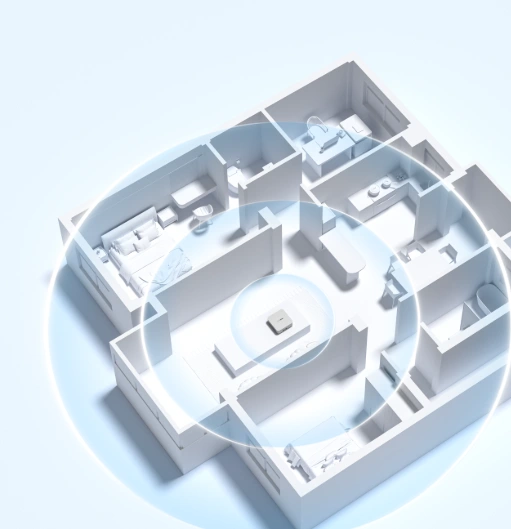
Premium (£1000+): Professional Requirements
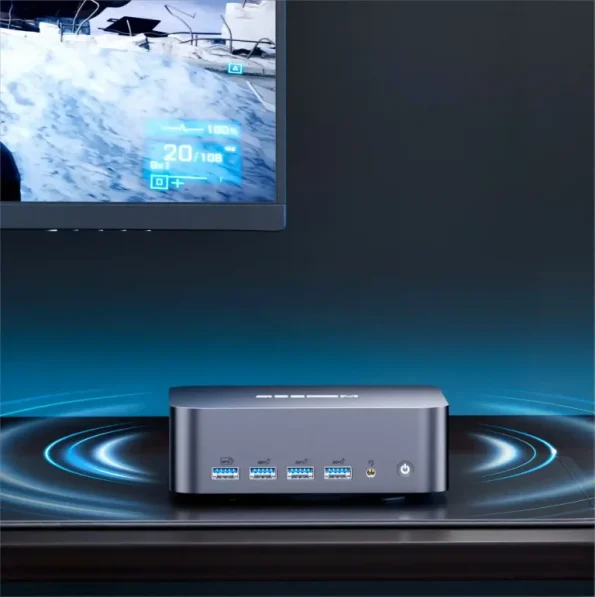
For small businesses and more demanding setups, the GEEKOM GT2 Mega Mini PC is a compelling choice, currently available from around £1299. This mini PC, built for professional workloads, impresses with its Intel Core U9-285H processor, up to 99 TOPS of AI performance, up to 128 GB of RAM, and up to 4 TB of SSD storage. It also features dual 2.5GbE Ethernet ports and numerous additional USB connections — ideal for connecting multiple NAS drives simultaneously and providing reliable network integration. As a powerful home or office server, it handles multiple users, large file volumes, and demanding NAS workloads in parallel without breaking a sweat.
NAS Software: TrueNAS, OMV & Unraid Compared
When setting up your mini PC as a NAS, you’re genuinely spoilt for choice. To help you navigate the dozens of available NAS operating systems, we’ve compared three of the best options.
TrueNAS: The Leading Open-Source NAS Solution
TrueNAS is a powerful, open-source NAS operating system built on the ZFS file system, which is particularly renowned for its exceptional data integrity. Its features include snapshot and replication capabilities that can prove invaluable for disaster recovery. Given its higher RAM requirements (8 GB minimum, 16 GB recommended), this NAS software is best suited to power users and businesses.
OpenMediaVault: Perfect for Beginners
If you haven’t got extensive NAS experience or the hardware to run TrueNAS comfortably, OpenMediaVault is likely the right fit. OpenMediaVault is a free, Linux-based NAS operating system designed for beginners, with an intuitive web interface and modest hardware requirements that make it particularly well-suited for media streaming and smaller storage setups. It’s the sort of thing you can have up and running in an afternoon.
Unraid: Flexibility for Mixed Drives
If you plan to use drives of different sizes and ages — as is often the case when gradually expanding your storage — Unraid is worth serious consideration. Unraid is another Linux-based NAS operating system distinguished by its user-friendliness and flexibility. Its key selling point is the ability to mix and match hard drives of different capacities and vintages in a single array, without the constraints of traditional RAID configurations.
Setting Up a Mini PC as a NAS: A Practical Guide
Not sure where to begin with setting up a mini PC as a NAS? Here’s a concise overview of the essential steps.
Follow these three stages to get your mini NAS up and running:
Set Up Your Mini PC as a NAS –
3 Steps to Your Own Cloud
From hardware installation to a fully working network storage server
Hardware Installation & BIOS Configuration
Install the NAS Operating System (TrueNAS / OMV)
Configure Your NAS & Expand Storage
Conclusion: The Right Mini PC for Your NAS Needs
So, is it possible to use a mini PC as a NAS? Absolutely, yes. And in many cases, it’s a genuinely smart move. A mini NAS is considerably more flexible than a conventional NAS device, offers better performance, scales more easily, and takes up far less space on your desk or shelf.
If you’re still searching for the right mini PC for a NAS that already meets the necessary hardware requirements, it’s well worth considering GEEKOM Mini PCs. As an established mini PC manufacturer, GEEKOM offers suitable home server solutions for beginners, home users, and businesses — backed by a three-year warranty and over five years of dependable performance.
Frequently Asked Questions About Mini PC NAS
Can any mini PC be used as a NAS?
In principle, yes. OpenMediaVault, for example, has particularly low hardware requirements — as little as 1 GB of RAM. That said, you’ll want to ensure you have sufficient hardware for solid, reliable performance. A bargain-basement specification might technically work, but you’ll likely find it frustrating in practice.
How many hard drives can I connect?
The number of drives you can attach to a mini NAS depends on the number of ports available on the mini PC. External hard drives are typically connected via USB ports; a good mini PC will have between four and eight USB connections, giving you plenty of scope for expansion.
Which NAS operating system is best for beginners?
If you’re relatively new to this sort of thing and setting up NAS software for the first time, we’d recommend starting with OpenMediaVault. It’s free, remarkably user-friendly, and has modest hardware requirements. There’s also a thriving community and plenty of guides available online should you get stuck.
How fast is a mini NAS compared to Synology/QNAP?
A modern mini PC comes equipped with 2.5GbE Ethernet ports, whilst many popular Synology and QNAP NAS models still ship with standard 1GbE connections. This means a mini PC NAS can deliver noticeably faster network transfer speeds straight out of the box — up to 2.5 times faster for large file transfers across your local network.