







When you open up a desktop computer, you will see that the motherboard has a number of long, flat slots. These are PCIe slots, and installing fast hardware on your computer usually goes through them. To make sure your new parts fit and work well, you need to know how PCIe slots work before you install a new graphics card, a faster Wi-Fi adapter, or a lightning-fast SSD.
What Is a PCIe Slot?
Peripheral Component Interconnect Express is what PCIe stands for. All high-speed parts can connect directly to your computer’s motherboard through this standard interface. Think of a PCIe slot as a highway with many lanes that lets data go from the processor to the expansion card and back again. That is, a slot that has more lanes can send more data at the same time. When important parts, like graphics cards, communicate with the CPU, this direct connection ensures they do not suffer from delays.
PCIe Slot Types Explained
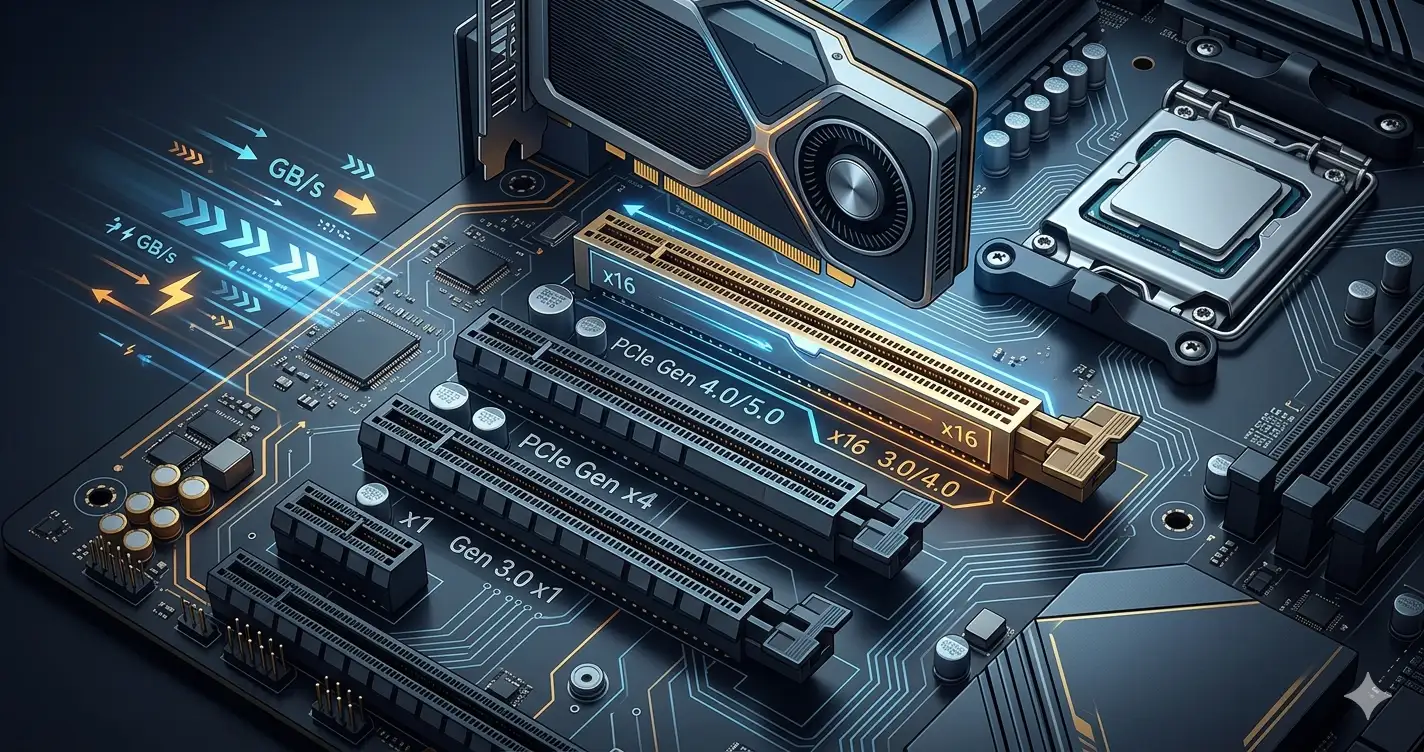
PCIe slots on motherboards come in different sizes so that they can fit different kinds of hardware. Numbers that come after an “x” show how many data “lanes” a slot has.
PCIe x1 Slot
There is only one PCIe x1 slot on the motherboard, which is the smallest. There is only one data lane on it. You usually use x1 slots for low-bandwidth accessories because they have limited bandwidth. Sound cards, Wi-Fi and Bluetooth network adapters, and basic USB expansion cards are all common uses for these cards.
PCIe x4 Slot
An x4 PCIe slot is four times faster than an x1 slot because it has four data lanes. 10 Gigabit Ethernet adapters, video capture cards for streaming, and PCIe-to-M.2 adapter cards that let you add more NVMe solid-state drives are all common things that people put in x4 slots.
PCIe x8 Slot
There are eight data lanes in the PCIe x8 slot. There are physical x8 slots, but they are not very common on consumer motherboards. Instead, a lot of motherboards have physical x16 slots that are wired to work at x8 speeds. For secondary graphics cards or enterprise-level RAID storage controllers, you usually use x8 bandwidth.
PCIe x16 Slot
The PCIe x16 slot on your motherboard has 16 data lanes and is the longest and fastest slot. It is almost always on the floor closest to the CPU. With this slot, you can only put in modern graphics cards (GPUs), which need a lot of bandwidth to process complex visual data and render high-resolution 3D graphics in real time.
Quick PCIe Slot Comparison Table
| Slot Type | Number of Lanes | Physical Size | Common Uses |
| PCIe x1 | 1 Lane | Very Short | Wi-Fi cards, Sound cards, USB hubs |
| PCIe x4 | 4 Lanes | Short | Capture cards, 10GbE Network cards |
| PCIe x8 | 8 Lanes | Medium | RAID controllers, Secondary GPUs |
| PCIe x16 | 16 Lanes | Long | Primary Graphics Cards (GPUs) |
PCIe Generations and Speed Differences
PCIe technology changes through different generations, which is different from one generation to the next. The speed of data transfer doubles with each generation.
PCIe 3.0 vs PCIe 4.0 vs PCIe 5.0
- PCIe 3.0: Introduced in 2010, this generation transfers roughly 1 GB/s per lane. An x16 slot provides about 16 GB/s of total bandwidth.
- PCIe 4.0: Introduced in 2017, this generation transfers roughly 2 GB/s per lane. An x16 slot provides about 32 GB/s of total bandwidth.
- PCIe 5.0: Introduced in 2019, this generation transfers roughly 4 GB/s per lane. An x16 slot provides a massive 64 GB/s of total bandwidth.
Does PCIe Generation Affect Performance?
Yes, but the effect is totally different for each part. The official PCIe technology guide from Intel says that all PCIe generations can work with each other. If you put a PCIe 4.0 graphics card into a PCIe 3.0 slot, the card will slow down to match the 3.0 speed limit on the motherboard. On the other hand, a 3.0 card in a 4.0 slot will only work at 3.0 speeds.
PCIe 4.0 vs PCIe 5.0 for Modern PCs
In 2026, PCIe 4.0 has more than enough bandwidth for most users. A PCIe 4.0 x16 slot is not even close to being full with the best graphics cards. But PCIe 5.0 is becoming necessary for Gen 5 NVMe SSDs, which can read and write data at speeds of over 10,000 MB/s thanks to the huge bandwidth.
Does PCIe Slot Size Matter?
You can avoid buying hardware that does not work with your computer by understanding how physical slots and electrical lanes work together.
Can You Put a Smaller PCIe Card in a Larger Slot?
Yes. It is fine to put a small x1 Wi-Fi card into a big x16 slot. If you only use the first lane of the slot, the card will work perfectly. You cannot put a big x16 graphics card into a small x1 slot, though, unless the slot is “open back,” which does not happen very often.
Why Slot Size Does Not Always Mean Full Speed
To save money, motherboard makers will sometimes use a physical x16 slot but only wire it for x4 or x8 speeds. Check the manual that came with your motherboard. You will have a very slow gaming experience if you put your main graphics card into a physical x16 slot that is only wired for x4 speeds.
Which PCIe Slot Should You Use?
When you install your main graphics card, always put it in the top x16 slot that is closest to the CPU. This slot usually connects straight to the processor, so it has the least amount of latency. Put smaller accessories, like Wi-Fi or sound cards, in the lower x1 or x4 slots. These slots connect to the motherboard’s chipset.
Do Mini PCs Have PCIe Expansion Options?
The rules for PCIe slots change a lot when you move away from big desktop towers.
PCIe in Mini PCs vs Traditional Desktop PCs
Most traditional desktop motherboards have a lot of full-sized PCIe slots so that you can add as many features as you want. Since mini PCs are small and light, they do not have room for these long, horizontal slots. In its place, they use customised, smaller versions of the PCIe interface.
Mini PCs With PCIe Slot Support
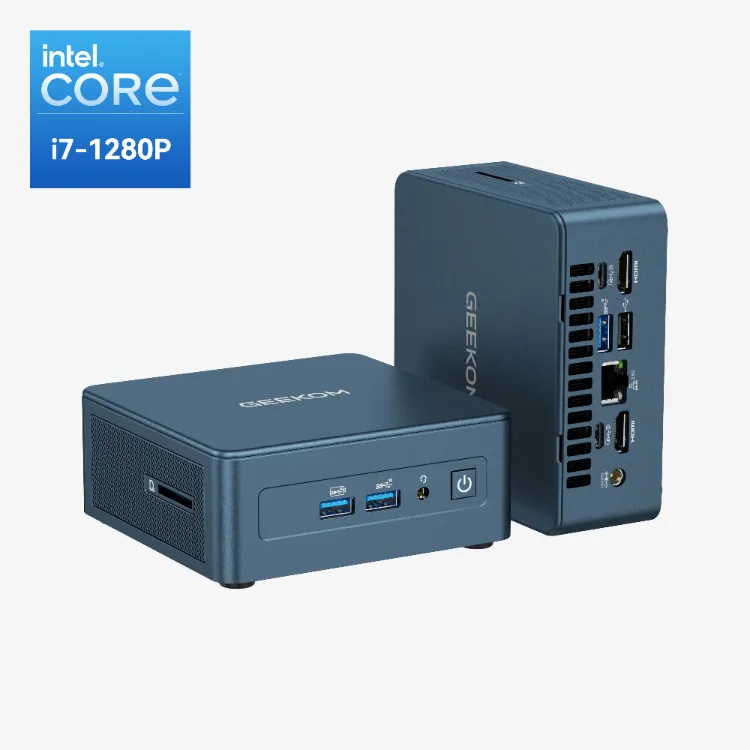
Many mini computers do not have standard x16 slots, but mini PCs still use PCIe technology. Their PCIe lanes go straight to small, gum-stick-sized parts through M.2 slots. They usually have an M.2 2280 slot (with PCIe x4 lanes) for fast NVMe SSD storage and a smaller M.2 2230 slot (with PCIe x1 lanes) for the Wi-Fi and Bluetooth card.
When PCIe Expandability Matters
You need a traditional desktop tower if you need more than one capture card, sound processing that is separate from the rest of the computer, and a huge desktop graphics card. A Mini PC, on the other hand, has all the PCIe bandwidth you need in a much smaller space. It also has fast storage, modern Wi-Fi, and strong built-in graphics for work and light gaming.
Frequently Asked Questions
Can I put an SSD in a PCIe slot?
Yes. A PCIe-to-M.2 adapter card is for sale. After connecting your M.2 NVMe SSD to the adapter, you connect the adapter to a PCIe x4 or x16 slot on your motherboard via a cable.
Does my PC have a PCIe slot?
All standard desktop towers made in the last 15 years have PCIe slots. To be sure of this, open the side panel and look for the long, horizontal slots that are below the CPU socket.
What is the PCIe slot used for?
PCIe slots let you add extra cards to your computer. Putting in sound cards, graphics cards (GPUs), and high-speed storage controllers are the most common uses.
How many PCIe slots does a motherboard have?
It depends on the form factor (size) of the motherboard. There are four to seven PCIe slots on a large ATX motherboard, but only two or three on a small Micro-ATX board.
Do all graphics cards use PCIe x16 slots?
Yes. To fit on the motherboard and get enough bandwidth, almost all modern dedicated graphics cards need a physical PCIe x16 slot.
How to Choose the Right PCIe Slot for Your PC Upgrades
If you know about PCIe slots, you can make sure that your hardware upgrades give you the best performance. Make sure that the expansion card fits in the right slot by its physical size. Also, put your main graphics card in the top x16 slot at all times, and make sure that the generation of your motherboard matches the new hardware to avoid speed problems.
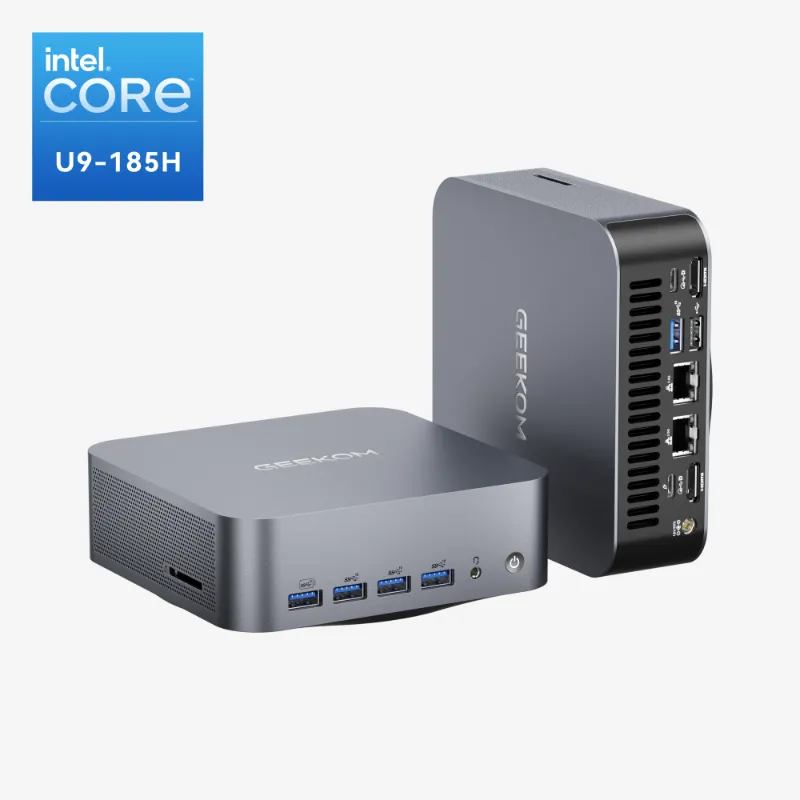
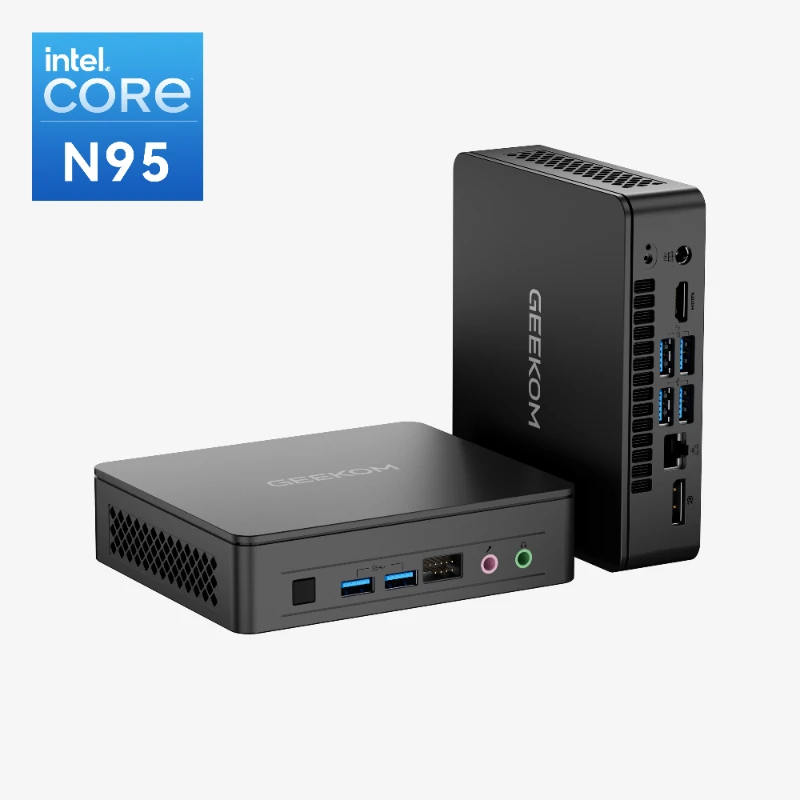
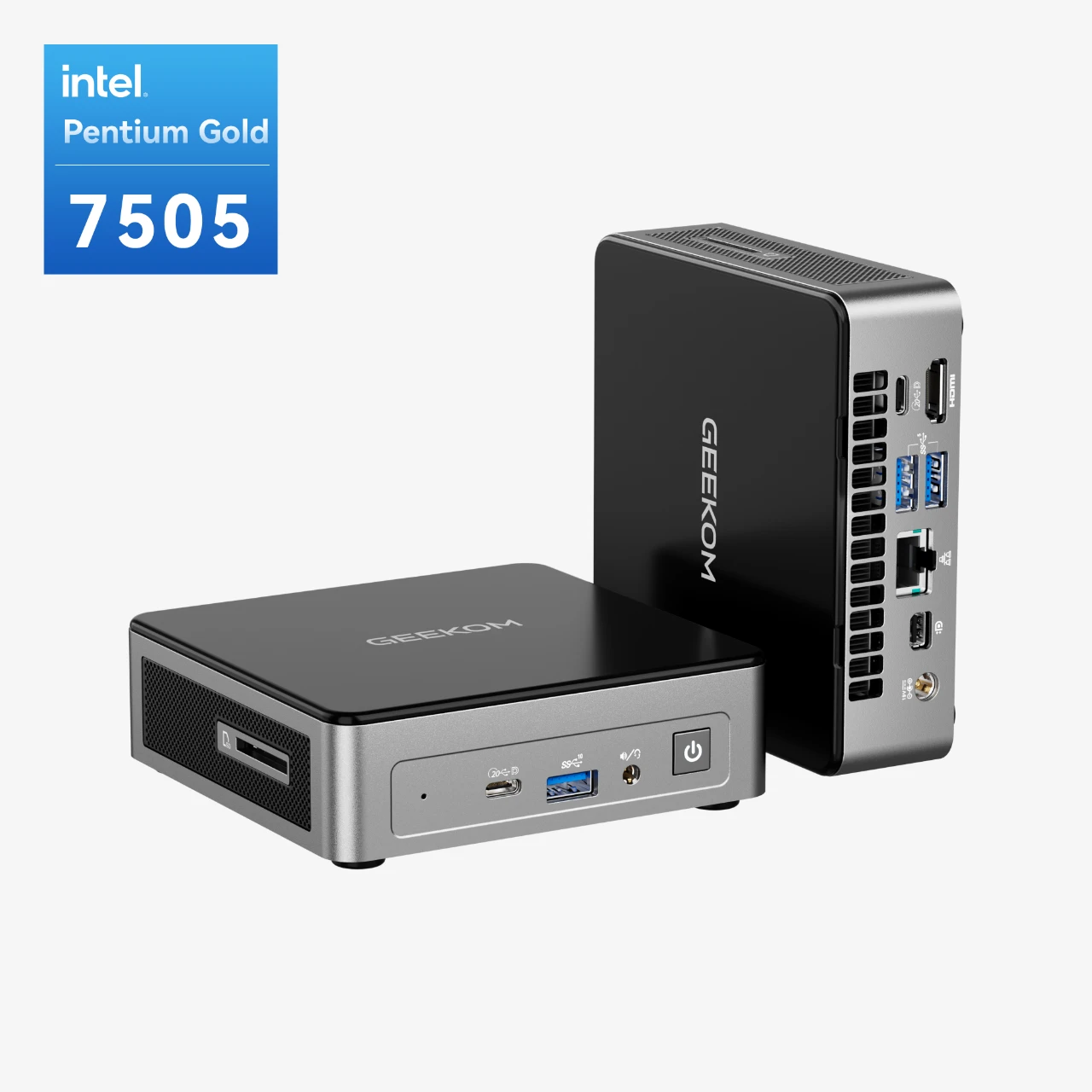
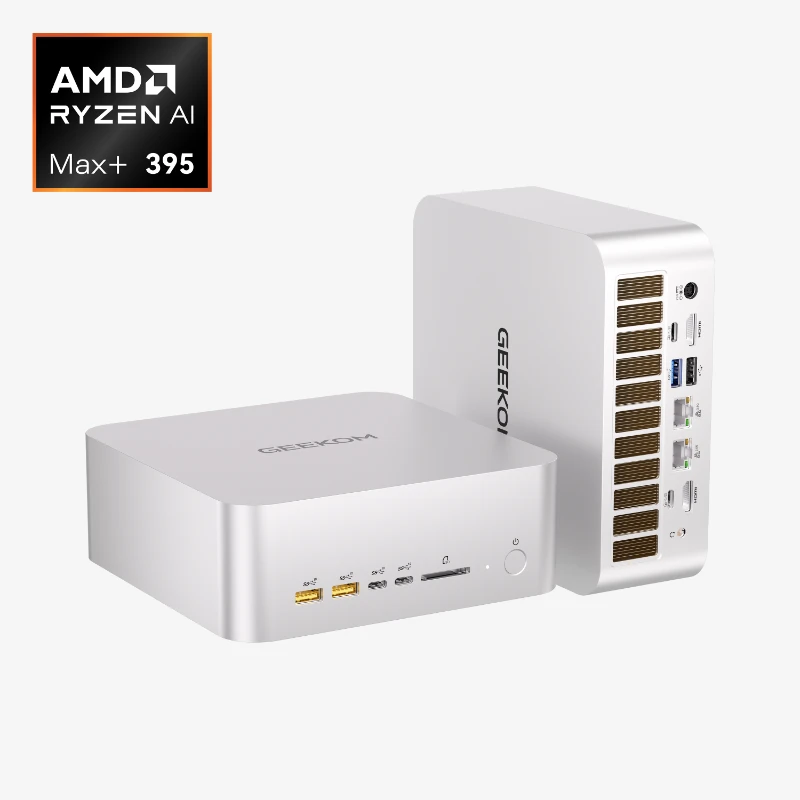
Check out the high-end GEEKOM Mini PCs if you want the lightning-fast speeds of PCIe 4.0 NVMe storage and modern Wi-Fi without the bulk of a huge desktop tower. The advanced M.2 PCIe interfaces in these small powerhouses give them desktop-class speed in a chassis that you can hold in your hand.