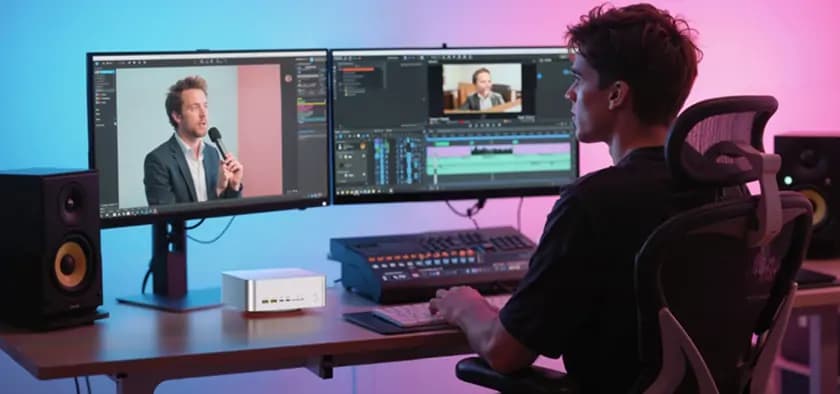
If you’re a YouTuber, TikToker, or even venturing into the film industry, you need equipment powerful enough to edit your videos and export them in 4K or 8K quality. But don’t worry—those years when you needed to spend thousands of pounds on a video editing computer with rather mediocre quality are long gone. Nowadays, mini PCs have more than enough power to edit and export extremely high-quality videos whilst taking up barely any space.
In this guide, you’ll find some of the top mini PC recommendations for 4K and 8K video editing, starting with the basics. You’ll see the type of hardware you need to work on your video projects, when you can make compromises with your budget—and when you can’t—and how to maximise your results: all with the advantages of a compact device you can take anywhere.
The Basics: Essential Hardware
There are several key components in your 4K video editing computer you should focus on to ensure you have the power you need for your video editing projects. When choosing the mini PC you want to work with, concentrate on these components first and avoid getting distracted by superfluous features that are nice to have but aren’t the most important.
The main points are:
Choose between AMD or Intel processors. Check the core and thread count carefully—these determine your editing performance.
Sufficient RAM prevents bottlenecks when handling large video files. Consider future expansion if video editing is your primary occupation.
Distinguish between internal and external storage. High-speed internal storage is non-negotiable for smooth editing workflows.
A dedicated graphics card is essential for accelerating video export processes. NVIDIA RTX cards are the current gold standard.
Optimal System Configuration
Choosing the ideal mini PC for video editing is a major step, but you’ve still got some way to go to achieve the best performance and optimise it for editing and exporting videos. GEEKOM mini PCs can be configured for this through the BIOS and Windows itself. Consider these options if you want to get the most out of your new equipment:
- In the BIOS – In the BIOS, enable the XMP profile (Intel) or EXPO (AMD) so that your RAM operates at maximum speed. This way you’ll be able to take full advantage of all installed RAM capacity and boost your mini PC’s performance by up to an extra 20%.
- In Windows – Select the “Best performance” or “High performance” power plan and set the maximum processor state to 100%. Although Intel processors tend to run a bit hotter, your mini PC’s cooling system will handle it.
- Storage configuration – Use the main SSD only for Windows and programmes; place all active projects, caches and previews on a second fast SSD. Also use a logical and well-organised folder structure.
- Cache configuration – In Premiere Pro, DaVinci Resolve and After Effects, set the cache, previews and temporary files location to that second fast SSD. This way you’ll leave the main SSD solely for application processing and boost its performance.
Software and Settings
After adjusting the hardware and operating system on your new 4K video editing computer, it’s time to configure your editing and exporting applications to optimise them in the same way. In part, this depends on which one you use. You have multiple options at your disposal, but the most widely used are undoubtedly DaVinci Resolve and Adobe Premiere Pro. Let’s take a look:
- In DaVinci Resolve – In Resolve, the key is to always work with 1/4 proxies and optimised media at quarter resolution. Go to Project Settings, enable Proxy Workflow and set the cache folder on your fast SSD. This way the timeline will run much more smoothly, and you’ll be able to use Noise Reduction, Fusion and heavy colour grading without the system struggling.
- In Adobe Premiere Pro – Enable GPU acceleration (CUDA/Metal/Quick Sync) in Playback and Render (within Preferences), and create proxies on import by right-clicking, going to Proxy, then selecting ProRes Proxy or CineForm 1080p. During editing you’ll see the lightweight proxies, and when exporting it will use the original footage without losing quality.
- In both – Always export in H.265/HEVC 10-bit (small files and great quality) or ProRes 422/422 HQ if it’s a client delivery. If you have a powerful GPU like the one in the GEEKOM A9 Max, choose AV1 to save even more space. Tick options like ‘Use Maximum Render Quality’ and ‘Use Previews’ to make the render as fast as possible.
👉 Click to Read More about The Best Mini PCs for Photoshop, Adobe Premiere and DaVinci
Step-by-Step Workflow
Right, with all that you’re now ready to begin your editing work! You’ll soon see everything your video editing PC is capable of offering you, but what should your workflow look like exactly? Ultimately, this will depend on your preferences and the project you have in hand, but an ideal way of working in video editing is as follows:
Configure the destination folder for all programmes so that original files are copied directly to the high-speed secondary SSD. This prevents footage from remaining on the system disc and guarantees instant access times.
Enable automatic proxy generation on import and choose 1/4 or 1/8 resolution with lightweight codecs like ProRes Proxy or CineForm. The programme will create reduced versions in the background so you can start editing without delays.
During assembly and editing, the programme plays exclusively the lightweight proxies to maintain fluidity even when working with 8K RAW or multiple cameras. The load on the processor and graphics card is drastically reduced until export.
When rendering the final master, the programme switches back to using the original files and takes advantage of GPU acceleration to complete the export in the shortest time possible. The result is a maximum quality file in minutes.
Essential Accessories
Your GEEKOM mini PC is an excellent starting point for your video editing work, but we mentioned earlier that you can expand them—RAM, internal storage—and furthermore, their performance will improve even more if you connect high-quality peripherals. Depending on which 4K video editing computer you have and how demanding your projects are, consider these basic accessories:
- A calibrated 4K monitor – When you’re editing videos, you work based on what you see. Opt for a 4K monitor with hardware calibration using a probe, such as the X-Rite i1Display Pro or Calibrite Display Pro HL. This way, the colours, contrast and sharpness you see on screen will be the same as what viewers see in the final file.
- External NVMe drives – NVMe drives guarantee maximum access speed, but mini PCs—like any other PC—have limited internal ports for them. Use external Thunderbolt or USB 3.2 ports to connect the rest of your NVMe SSDs and work with them at full speed.
- A USB 3.2 Gen2 hub – If you find the USB ports included with your mini PC aren’t enough, you can always rely on a USB 3.2 Gen2 hub to connect everything else, from external drives to your mouse, keyboard, and even supplementary graphics cards. This is also useful if you need to take your mini PC elsewhere: just disconnect it and you’re done.
- Additional cooling – If you’re really pushing your mini PC to the limit, you might consider adding a ventilated stand with two or four silent Noctua or Arctic fans beneath the mini PC or, at least, a laptop cooling pad. This reduces the processor and graphics card temperature by 10 to 20°C during long rendering sessions.
Real Benchmarks
GEEKOM mini PCs offer you surprising potential to work at the highest level despite their compact size. Although a full desktop system has the final say in terms of power and performance—especially if you have unlimited space and budget—GEEKOM mini PCs have an extraordinary price-to-performance ratio that can hold its own against a 4K video editing desktop PC, and moreover outperform many other options on the market.
In the following benchmark, we compared the GEEKOM A9 Max with an ASUS ProArt PA602 Workstation and an Intel NUC 13 Pro i7 1360P. The Intel NUC 13 Pro i7 falls far short of the GEEKOM A9 Max’s metrics, which comes very close to the ASUS ProArt’s performance despite costing less than half the price and having an average power consumption of only 13% compared to the ASUS.
| Metric | GEEKOM A9 Max | ASUS ProArt PA602 | Intel NUC 13 Pro i7-1360P |
|---|---|---|---|
| Render time 10 minutes 4K H.265 (DaVinci Resolve) | 4:45 | 3:52 | 8:31 |
| Render time 10 minutes 4K H.265 (Premiere Pro) | 5:12 | 4:18 | 9:48 |
| 4K multilayer playback without proxies (average fps) | 58-60 fps | 60 fps | 24-32 fps |
| PugetBench for DaVinci Resolve (total points) | 1845 | 2210 | 1120 |
| Average consumption during render | 58 W | 425 W | 48 W |
| Consumption in 1 hour of intensive editing | 0.055 kWh | 0.38 kWh | 0.045 kWh |
| Noise under sustained load | 36 dB | 48 dB | 41 dB |
| Maximum CPU package temperature | 82°C | 91°C | 96°C |
Limitations and Solutions
With performance like this, then, the vast majority of video editing projects are more than covered by GEEKOM mini PCs’ capabilities. Moreover, even when facing the highest workloads, you have solutions you can opt for to reduce them and maintain a workflow that’s truly agile on your video editing computer.
We’ve already seen the solution of proxies and pre-rendering when working with multiple effects that can overload the CPU and GPU. This massively reduces the load and allows you to continue with your workflow without compromising the final project’s quality. But it’s not the only resource you have to optimise your mini PC’s performance.
If you work with heavy 8K RAW video clips—which would make even the best desktop PC sweat—you can convert them to intermediate formats like ProRes 422 HQ. And if your timeline is becoming too complicated, try subdividing it into smaller, more manageable fragments that you can then assemble together in a final project. Organisation is everything!
Professional Tips
To all this, we can add a whole series of professional tips you should always bear in mind to boost your video editing computer’s performance, from updating drivers—essential if you want to get the most out of your hardware—to clearing the cache or making backups to protect your projects.
The performance of your mini PC for video editing can improve enormously if you keep your drivers up to date. With recent drivers, Premiere Pro and DaVinci Resolve run with greater stability and accelerate playback and export in 4K and 8K. Powerful hardware only performs well when the software controlling it is current.
PERFORMANCEYour PC for 4K video editing can fill up quickly with cache from Adobe Premiere or DaVinci Resolve, especially if you work with several large projects. This cache can occupy tens or even hundreds of gigabytes. Clear the cache regularly to avoid slowdowns and maintain a smooth workflow.
MAINTENANCEIf you edit professional content in 4K or 8K, your video projects are invaluable. Never store everything on a single SSD: a failure, attack, or accidental deletion could leave you without your work. Use external SSDs, NAS, or cloud storage, and ensure you have at least one backup completely disconnected from the network.
DATA SECURITYIf you started with a mini PC for amateur projects and now work on more demanding 4K/8K editing, your specifications may fall short. Consider expanding your RAM, adding an additional NVMe SSD, or even using an eGPU if your mini PC supports it. A good upgrade can extend the useful life of your equipment for years.
FUTURE-PROOFINGRecommended GEEKOM Models
If you now have a clearer idea of the basic specifications you should look for in your video editing mini PC, let’s show you some GEEKOM models that are ideal for you depending on your experience level and what you want to achieve with your projects. We propose three distinct categories for this: entry level, intermediate level, and advanced level, all with great prices that are even better after the Black Friday discounts.
| Feature | GEEKOM A8 | GEEKOM IT13 | GEEKOM A9 Max |
| CPU | AMD Ryzen 7 8745HS | Intel Core i9-13900HK | AMD Ryzen AI 9 HX 370 |
| Integrated GPU | Radeon 780M | Intel Iris Xe | Radeon 890M |
| RAM (standard) | 32 GB DDR5-5600 | 32 GB DDR4-3200 | 32 GB DDR5-5600 |
| Maximum RAM | 64 GB | 64 GB | 128 GB |
| Standard storage | 1 TB PCIe 4.0 NVMe SSD | 1 TB PCIe 4.0 NVMe SSD | 2 TB PCIe 4.0 NVMe SSD |
| Expandable storage | Yes (2× M.2) | Yes (2× M.2) | Yes (2× M.2) |
Entry level-GEEKOM A8
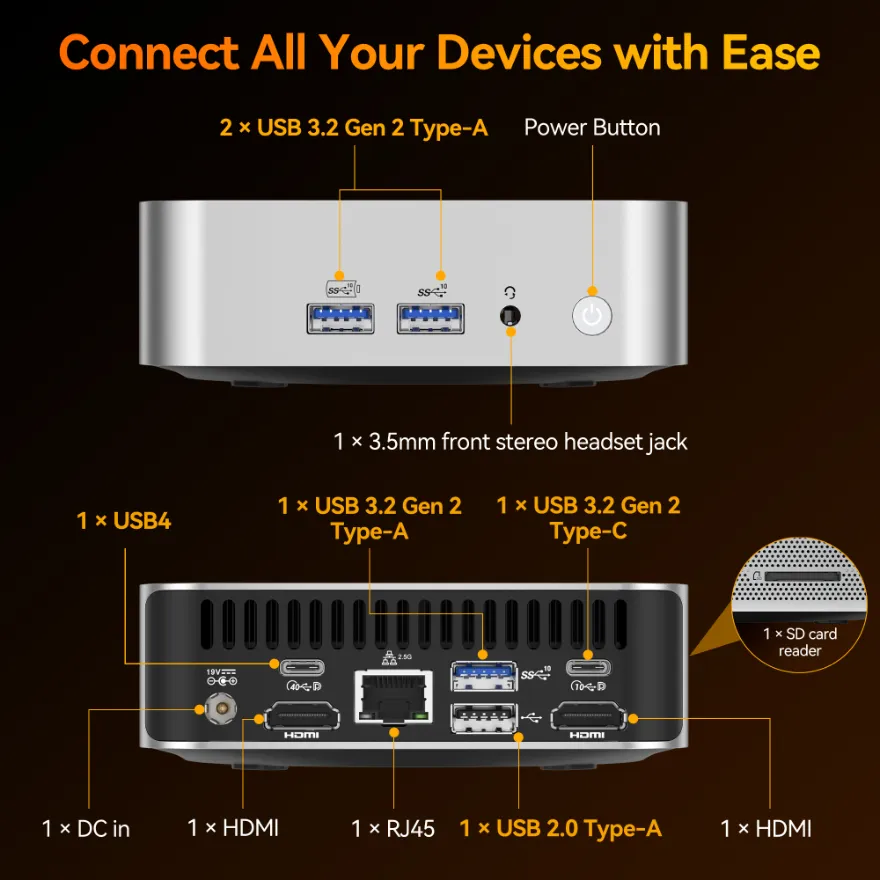
This is your ideal solution if you’re getting started in video editing and still aren’t sure where your path will lead. It’s a high-power mini PC at a very affordable price, largely because its graphics card is clearly entry-level. Not only does it perform well for amateur projects, but it does so for very little: from just €789 after the Black Friday discount.
Intermediate level-GEEKOM IT13
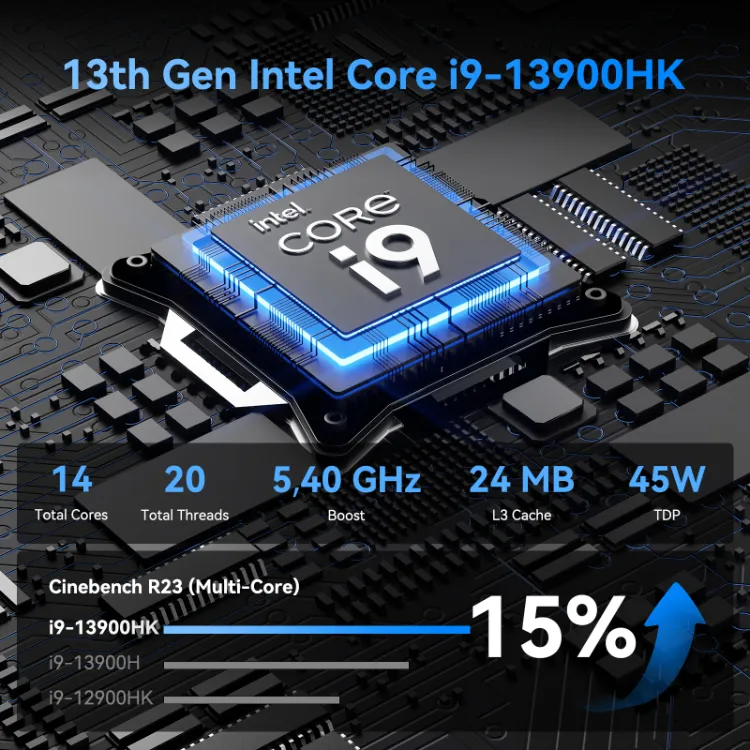
If you’ve definitely decided that video editing is your thing or you’re already running a YouTube channel that shows promise, then perhaps you’d prefer to go straight for the intermediate level offered by the GEEKOM IT13. Here you already have a much more robust CPU, an Intel GPU with Quick Sync Video ideal for H.264 export, and all the ports you could need.
Advanced level-GEEKOM A9 Max
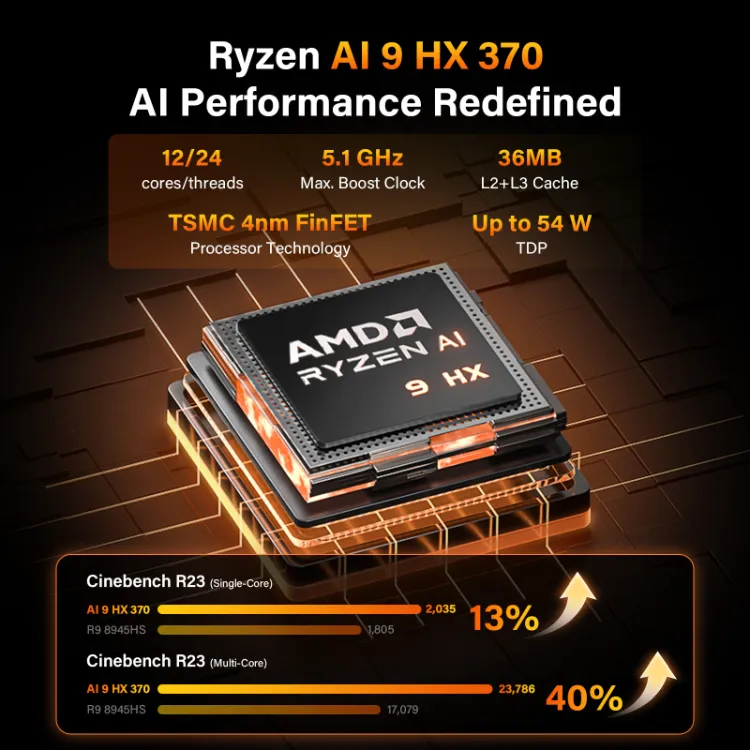
For larger workloads and high-quality 8K export, you can opt for the GEEKOM A9 Max, a true powerhouse that’s not only ideal for professional video editing work, but also has an excellent price between £999, depending on the model. It includes a better graphics card and more storage space.
A Mini PC Is a Real Solution for Video Editing
You’ve seen it in the specifications, the benchmarks, and the endless advantages that the portability and accessibility of a mini PC offers you. Unless you’re editing a Pixar film, you most likely don’t need to invest thousands of pounds in a desktop video editing PC. A GEEKOM mini PC can offer you extraordinary, professional-quality performance for much less, and it also gives you flexibility that other computers don’t have.
The GEEKOM IT13 is an excellent choice for just £649 after the Cyber Monday discount, whilst the GEEKOM A9 Max is a great professional option that still costs half—or less—of what you’d have to spend on a high-performance desktop PC. So review the different models GEEKOM offers, consider what type of projects you have in mind, and choose your favourite. Editing high-quality videos has never been so accessible!