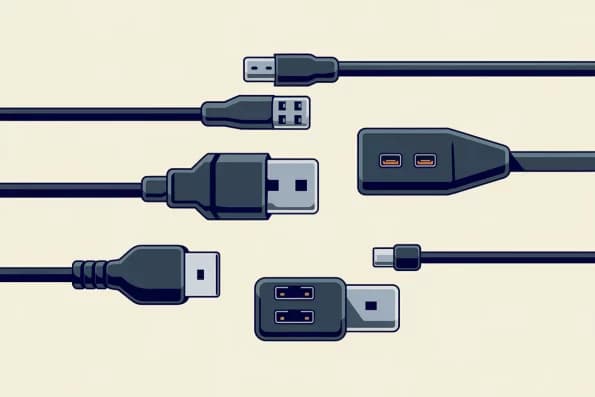
USB A, USB B, USB C, USB 2.0 and USB 3.0 – it’s easy to lose track of the various USB and cable types. But be careful! Not every USB cable label refers to the same thing. Some denote the connector type, while others refer to the transfer standard.
In this article, we’ll help you make sense of the cable clutter, guiding you step by step through connector shapes, standards and their respective uses. Stick with us.
USB types at a glance
Don’t have time to read the whole article? No problem.
This table gives you the key facts on all USB connector types and standards at a glance:
| Connector Type | Typical Devices | Max. Standard | Status |
|---|---|---|---|
| USB-A | PCs, chargers | USB 3.2 Gen 2 | Current |
| USB-B | Printers | USB 3.0 | Partial |
| USB-C | Smartphones, laptops, monitors | USB4 | Current |
| Micro-USB | Older smartphones | USB 2.0 / rarely 3.0 | Outdated |
| Mini-USB | Cameras, MP3 players | USB 2.0 | Outdated |
USB Ports – Differences, Compatibility, and Transfer Speeds
Let’s start our tidy-up with the most obvious distinction between USB types: connector shape. There are five common connector shapes in total: Type A, Type B, Type C, Micro and Mini.
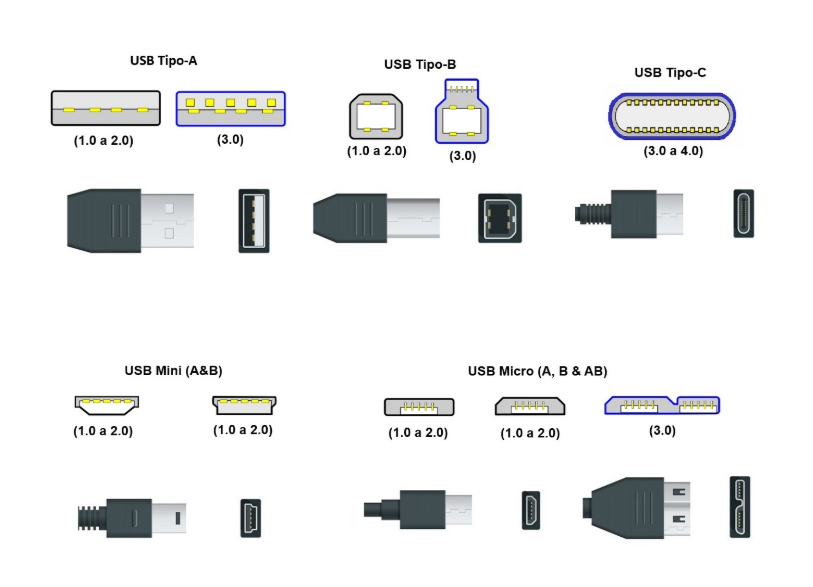
Below, we explain what each USB connector shape looks like and where it’s used.
USB A
USB A is the rectangular standard connector we’re all familiar with. This connector is notorious for not being reversible, which is why it’s often plugged in the wrong way round on the first attempt.
USB-A connectors are common as host ports on computers and as adapter ports on a great many chargers. They support transfer standards from USB 2.0 up to USB 3.2.
USB B
USB Type-B is a square connector that’s far less well known. It’s mainly used on printers, scanners, fax machines and external hard drives.
USB-B connectors are only ever plugged into the peripheral devices listed above, then connected to a computer via a USB-A port. This connector shape is gradually falling out of use.
USB C
USB Type-C is the most versatile USB connector shape. USB C connectors are symmetrically designed, meaning they’re reversible. They carry power, data and video signals, and also support USB 4.
Over recent years, USB-C connectors have become the standard for almost all everyday devices, including smartphones, laptops and tablets – with the exception of older Apple devices. More on that later.
Micro USB
As the name suggests, Micro-USB is a smaller connector type that served as the standard solution for Android devices for a long time before being superseded by USB-C.
The rectangular Micro-USB connector isn’t symmetrical, as it’s slightly narrower on top, meaning it isn’t reversible. Micro-USB carries both power and data and is typically connected to a charger via a Type-A port.
Mini USB
Even smaller than Micro-USB is Mini-USB. You’ll probably recognise this connector type from your digital camera or old MP3 player. It carried power and data but has now largely been replaced by Micro-USB and USB-C.
The rectangular Mini-USB connector is similar to the Micro-USB connector in that it also tapers but is overall slightly narrower and more angular. Like the Micro-USB connector, it isn’t reversible either.
How to identify the USB type of your cable

You can distinguish between the different USB types fairly quickly by looking at the connector shape.
- Is the connector thick and wide? – USB A.
- Is the connector flat and wide? – USB C or Micro USB.
- Is the connector symmetrical? – USB C
- Is the connector not symmetrical? – Micro USB.
- Is the connector square? – USB B.
- Is the connector thick and narrow? – Mini USB.
Alternatively, you can look out for symbols and colour coding on the connector, though these aren’t standardised and are therefore less reliable.
USB standards and speeds explained
To recap: “USB + letter” as well as “Micro” and “Mini” describe a connector type – that is, the shape of the USB connector and where it can be plugged in. What’s still missing are the transfer standards: USB 2.0, USB 3.0, 3.1 and 3.2, USB 4, and Thunderbolt 4.
These transfer standards describe how fast data transfer occurs with the respective USB cable. A given connector shape can be compatible with several standards, so the connector shape alone tells you nothing about transfer speed.
Below, we explain what each USB standard means.
USB 2.0
The USB 2.0 standard has been widely used since the early 2000s but is, at the same time, the slowest transfer standard. It reaches a maximum data rate of 480 megabits per second.
You’ll frequently find this transfer standard in USB connectors of types A, B, C, mini and micro. It’s suitable for mice, keyboards, printers, scanners and basic device charging.
USB 3.0, 3.1 and 3.2
The next USB standard, USB 3.0, was first introduced in 2008 and was continuously improved over the following years up to 2017. This resulted in USB 3.0 (USB 3.2 Gen 1×1), USB 3.1 (USB 3.2 Gen 2×1) and USB 3.2 (USB 3.2 Gen 2×2).
These improvements drastically increased the maximum data rate. Where USB 3.0 offered 5 Gbit per second, USB 3.1 already reached 10 Gbit/s, and USB 3.2 reached 20 Gbit/s. You’ll find this transfer standard in USB connectors of Type A, B and C.
USB 4 and Thunderbolt 4
The most recent major step forward in transfer standards came a few years later with USB 4 and Thunderbolt 4. The USB4 standard supports a maximum data rate of up to 40 Gbit per second, making it twice as fast as USB 3.2.
Thunderbolt 4 is considered the top tier of the USB4 standard. This label is only given to ports guaranteed to reach at least 40 Gbit/s. You’ll find this transfer standard exclusively in USB-C connectors.
Overview: speeds compared
That was a lot of numbers all at once, so here’s a comparison table showing the maximum data rates and supported connector types for each transfer standard:
| Standard | Maximum data rate | Connector |
|---|---|---|
| USB 2.0 |
480 Mbit/s
|
|
| USB 3.0 |
5 Gbit/s
|
|
| USB 3.1 |
10 Gbit/s
|
|
| USB 3.2 |
20 Gbit/s
|
|
| USB4 |
40 Gbit/s
|
USB C: the new standard
Over recent years, the USB C connector has established itself as the definitive standard.
This is partly down to its symmetrical shape, which makes it reversible. But USB-C also impresses from a technical standpoint: it transmits power, data and video simultaneously and supports both Power Delivery and Alternate Modes.
This hasn’t gone unnoticed by the European Union (EU), which has designated USB Type-C as the unified charging port for small and medium-sized portable electronic devices. One reason for this was that, until then, Apple had gone its own way with the Lightning connector.
USB C versus Lightning
Apple’s Lightning connector also deserves a mention. This USB-style connector was designed by Apple and resembles the USB-C connector in that it, too, is thin, wide and reversible.
Compared with USB-C, however, Lightning supports lower bandwidths and charging speeds. The EU judged this to be an accessory monopoly to the detriment of consumers and put a stop to the practice. As a result, Apple has used USB-C cables for its smartphones since the iPhone 15; this was already the case for MacBooks beforehand.
Why do some USB-C cables not work with monitors?
With USB cables, it’s not just the outward appearance that counts but what’s inside that really matters. If your USB-C cable doesn’t work with your monitor, it may be because your cable is only designed for power transfer.
Some monitors require Power Delivery and/or Alternate Modes in addition to data and video transfer, while some docks require a particularly high data rate that not every USB-C cable can achieve.
In other words, keep your eyes open when buying cables – check carefully which USB-C cable meets your requirements.
Which USB cable do I need, and when?
Here are the typical everyday use cases and the appropriate USB cable for each:
- Charging a smartphone or tablet: you’ll need a USB-C cable, optionally with Power Delivery for fast charging.
- Connecting external hard drives and SSDs: you’ll need a USB-C cable with USB 3.2 or, ideally, USB 4. The higher the maximum data rate, the better.
- Connecting a monitor via USB-C: make sure your USB-C cable supports Alternate Modes, and ideally opt for Thunderbolt 4.
The right USB cable for your devices
There’s plenty to consider when buying a cable. So don’t rely on a cable’s shape alone – check carefully before purchase that it meets your requirements.
Even more importantly: set up your workspace with the latest USB cable standards to avoid yesterday’s cable clutter. The perfect combination for this is USB-C ports with the USB4 standard – such as those found on GEEKOM mini PCs.
Read More: USB Tethering: How It Works, Setup Guide & Speed Tips
FAQs about USB Ports
What’s the difference between USB A and USB C?
USB-A and USB-C are two different USB types, or connector shapes. They differ primarily in their design: USB-A is thick and wide, while USB-C is thin, wide and reversible. USB-C is considered the more future-proof standard.
Are all USB-C cables the same?
No, not all USB-C cables are the same. While the design is identical, there are often significant technical differences. USB-C cables can vary in maximum data rate, supported video output, charging power and Thunderbolt 4 integration.
Is USB C always faster than USB-A?
No, USB-C isn’t inherently faster than USB-A. The maximum data rate primarily depends on the transfer standard, not the connector shape. If a USB-A cable has a higher standard than a USB-C cable, it will be correspondingly faster.
Which USB cable is the fastest?
The fastest USB cables are USB-C cables with the Thunderbolt 4 transfer standard. To earn this label, a USB-C cable must be able to guarantee a transfer rate of at least 40 Gbit per second.
Can I plug a USB 3.0 cable into a USB 2.0 port?
Yes, these USB transfer standards are backwards compatible. This means you can plug a USB 3.0 cable into a USB 2.0 port. However, doing so will reduce the transfer speed to USB 2.0 level.
How can I identify a USB 3.0 cable?
A USB 3.0 cable can often be identified by the “SuperSpeed” logo. If this isn’t present, look at the contacts, which are usually coloured blue on USB 3.0. If that’s not conclusive either, check the manufacturer’s specifications for the maximum transfer rate.