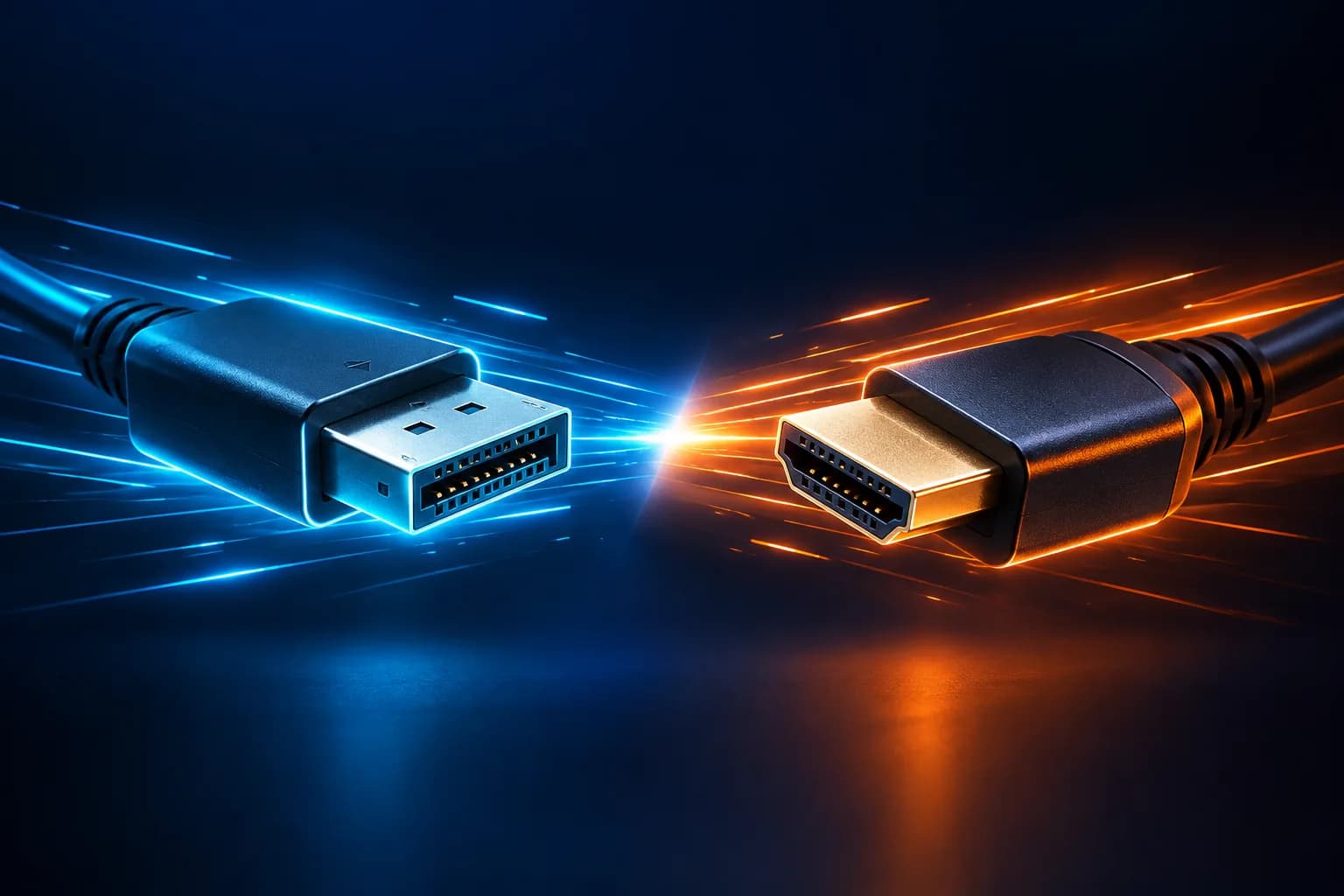
When it comes to DisplayPort vs. HDMI, the two connectors look similar enough that it’s tempting to plug in whichever fits and hope for the best. But the one you choose affects your resolution, refresh rate and how many screens you can run. This guide breaks down the real differences between DisplayPort and HDMI, shows which is better for gaming, work and home entertainment, and helps you pick the right port — and the right cable — every time.
What is DisplayPort?
DisplayPort is a standard for connecting video devices like PCs to monitors. DisplayPort was developed by VESA (the Video Electronics Standards Association), an industry group of leading PC and display makers, as a modern replacement for older standards like VGA and DVI. DisplayPort was designed from the start to work in professional and high-end PC settings. Its biggest strength is its large bandwidth, which makes it great at supporting both high resolutions and high refresh rates. Unlike older analogue standards, DisplayPort sends video as packetised data — similar to how a network moves information — which lets it allocate bandwidth flexibly and scale to higher resolutions.
This design makes it easier to get smooth visuals even at high resolutions like 4K and 8K. This makes it a perfect fit for displays used by creative professionals and gamers. Multi-Stream Transport (MST) is another feature of DisplayPort that lets a single port send signals to more than one display. Connecting monitors that work with daisy chains is a neat way to set up multiple screens without a lot of cables. A lot of graphics cards come with more than one DisplayPort port because of these benefits. This makes DisplayPort the standard interface for PCs.
What is HDMI?
HDMI (High-Definition Multimedia Interface) was designed for the living room. While DisplayPort grew up on the PC, HDMI was built for consumer AV gear — televisions, AV receivers, game consoles, Blu-ray players and set-top boxes — and its defining feature was carrying high-definition video and audio down a single cable. That simplicity is why it became the default port on virtually every TV and home-entertainment device on the market.
Over the years, HDMI has added the features that living-room setups rely on: ARC and eARC to send audio back from your TV to a soundbar or receiver over the same cable, and CEC, which lets one remote control several connected devices. The result is a standard that prioritises plug-and-play compatibility across consumer electronics — so if you’re connecting to a TV or a home-theatre system, HDMI is almost always the port you’ll reach for.
DisplayPort vs. HDMI: The Key Differences

Here are the main differences between DisplayPort and HDMI. The two standards differ most in three areas: what they were designed for, their raw specs, and where each is heading.
Core Differences and Feature Comparison
Start with what each was built to do:
| Feature | DisplayPort | HDMI |
|---|---|---|
| Primary Field | PC & Professional Use | General Home AV Equipment |
| Main Devices | PC Monitors, Pro Displays | TVs, Projectors, AV Amps, Game Consoles |
| Design Focus | Prioritises high resolution, high refresh rates, and multi-display setups | Prioritises a single cable for video, audio and control, with a focus on interoperability between consumer electronics |
| Key Functions | MST (Multi-Stream), Adaptive-Sync | ARC/eARC, CEC, VRR (in 2.1) |
| Common Areas | PC, Workstations, Gaming | Living Rooms, Conference Rooms, Home Gaming |
DisplayPort’s main goal is to make a stable link between a PC and a high-performance monitor, with a focus on supporting multiple displays and high resolutions. This was made possible by giving it a lot of bandwidth and features like MST. HDMI is a simple way to connect home electronics like TVs, recorders, and game consoles. It has a lot of features that make it useful for home theatre and living room setups, like ARC and CEC, and it combines video and audio into one cable.
Although both can send video and audio, their different backgrounds—one focused on PCs and the other on consumer electronics—have led to different feature sets and areas of expertise.
Resolution and Refresh Rate Comparison
Resolution and refresh rate are where the two are most often compared:
| Standard | Max Bandwidth (Approx.) | Common Supported Resolutions / Refresh Rates |
|---|---|---|
| DP 1.2 | ~17 Gbps | 4K@60Hz, Full HD@144–240Hz |
| DP 1.4 | ~32 Gbps (25.9 Gbps effective) | 4K@120Hz, 8K@30Hz; with DSC: 4K@144Hz & 8K@60Hz |
| DP 2.1 | Up to 80 Gbps class | Multiple 8K@60Hz displays, or 4K@240Hz class |
| HDMI 1.4 | ~10 Gbps | 4K@30Hz, Full HD@60Hz |
| HDMI 2.0 | ~18 Gbps | 4K@60Hz, Full HD@120–240Hz |
| HDMI 2.1 | ~48 Gbps | 4K@120Hz, 8K@60Hz |
| HDMI 2.2 | ~96 Gbps | 4K@240Hz, 8K@120Hz, up to 16K (with DSC) |
The latest HDMI 2.2, announced in 2025, roughly doubles that again to ~96 Gbps — though consumer displays and sources that use it are only just beginning to appear. The pattern is clear: each new DisplayPort and HDMI generation roughly doubles the bandwidth of the last, which is what unlocks higher resolutions and refresh rates. One important caveat, though — these figures are ceilings, not guarantees. Hitting them depends on every link in the chain: your PC’s output, the cable’s rated version, and the display itself all supporting the same standard. Pair a DisplayPort 2.1 output with an older cable or monitor, and it simply falls back to lower limits.
Related reading: HDMI 2.0 vs 2.1: Which One Should You Choose?
HDMI 2.1 vs. DisplayPort 2.1
Here’s how today’s two mainstream high-end standards stack up:
- ✓VRR – Variable Refresh Rate for smooth gaming
- ✓ALLM – Auto Low Latency Mode
- ✓eARC – Enhanced Audio Return Channel
- ✓Ideal for gaming & home-theatre setups
- ✓Designed for 8K resolution and beyond
- ✓Multi-monitor daisy-chaining support
- ✓Ultra-high-resolution workstation focus
- ✓PC-centric design for multi-display setups
At the cutting edge, the two standards are closer than they’ve ever been, but they still lead in different places. HDMI 2.1 raised bandwidth to 48 Gbps, enough for 4K at 120Hz and 8K at 60Hz, and brought gaming features like VRR (Variable Refresh Rate) and ALLM (Auto Low Latency Mode) into the mainstream — while eARC lets your TV send lossless surround sound back to a soundbar or AV receiver.
DisplayPort 2.1 pushes further on raw bandwidth, with UHBR20 links reaching the 80 Gbps class. That headroom is built for the PC desktop: driving multiple 8K monitors from a single output, or high-refresh 4K panels, and feeding the high resolution and frame rates that VR and AR workloads demand.
To put it simply:
- HDMI 2.1 leads the evolution of living-room and console gaming.
- DisplayPort 2.1 pushes the boundaries of ultra-high-resolution, multi-display PC setups.
Which One Is Right for You?
So which should you actually use? It depends on what the screen is for. Whether you are using your monitor to edit videos, play games, or watch TV, the best way to connect can change.
Professional Use: Video Editing and More
For video editing, photo work or 3D, resolution and colour accuracy matter most — and this is where DisplayPort earns its place. It gives you the bandwidth to drive a 4K or 5K monitor at full detail, and it handles 10-bit colour and HDR content more reliably, especially on DP 1.4 or later. You may also need to output to a TV to review your footage — in which case the neat split is to run your editing monitor over DisplayPort and your review TV over HDMI. In a professional workflow, think of it this way: DisplayPort for creating and grading your work, HDMI for reviewing it on a TV.
Casual and General Use
For everyday tasks — browsing, video, Office — the choice barely matters. If both your PC and monitor have HDMI, that’s the simplest connection, and with a single 1080p monitor you won’t notice any difference between the two. The one thing worth thinking ahead about: if you might upgrade to a 144Hz or 4K monitor later, choosing a DisplayPort-capable monitor and cable now gives you more headroom down the line.
Watching TV
For connecting a PC to a TV, HDMI is the standard choice. Almost every home-entertainment device — TVs, soundbars, consoles, streaming boxes — uses HDMI, so the usual setup is a single cable from your PC’s HDMI port to the TV’s HDMI input. If your PC only has DisplayPort (or USB-C), a DP-to-HDMI adapter does the job with one extra step. As long as the TV end is HDMI, you’re set.
Gamers
For PC gaming, DisplayPort is usually the better choice. It’s the easier route to high frame rates on 144Hz and 240Hz monitors, and to Adaptive-Sync technologies like G-SYNC and FreeSync. If you’re chasing the fastest frame rates at 1080p or 1440p, reach for DisplayPort first. Console gaming is the opposite: HDMI is the standard there, and with a current console and an HDMI 2.1 TV, you get 4K at 120Hz with VRR. The short version — DisplayPort for PC gaming, HDMI for the console.
Recommended mini PCs for DisplayPort and HDMI
A good mini PC should let you use both standards to their strengths. Here are two GEEKOM options at different price points, and one thing worth knowing about both before you buy.
A note on how these output DisplayPort: neither machine has a full-size DisplayPort socket on its body. Instead, the DisplayPort signal is carried over their USB-C ports using DisplayPort Alt Mode — you connect with a USB-C-to-DisplayPort cable, or a USB-C-to-HDMI adapter, depending on your monitor. This is completely standard on compact machines and works exactly like a native port; it just means the DisplayPort output lives on the USB-C connector rather than a dedicated DP socket.
GEEKOM IT13 Max — the multi-display and creative pick
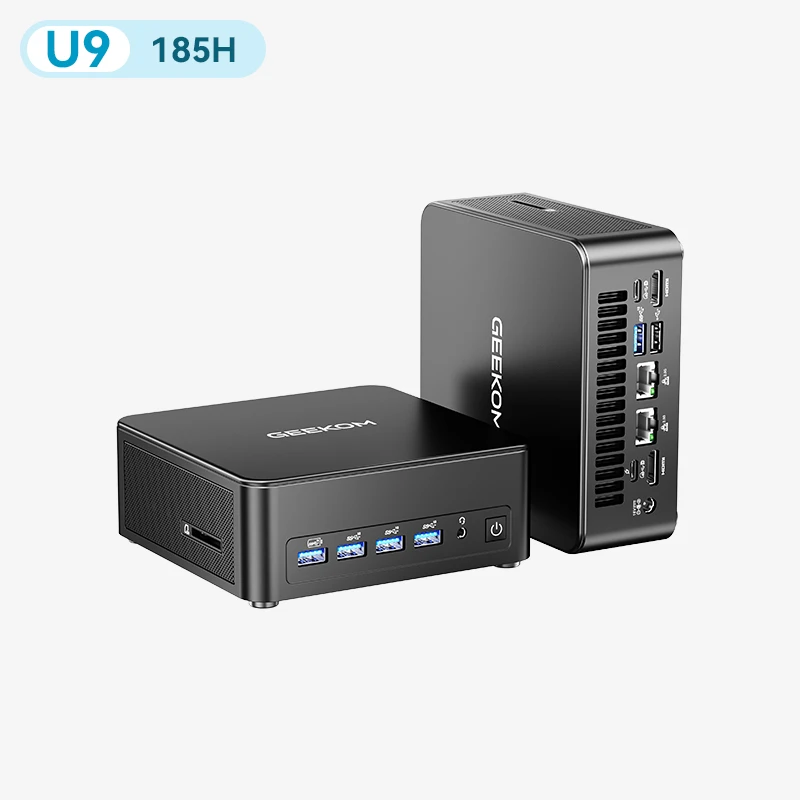
The IT13 Max makes the most of both standards. Its two USB4 (40Gbps) ports both carry a DisplayPort signal over DisplayPort Alt Mode, sitting alongside two HDMI 2.0 outputs — four display outputs in total.
That lets it drive up to four 4K monitors, or a single 8K panel, from a chassis you can hold in one hand. In practice, this maps neatly onto everything above: run your primary high-resolution monitor over USB4/DisplayPort, and use the HDMI 2.0 ports for a second screen or a living-room TV at 4K 60Hz. Powered by an Intel Core Ultra 9 185H with Intel Arc graphics, it’s built for multi-monitor office work and everyday creative tasks.
GEEKOM A6 — the value pick
For a more affordable route to the same flexibility, the A6 tells a similar story.
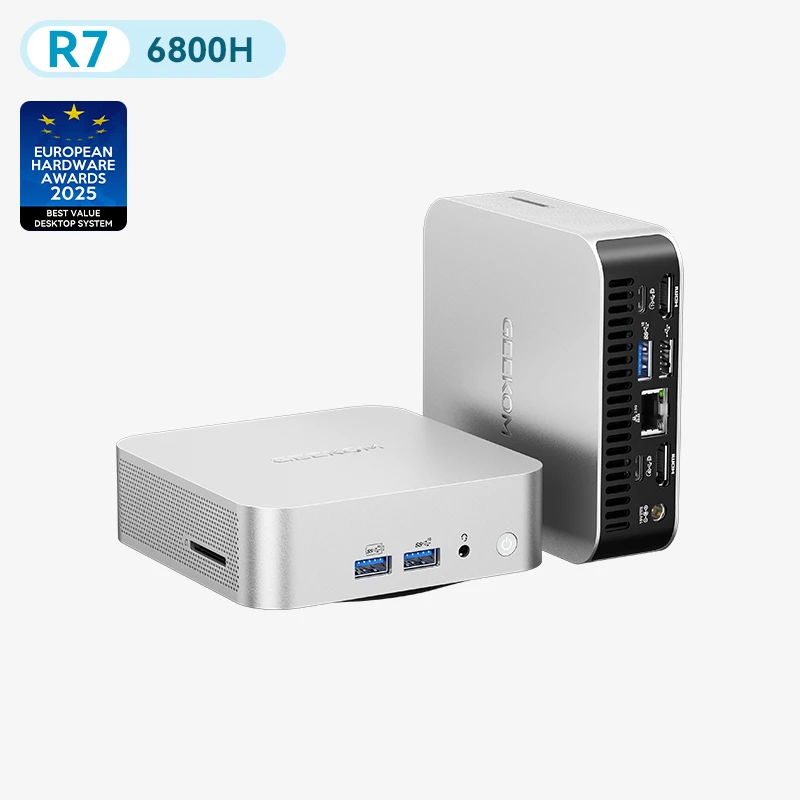
Its DisplayPort output arrives over USB-C — a USB4 (40Gbps) port and a USB 3.2 Gen 2 Type-C port, both supporting DisplayPort Alt Mode — alongside two HDMI 2.0 outputs, so it too can run up to four 4K displays or output 8K. Built on AMD’s Ryzen 7 6800H with Radeon 680M graphics, it’s aimed at everyday productivity, light-to-medium creative work and entry-level gaming — a natural fit if you want a capable multi-display setup without stepping up to the IT13 Max.
One shared limitation to keep in mind: on both machines, the HDMI ports are HDMI 2.0, which tops out at 4K 60Hz. If you want 4K at 120Hz, a high-refresh gaming panel, or 8K, run that display over the USB-C DisplayPort output rather than HDMI. For a second monitor or a TV at 4K 60Hz, the HDMI ports are perfect.
Converting Between DisplayPort and HDMI
DisplayPort and HDMI are not directly compatible because they are physically and signal-wise different standards. If you need to switch between them, here’s what you should look for in a cable or adapter.
When Do You Need to Convert?
Most often, the mismatch is a DisplayPort (or USB-C) output on your PC meeting an HDMI-only input on your monitor or TV. That’s the common case, and a DP-to-HDMI adapter or cable solves it. The reverse — an HDMI output (say, a laptop or console) into a DisplayPort input — is less common and needs an HDMI-to-DP converter, which is the more expensive of the two. A quick way to remember it: HDMI-to-DP connects a console to a PC monitor; DP-to-HDMI connects a PC to a TV or everyday monitor.
Choosing a Conversion Cable
Start with the direction: a “DP-to-HDMI” and an “HDMI-to-DP” converter look alike but are not interchangeable, so match it to your setup first. Then check the maximum resolution and refresh rate — most adapters handle 1080p at 60Hz fine, but for 4K at 60Hz or higher you need to confirm the adapter is rated for it, and check that it passes audio and HDR if you need them. Where you can, connecting two devices that share the same standard directly is always cleaner than going through an adapter — so if a high-resolution or high-refresh upgrade is on the horizon, buy your gear to avoid needing one at all.
Summary
In the DisplayPort vs. HDMI debate, there’s no single winner — each leads in its own domain. DisplayPort is usually the best way to connect a PC to a high-performance monitor when you want high resolutions, fast refresh rates, or more than one display. HDMI remains the standard for home-theatre electronics like TVs, game consoles and soundbars.
Whichever standard you lean on, choose a mini PC that supports both well — like the GEEKOM IT13 Max for multi-display and creative work, or the GEEKOM A6 for a more budget-friendly setup. Once you know the difference between DisplayPort and HDMI and use the right port for the job, you can build a comfortable, high-quality setup even around a compact PC — and save yourself a lot of guesswork when choosing your next monitor and cables.
FAQs
Are DisplayPort and HDMI compatible?
Not directly — different connectors and signal formats. An adapter or conversion cable bridges them, but you have to match the direction (DP→HDMI and HDMI→DP are different products).
Is DisplayPort better than HDMI?
For a PC monitor, usually yes — higher refresh rates, easier multi-monitor setup, more reliable Adaptive Sync. For a TV, console or soundbar, HDMI is the only sensible choice.
Does HDMI 2.2 make DisplayPort obsolete?
No. HDMI 2.2 has the higher bandwidth ceiling, but DisplayPort keeps the features PC setups rely on — MST daisy-chaining, DP Alt Mode over USB-C, and broader Adaptive-Sync support. Almost no consumer hardware uses HDMI 2.2’s full 96 Gbps yet.
Can I use the USB-C port on my mini PC for a monitor?
Yes, if it’s marked DP Alt Mode, USB4 or Thunderbolt. A USB-C-to-DisplayPort cable then gives you a full-quality DisplayPort connection, plus data and power over the same cable.
Will an adapter hurt picture or sound quality?
No — conversion is digital. But an adapter rated below your resolution and refresh rate will cap or drop the signal, so check its specs.
Do I need an Ultra96 or DP80LL cable?
Almost certainly not yet. An Ultra High Speed HDMI cable (48 Gbps) or a VESA-certified DP80 cable covers everything current displays can do. The new cables matter when 8K@120 or multi-8K hardware becomes mainstream.
My PC has both — which port should I use?
Monitor: DisplayPort or USB-C.
TV: HDMI.
Running both at once is fine and is the usual setup for two screens.