Open-source AI models have put cutting-edge artificial intelligence within everyone’s reach, to the point where you can now run them locally on your own mini PC. For many everyday tasks, you no longer need a subscription to a cloud AI service: open models such as Qwen can handle them privately, on your own device.
We’ll show you how, walk you through the process and help you choose the right mini PC for local AI.
What Is Local AI and Why Run It on a Mini PC?
Local AI is an artificial intelligence model that isn’t hosted on a third-party server or run from the cloud. You simply install it on your own PC and run it from there. These are usually open-source models that you can download for free, and a dedicated mini PC for local AI can be the ideal device for running them, with no per-token fees and no need for much bulkier, more expensive hardware.
Local AI vs Cloud AI: Privacy, Cost and Latency
Advantages and Limitations of a Mini PC for Local AI
Installing AI on your own mini PC is ideal for privacy and saving money, but those savings come with the natural limits of hardware that’s far less powerful than an industrial-scale data centre.
- ✔ Your data stays on your machine. On a mini PC, all your data is stored on your device and never passes through an AI company’s cloud, so you decide what leaves it and what doesn’t.
- ✔ You only pay for the hardware and electricity. Open-source models running locally cost far less because there are no subscriptions or per-token fees.
- ✔ You can customise your models. You can also adapt models (for example, through fine-tuning) and remove biases or default instructions that can limit the usefulness of cloud models.
- ✖ Computing power is limited. All of these advantages come with the natural limits of your hardware. A mini PC doesn’t have the power of a data centre such as Colossus, so results will usually take considerably longer.
Which AI Models and Tasks Can You Run on a Mini PC?
Practically any type of AI model can run on a mini PC with enough power. Ultimately, it all depends on how demanding the model is.
AI Tasks You Can Run Locally: LLMs, Images and Transcription
The main AI tasks you can run locally on a mini PC include:
- LLMs. You can run a local LLM with open-source models such as Qwen, Mistral or Llama.
- Image generation. Models such as Stable Diffusion or FLUX.1 let you generate images for free.
- Video generation. Models such as Wan or LTX are among the most popular for video generation and can also work from images.
- Speech transcription. For speech-to-text, Whisper is usually the go-to choice, and it can even be built directly into subtitling apps.
Small vs Large Models: What’s Realistic on a Mini PC
The most demanding models are designed only for very powerful systems, but others can run even on mid-range mini PCs with a good graphics card. Broadly speaking, you can distinguish between:
- Small models. Relatively simple models of 3B to 8B parameters usually run well on most mini PCs with a graphics card of up to 8 GB of VRAM, as long as they’re quantised.
- Large models. Larger models of up to 80B parameters need considerably more VRAM, or a mini PC with unified memory such as the GEEKOM A9 Mega. On compatible mini PCs, you can also connect an external graphics card via USB4 or OCuLink, although the connection itself will be a bottleneck.
Local AI Hardware Requirements for a Mini PC
It’s worth being clear about what kind of AI you want to run on your mini PC so you can choose its components accordingly. Let’s look at each part in turn.
CPU, Integrated GPU and NPU: Differences and Roles
First, it helps to understand which processing units your mini PC may have, and what each one does when running a local AI model.
- CPU. The CPU manages your system as a whole, but won’t carry the main AI processing load.
- GPU. This is where most of the work happens. Look for a GPU with at least 8 GB of VRAM to run lighter models, or an external one with up to 48 GB of VRAM for the heaviest.
- NPU. The Neural Processing Unit is designed for light, continuous AI tasks built into applications, such as Windows video effects or Adobe’s AI assistants, with minimal power draw. It’s useful for these background functions, but for local LLM inference, the heavy lifting falls to the GPU and memory.
RAM: How Much You Need for Each Model Size
When you offload an AI model to a graphics card, you rely on its VRAM, but with a mini PC like the GEEKOM A9 Mega, you can take advantage of its unified memory. Choose your local AI models according to the RAM you have available, also allowing for the context window you’ll need.
You can work this out in detail with an LLM VRAM calculator, but for now, this table gives you a rough idea:
| Model | Quantisation | Context | RAM |
|---|---|---|---|
| Llama-3.2 1B, TinyLlama (1B) | Q6_K | 35,328 tokens (35K) | 2.67 GB |
| Qwen2.5-7B (7.6B) | Q4_K_M | 35,328 tokens (35K) | 7.95 GB |
| 14B (Qwen2.5-14B) | AWQ/GPTQ | 34,304 tokens (34K) | 15.84 GB |
| 34B (CodeLlama 34B) | IQ2_XS | 55,808 tokens (55K) | 23.86 GB |
| 72B (Qwen2.5-72B) | AWQ/GPTQ | 102,400 tokens (100K) | 78.62 GB |
SSD Storage and the Space Models Need
AI models take up a fair amount of storage, but again, it all depends on the model you plan to use. Some are ultra-light, such as quantised Llama-3.2-1B, which can take up just over 1 GB on your SSD. Others, such as Qwen2.5-72B, can be around 50 GB with 4-bit quantisation.
If you dedicate the mini PC to AI alone, the SSD won’t be a problem. You can run very advanced models on an SSD of just 1 TB, and move to larger storage as you need it.
Summary Table: Hardware Requirements by Model and Use
| Category | Model | CPU | GPU/RAM | SSD |
|---|---|---|---|---|
| LLM | Llama-3.2-1B | 4 to 8 cores | 2–4 GB VRAM (RTX 3050 / integrated) | 1 TB |
| LLM | Qwen2.5-72B | 8 to 16 cores | 48–80 GB VRAM (2× RTX 3090/4090) or 64–128 GB unified memory (GEEKOM A9 Mega) | 1 TB |
| Image | Stable Diffusion 1.5 | 4 to 8 cores | 4–8 GB VRAM (GTX 1660 / RTX 3060) | 1 TB |
| Image | FLUX.1 [dev] | 8 to 16 cores | 16–24 GB VRAM (RTX 4070 Ti / 4090) | 1 TB |
| Video | Wan2.1 (1.3B) | 8 to 12 cores | 8–12 GB VRAM (RTX 3060 / 4060) | 1 TB |
| Video | CogVideoX (5B) | 12 to 16 cores | 24 GB+ VRAM (RTX 3090 / 4090 / A6000) | 1 TB |
Real-World Performance: We Tested 6 AI Models on the GEEKOM A9 Mega
To test what the GEEKOM A9 Mega can really do with local AI without a dedicated graphics card, we tried several language models in 13 different configurations: from very light 2B-parameter models to massive models of over 100 GB, both on a single machine and in a cluster. The table below shows the most representative single-machine results.
How We Tested: A9 Mega with Ryzen AI Max+ 395 and 388
We ran these benchmarks on the GEEKOM A9 Mega with the AMD Ryzen AI Max+ 395 and the AMD Ryzen AI Max+ 388, both with integrated Radeon 8060S graphics.
Response Speed by Model
Based on these tests, here are the results we recorded for each model:
| Machine | Model | File size | Generation (tokens/s) | Time to first token (TTFT) | Memory used |
|---|---|---|---|---|---|
| A9 Mega (388) | MiniCPM5-2B (Q4) | 1.56 GB | 103.1 tokens/s | 0.2 s | 14.8 GB |
| A9 Mega (388) | Qwen3.6-35B-A3B (Q4, MoE, MTP) | 22.7 GB | 68.0 tokens/s | 0.5 s | 33.3 GB |
| A9 Mega (395) | Qwen3.8-27B (FP4, MTP) | 14.6 GB | 31.3 tokens/s | 1.5 s | 26.8 GB |
| A9 Mega (388) | Qwen3.8-27B (Q4, MTP) | 17.6 GB | 20.2 tokens/s | 1.5 s | 39.1 GB |
| A9 Mega (388) | Gemma-4-31B (Q4) | 16.4 GB | 11.3 tokens/s | 8.7 s | 40.8 GB |
| A9 Mega (395) | Qwen3.8-Flash-Next (Q4, MTP) | 111.4 GB | 32.4 tokens/s | 3.8 s | 101.6 GB |
| A9 Mega (395) | DeepSeek-V4-Flash (Q2) | 96.8 GB | 14.7 tokens/s | 3.5 s | 113.0 GB |
Results may vary depending on quantisation, context window and software version.
What Happens with Long Texts: From 8K to 256K Tokens of Context
When working with long texts of 8,000 to 256,000 tokens of context, the main impact is a dramatic increase in time to first token (from several minutes to hours in extreme cases), while the model’s writing speed drops by half or more.
Tip: Speculative Decoding (MTP) for Faster Output
To speed things up, you can use speculative decoding with an MTP draft model. It proposes several tokens at once so the main model only has to verify them, generating responses faster without losing quality.
If you’d like to try it, our step-by-step guide shows you how to run Qwen3.8 Flash Next on the Ryzen AI Max+ 395 with llama.cpp, Vulkan and MTP on Ubuntu. Note that this setup requires the A9 Mega with the Ryzen AI Max+ 395 and 128 GB of unified memory: the model won’t fit in 64 GB.
What If the Model Doesn’t Fit? Clustering Several Mini PCs
When a massive model won’t fit on a single machine, you can use llama.cpp in RPC mode to connect several mini PCs in a cluster and share the load. A direct USB4 connection gives the lowest average latency compared with 10GbE, 2.5GbE or 1GbE Ethernet. Even so, the link between machines is a bottleneck: a cluster won’t speed up text generation, but it does let you run more demanding models with larger context windows.
How to Choose a Mini PC for Local AI
When choosing a mini PC for local AI, keep in mind which models you want to run so you can choose the hardware to match.
Key Features to Check Before You Buy
Start with the model you want to use, and pay attention to:
- Model size. The more parameters a model has, the more VRAM it needs to run on your mini PC.
- Quantisation. Quantisation affects your model’s VRAM requirements. You can use the calculator mentioned above to estimate them.
- Context window. Leave some headroom for the context window your AI will need, as it adds to the VRAM load.
Once that’s clear, choose your mini PC based on:
- CPU. It isn’t essential for the AI generation itself, but it’s very important for keeping your mini PC from getting overloaded.
- GPU. Your GPU’s VRAM determines which models you can run. Work out how much VRAM your AI tasks will need.
- RAM. On mini PCs like the GEEKOM A9 Mega, the unified memory architecture also lets you use system RAM to load even heavier models. Choose this type of mini PC if you need to work with demanding models.
Which GEEKOM Mini PC to Choose for Your AI Needs
To help you choose the right AI mini PC, here are three models suited to light, mid-range and heavy AI workloads. You can also browse the full range on our mini PC page.
If you only need AI for light tasks, a mini PC such as the GEEKOM A5 is a good option.
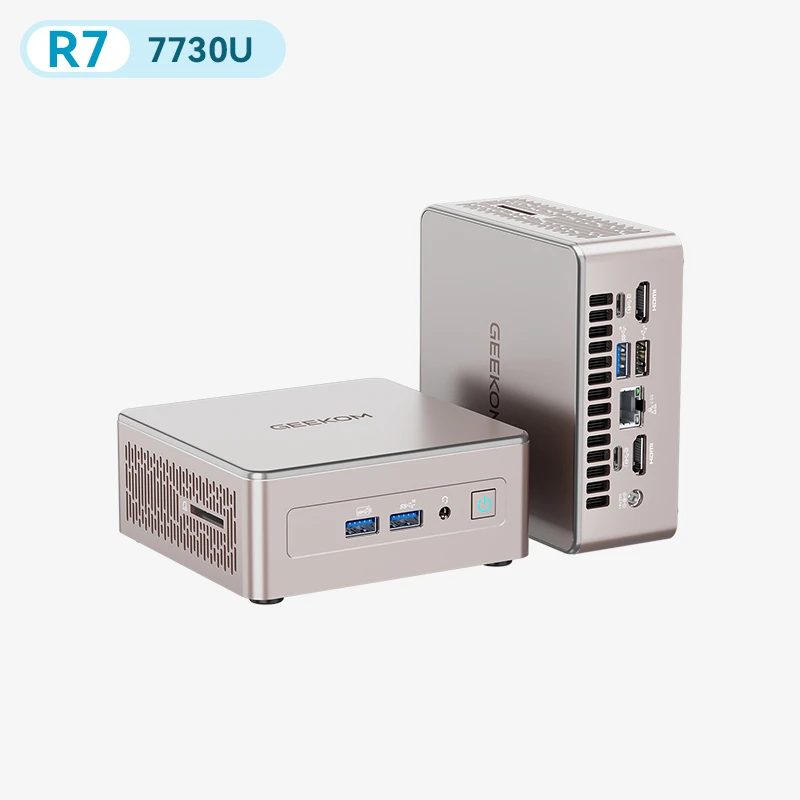
- CPU: AMD Ryzen 7 7730U
- GPU: AMD Radeon Graphics
- RAM: DDR4, expandable up to 64 GB
- Storage: up to 6 TB across three drives
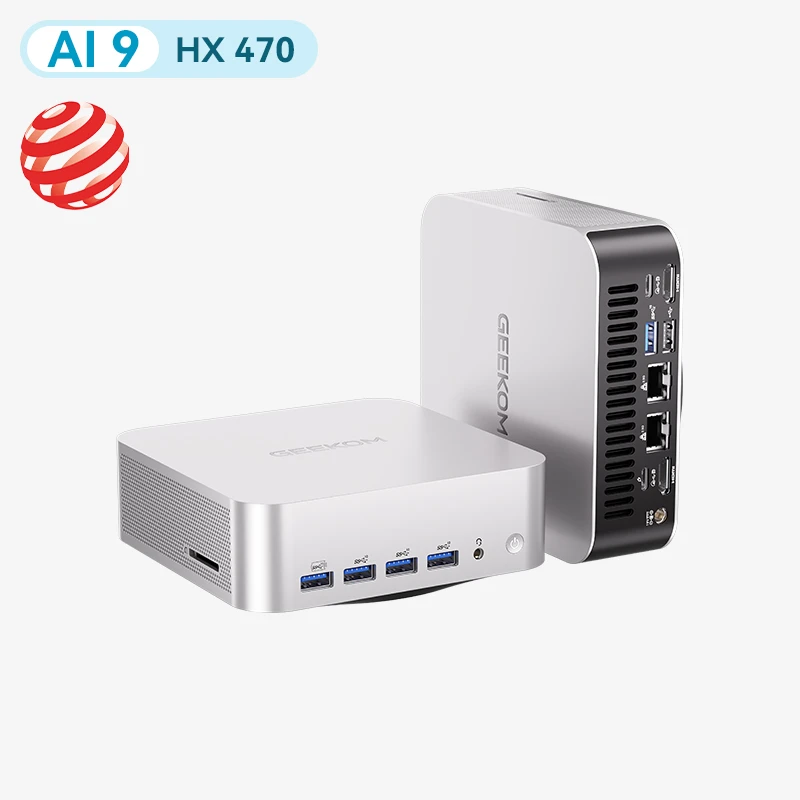
For mid-range AI workloads, consider the GEEKOM A9 Max. Its DDR5 memory isn’t soldered, so you can start with 32 GB and upgrade later as your models grow.
- CPU: AMD Ryzen AI 9 HX 470 / HX 370
- GPU: AMD Radeon 890M Graphics
- NPU: XDNA 2, up to 86 platform TOPS (HX 470)
- RAM: DDR5, expandable up to 128 GB
- SSD: two M.2 PCIe 4.0 slots (2280 + 2230), up to 8 TB in total
For the heaviest models, however, you’ll need a mini PC like the GEEKOM A9 Mega.
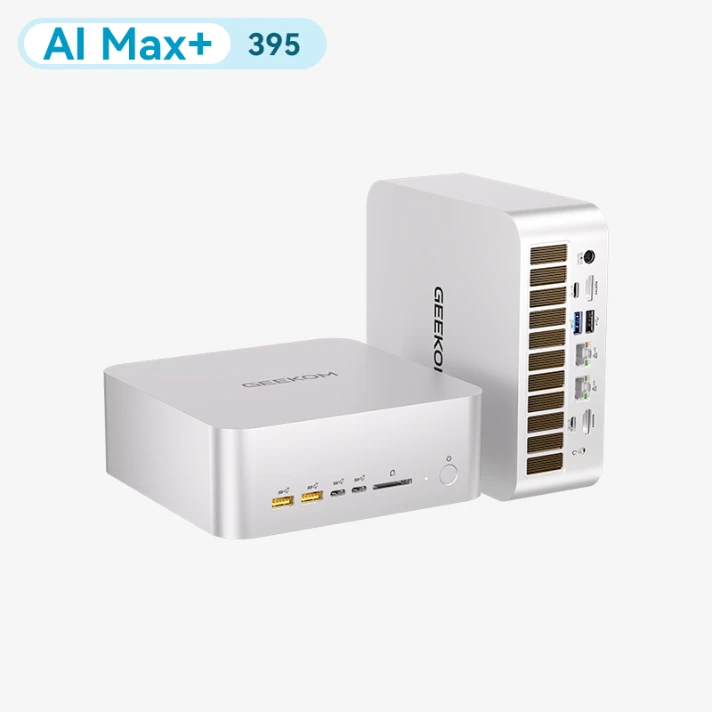
- CPU: AMD Ryzen AI Max+ 395 / 388
- GPU: AMD Radeon 8060S Graphics
- RAM: up to 128 GB unified memory (Ryzen AI Max+ 395)
- SSD: two M.2 PCIe 4.0 slots, up to 8 TB in total
Important: the A9 Mega’s unified memory is soldered and can’t be upgraded, so it’s worth choosing carefully from the start. Currently, the Ryzen AI Max+ 388 version comes with 64 GB and the Ryzen AI Max+ 395 version with 128 GB. If you want to run the largest models, such as Qwen3.8 Flash Next, you’ll need the 128 GB version.
How to Run AI Locally on a Mini PC, Step by Step
There are several ways to run local AI on a mini PC, and they vary depending on the type of AI you need. For image or video generation, you can use tools such as ComfyUI, while for LLMs, you can use Jan or Ollama.
Install Ollama and Download Your First Model
Here’s a quick guide to installing Ollama to run LLMs locally, which is usually the main way into open-source AI.
- Install Ollama. Go to ollama.com, download the installer for your system (Windows, macOS or Linux) and follow the wizard to complete the installation.
- Run Ollama. Open the terminal and type
ollamato run it. - Download and run your first model. Choose an Ollama model and run it with the
runcommand. For example, if you choose Llama 3.2, typeollama run llama3.2:1band press Enter. Ollama will download the model, install it on your system and run it as soon as it’s ready. - Start chatting. Once the model is installed, you can start chatting straight from the terminal. When you’re finished, type
/byeto close it.
Alternatives: LM Studio, llama.cpp, GPT4All and Other Tools
If you’d rather not use Ollama from the terminal and prefer more user-friendly software, or if you need to work with image or video generation, consider alternatives such as these:
- LM Studio. This desktop app lets you search for, download and test models directly from Hugging Face. If you use Windows, here’s how to install gpt-oss-120b locally, step by step.
- GPT4All. Like LM Studio, GPT4All is a desktop app that lets you chat with open-source models locally and easily.
- Jan. It works much like LM Studio or GPT4All, but also includes its own Qwen-based model by default.
- llama.cpp. This high-performance C/C++ inference engine makes the most of your hardware and GPU acceleration with minimal resource use.
- ComfyUI. With ComfyUI, you can install all kinds of models for generating images, video, music and voice, customise their settings and build complex workflows between them.
First Test: Run an LLM Locally and Check Its Performance
Once your mini PC for local AI is ready, start with an LLM that fits comfortably within its capacity, such as Llama-3.2-1B, and put it through its paces. Measure how long it takes to give each response and how well it handles a reasonable context. Then try progressively more demanding models until you find the sweet spot where you get the best performance from your hardware.
Local AI Use Cases on a Mini PC
Having local AI installed on your mini PC is genuinely useful for creating content, automating tasks or helping with your projects, all with the security and privacy of your own device.
Private Assistant, Automation and Development
You can use your AI as a personal assistant that answers your questions or automates tasks that would otherwise be very tedious. Your productivity will soar when your local AI summarises your emails or helps you draft documents, for example, and it can also check your spelling or, with the right tools, search the web.
Local AI for Small Businesses and Home Working
For small businesses, local AI can save a great deal of money that would otherwise go on cloud AI subscriptions. If your AI tasks aren’t too computationally demanding, installing the same local AI on your company’s mini PCs can give you that extra productivity boost at almost no extra cost.
Mini PC for Local AI: Frequently Asked Questions
Is local AI better than cloud AI?
It depends on your priorities. Cloud AI is far more powerful, but it’s also more expensive, and your data passes through third-party servers. Local AI, on the other hand, is completely private, customisable and will save you a lot of money on subscriptions, but it’s naturally less powerful overall because of hardware limitations.
How much RAM do I need to run an LLM locally?
Ideally, you should have at least 8 GB of VRAM to run a small LLM of up to 8B parameters, and then increase capacity as you move to more demanding LLMs. With a mini PC like the A9 Mega, up to 128 GB of unified memory lets you load models of 70B parameters or more without a dedicated graphics card.
Do I need a dedicated GPU for local AI?
It isn’t strictly necessary if you have a modern APU with fast unified memory, as in the GEEKOM A9 Mega, but a dedicated GPU greatly speeds up processing times for the most demanding models.
Do I need an NPU to run local AI?
No, not at all. NPUs are designed to accelerate light, background AI tasks at the user level, such as Adobe’s AI assistants or Windows itself. Heavy LLM inference falls to the CPU and GPU or, depending on the setup, to unified memory.
Which AI models can I run on a mini PC?
That depends on your hardware. On a mini PC without unified memory but with a good graphics card, you can run small or even medium models of 7B to 35B parameters. For massive models of over 100B, you’ll need 64 to 128 GB of unified memory. With 128 GB, for example, you can run models such as gpt-oss-120b or Qwen3.8 Flash Next on a single machine.
Can I connect several mini PCs to run larger models?
Yes. You can connect them over high-speed links with tools such as llama.cpp in RPC mode, which splits the model weights across the memory of several machines. This lets you work with larger models, but at the cost of slower speeds.