Not sure which Intel CPU to choose because there are so many generation numbers, model names, and suffixes? You are not by yourself. There are terms like “12th Gen,” “14th Gen,” and “Core Ultra” on product pages that do not tell you what changed between them. This guide gets right to the point. There is a full generation reference table, a clear explanation of how to read Intel model numbers in plain English, real benchmark comparisons, and clear suggestions based on use case, so you can buy with confidence in 2026.
What Is an Intel CPU Generation?
You can read about PCs with names like “Core Ultra 7” or “12th Gen Intel Core i7” on their spec sheets. You can understand spec sheets a lot better once you know what “generation” means.
A generation is a major update to the structure of the CPU, which is its basic engineering design. Each new generation of Intel processors brings changes to how fast they run, how much power they use, and the features they can support. From the first generation (Nehalem, 2008) to Core Ultra Series 3 (Panther Lake, 2026), this is the lineage.
Still, not every generation is a huge step forward. The 12th Gen (Alder Lake) was a big deal because it was the first mainstream processor to use a hybrid design that combined high-performance and power-efficient cores. The 13th Gen (Raptor Lake), on the other hand, was more of an improvement. It had the same core architecture but more cores and faster clock speeds. From one generation to the next, the jump is very different in size.
Intel also stopped calling its processors “Core i3/i5/i7/i9” in late 2023 and started calling them “Core Ultra.” Along with the older generation numbers, you will now see names like Core Ultra Series 1 and Series 2. That is why this guide exists: the basic idea is the same — a new design means a new generation. But the way things are named is different enough to be confusing.
Intel CPU Generation Reference Table
Generations 1 through 7 (Nehalem to Kaby Lake, 2008–2016) made the jump from 45nm to 14nm and added important features like Tri-Gate transistors and integrated graphics. The table below only shows PCs from the 8th generation and up, since not many people are buying hardware from that generation anymore. This is the range you will most likely find when looking for a new or used PC in 2026.
| Generation | Codename | Release Year | Process Node | Socket | Key Changes | Example CPU |
| 8th Gen | Coffee Lake | 2017 | 14nm++ | LGA1151 (300-series) | First mainstream 6-core desktop CPU | Core i7-8700K |
| 9th Gen | Coffee Lake Refresh | 2018 | 14nm+++ | LGA1151 (300-series) | Up to 8 cores | Core i9-9900K |
| 10th Gen | Comet Lake / Ice Lake | 2019 | 14nm++ / 10nm | LGA1200 | Up to 10 cores; 10nm introduced for mobile | Core i7-10700 |
| 11th Gen | Rocket Lake / Tiger Lake | 2020–2021 | 14nm / 10nm SuperFin | LGA1200 | AVX-512 support (desktop); Xe GPU (mobile) | Core i7-11700 |
| 12th Gen | Alder Lake | 2021 | Intel 7 (10nm) | LGA1700 | Hybrid P-core + E-core design; DDR5 support | Core i7-12700 |
| 13th Gen | Raptor Lake | 2022 | Intel 7 (refined) | LGA1700 | More E-cores; stronger multi-thread performance | Core i7-13700 |
| 14th Gen | Raptor Lake Refresh | 2023 | Intel 7 | LGA1700 | Incremental update over 13th Gen; higher clocks | Core i7-14700 |
| Core Ultra Series 1 | Meteor Lake | 2023 | Intel 4 | BGA (mobile) | Tile-based architecture; first built-in NPU | Core Ultra 7 155H |
| Core Ultra 200S | Arrow Lake | 2024 | TSMC N3B / N5P | LGA1851 | Chiplet design; new-gen P/E-cores | Core Ultra 7 265K |
| Core Ultra 200V | Lunar Lake | 2024 | TSMC N3B (3nm) | BGA (mobile) | 3nm mobile-only design; enhanced integrated GPU | Core Ultra 7 258V |
| Core Ultra Series 3 | Panther Lake | 2026 | Intel 18A + TSMC N3E | BGA (mobile) | First Intel 18A chip; up to 16 cores | Core Ultra X9 388H |
| Core Ultra 200HX Plus | Arrow Lake Refresh | 2026 | TSMC N3B / N5P | BGA (mobile) | Refreshed high-end mobile lineup | Core Ultra 9 290HX Plus |
From the 8th Gen to the 11th Gen, desktop CPUs stayed on 14 nm if you look at the process node column. That stretch began with the 6th Gen (Skylake, 2015), and even though Intel changed the name to 14nm, 14nm+, 14nm++, and 14nm+++, the process node underneath did not change much. During this time, Intel was working hard to move to 10nm.
That does not mean that things got worse during that time. The number of cores went up sharply. The spark was AMD Ryzen in 2017. AMD released affordable 6-core and 8-core CPUs, which completely changed a market segment where 4 cores were the norm. Intel quickly got back to them, giving the 8th Gen 6 cores and the 9th Gen 8 cores.
The architecture and the process node finally made big changes with the 12th Gen Alder Lake. In the years since then, we have seen hybrid design, DDR5 support, chiplet structures, and NPUs (AI accelerators). Almost every generation brings about major changes in engineering.
Also Read: DDR4 vs. DDR5 RAM: Is Upgrading Worth It in 2026?
How to Read the Model Numbers on Intel CPUs
Reading Core i-Series Model Numbers to Find Out the Generation
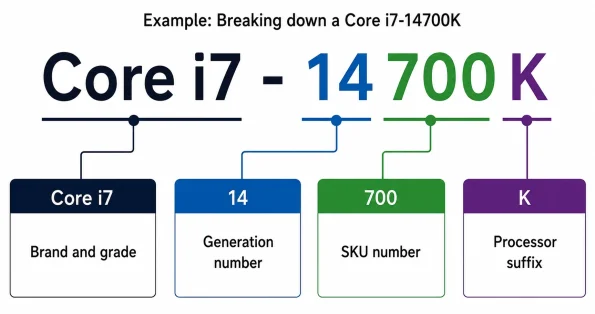
When it comes to the Core i-series (Core i3, i5, i7, and i9), the model number tells you the generation. Take “Core i7-14700K” as an example:
- Core i7 — A brand and tier list (i3 first, then i5, then i7, then i9)
- 14 — Generation number (in this case, 14th Gen)
- 700 — SKU number (relative rank within the same generation and tier)
- K — Suffix (indicates certain traits; covered below)
The number right after the hyphen is the key. The first two numbers show the generation for chips made after 10th Gen. For example, “12600” shows the 12th Gen and “13900” shows the 13th Gen. Before the 9th Gen, it was just the first number. For example, “9900” means 9th Gen and “4790” means 4th Gen.
It is really helpful to know these things when looking for used PCs. In and of itself, the phrase “Core i7 inside!” does not tell you much. When it comes to performance, a 4th Gen Core i7 and a 12th Gen Core i7 are very different. You can avoid buying old hardware for too much money by making it a habit to check that first number.
Using the Core Ultra Model Numbers to Figure Out the Generation
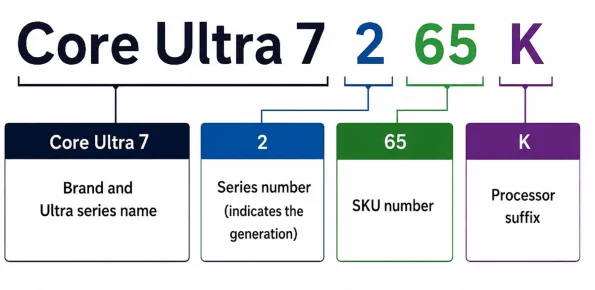
The way Core Ultra names things is different from how Core i names things, but the basic rule is easy to understand once you know it. Take “Core Ultra 7 265K” as an example:
Core Ultra 7 — Brand and tier
- 2 — Series number (this one shows the 200 Series)
- 65 — SKU number
- K — Suffix
The main difference from the Core i is that the first digit is a series number instead of a generation number. Even though the “2” in the Core Ultra 200 Series looks like “2nd Gen,” these chips are more like the 15th generation. “First digit equals generation” is true for Core i, but not for Core Ultra.
In the same way, the Core Ultra Series 3 (Panther Lake) that came out in 2026 also starts with “3.” On a Core Ultra X9 388H, the “3” stands for Series 3, the “88” is the SKU number, and the “H” is the ending.
What do the letters K, F, U, H, HX, and T mean in CPU?
What kind of chip it is tells you from the letters at the end of the model number. Do not try to remember them all; just pay attention to the ones that apply to what you are buying. It is best to get a model that does not end in “U” or “H” if you are not overclocking or building your own desktop.
| Suffix | Meaning | Main Use |
|---|---|---|
| K | Overclocking supported | High-end desktop models |
| F | No integrated GPU | Builds requiring a dedicated graphics card |
| KF | Combination of K and F | Overclockable with no integrated GPU |
| T | Power-efficient version | Compact PCs and embedded applications |
| U | Ultra-low-power mobile | Thin and light laptops |
| H | High-performance mobile | Gaming and creator laptops |
| HX | Top-tier mobile | High-end laptops |
You should pay extra attention to the F suffix. Since F-series chips do not have built-in graphics, you will not see anything on the screen if you do not have a separate GPU. If you choose one because it is a little less expensive, you may end up spending more than you would have on a standard model once you add in the cost of a discrete graphics card.
Intel’s New Generation Architecture, From Core i to Core Ultra
Later in 2023, Intel stopped using the “Core i3/i5/i7/i9” brand and started using “Core Ultra.” Not only did the name change, but the design philosophy changed a lot as well.
The main structural change is that the CPU, GPU, and NPU (the AI processing chip) are no longer all crammed onto a single die but are instead built as separate tiles and packaged together. This way of doing things lets Intel choose the best way to make each functional block on its own.
A lot of people are also interested in the NPU. Since the chip has its own AI processor, it can handle tasks like removing background noise from video calls and transcribing in real time without having to use the cloud. However, as of 2026, there are still not many apps that can fully utilise the NPU. Windows Copilot and other AI features are starting to work with it, but the NPU by itself is not quite ready to make a big difference in your daily life yet.
The newest desktop chip as of May 2026 is the Core Ultra 200S Plus (Arrow Lake Refresh). The newest mobile chips are the Core Ultra Series 3 (Panther Lake) and the Core Ultra 200HX Plus, which were both released earlier this year. Each of the 200S Plus and 200HX Plus is an improvement on Arrow Lake, which means that their architecture builds on the design of 2024. Panther Lake, on the other hand, is the first chip made on Intel’s 18A process node. This is a real step forward for the generation.
Coming up, Intel plans to release Nova Lake (Core Ultra 400 Series) for desktops in the second half of 2026. This will be followed by the Razor Lake refresh in 2027. Keep those in mind if you are planning to make a big purchase and have the money to wait.
Which Generation of Intel CPUs Performs Better?
How much faster is one generation compared to another? That is what most people want to know. Compare important CPUs from the 10th generation and up with the Cinebench R23 scores shown below. Most people do not use older generations anymore, so the 10th Gen is a good place to start.
Performance of Desktop CPUs by Generation
| CPU | Generation | Single-Core | Multi-Core |
| Core i7-10700 | 10th Gen | 1,255 | 12,250 |
| Core i7-12700 | 12th Gen | 1,862 | 21,568 |
| Core i7-13700 | 13th Gen | 2,107 | 24,770 |
| Core i7-14700 | 14th Gen | 2,109 | 33,441 |
| Core Ultra 7 265K | Core Ultra 200S | 2,261 | 35,315 |
It is about 48% faster for a single core and 76% faster for multiple cores when going from 10th Gen to 12th Gen. In this case, the hybrid architecture is having an effect. The change from 13th Gen to 14th Gen is different: single-core performance barely changed (2,107 to 2,109), but multi-core performance jumped 35%, which was only possible by adding more cores. It is hard to tell the difference between 13th Gen and 14th Gen when running games or other single-threaded tasks. The Core Ultra 7 265K (Arrow Lake) makes things faster, but its real value is not in its raw benchmark scores. Its real value is in how well it uses power, giving you the same performance while using a lot less.
How Well Each Generation of Mobile and Mini PC CPUs Works
| CPU | Example Mini PC | Single-Core | Multi-Core |
| Core i7-1280P | GEEKOM IT12 | 1,848 | 13,549 |
| Core Ultra 9 185H | GEEKOM GT13 MAX | 1,775 | 17,460 |
| Core Ultra 7 258V | (Thin & light laptops) | 1,866 | 9,120 |
The pattern on mobile is the same as on desktop: performance for a single core stays about the same from the i7-1280P to the Core Ultra 9 185H, while performance for multiple cores goes up by about 29%. The Core Ultra 7 258V does well with a single-core score of 1,866, but its multi-core score of 9,120 is not very good. That is because it is an ultra-low-power chip made for thin laptops, not a high-performance mini PC. The performance goals for the two groups are very different.
People are still sending in benchmark data for the newest chips, such as Core Ultra 200S Plus (270K Plus and similar) and Core Ultra Series 3 (Panther Lake). For those, do not just look at the spec sheets; wait for reviews from other people before making any decisions.
Results from the cpu-monkey.com Cinebench R23 database. Different test conditions give different results.
Different Types of Intel CPUs for Mini PCs
When shopping for a mini PC, things are a little different from what we have talked about so far for desktops and laptops. Most mini PCs use mobile-class CPUs, which are the same chips that are in laptops. This means that what you already know about suffixes (U, H, and HX) applies directly to this case.
There are three main types of mini PC CPUs. Basic chips like the N95, N100, and N150 use about 6W and are good for simple tasks. Chips like the Core i5-12450H and Core i7-1280P, which are in the middle price range, can easily handle most everyday tasks. High-end models like the Core Ultra 9 185H and 285H are best for creative work that needs a lot of power or for doing a lot of things at once. You can not change the CPU after you buy it, so making the right choice at the beginning is important.
Compatibility with Windows 11 by Intel Generation
It depends on what generation of CPU you have, if you want to know if your PC can run Windows 11. Microsoft says that Intel CPUs from the 8th Gen (Coffee Lake) and up can run Windows 11. That is all of them, from 8th Gen to the current Core Ultra line. As of 2026, this requirement has not changed.
Be careful: the installer might not accept your system even if your CPU is on the list of ones that can work. BIOS settings can turn off TPM 2.0 and Secure Boot by default on some 8th- and 9th-gen machines. If you are still getting blocked even though your CPU is compatible, check your BIOS settings first. Usually, a firmware update or a quick toggle will fix the problem.
Go to Settings> System> About to see which CPU generation you have. That is where you will see your CPU’s name. If you remember how to read model numbers from earlier in this guide, you can quickly figure out what generation it is.
Which Intel Generation Should You Buy? Recommendations by Use Case
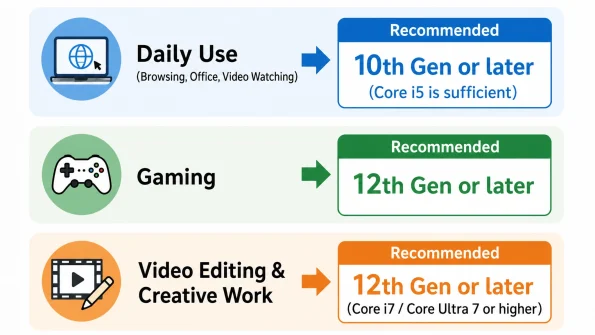
Anything after the 10th Gen is fine for daily tasks like browsing the web, using Office apps, and streaming videos. You can find used 10th- and 11th-gen machines for very little money, and they can easily handle these tasks.
For gaming, you should aim for a 12th Gen or newer system. It makes a big difference that it supports DDR5 and has a hybrid architecture. However, single-core performance gains have slowed down a lot since 13th Gen. This means that if you have to choose between 14th Gen and Core Ultra 200S, the price difference is a more important factor than any performance gap.
Get at least a 12th Gen Core i7 or Core Ultra 7 if you want to edit videos and do creative work. The benchmark table earlier in this guide is useful because it shows how long renders and exports take based on multi-core performance. You might be able to use NPUs to help with AI tasks in the future with Core Ultra chips, but you do not have to pay extra for this feature just yet.
FAQs about Intel CPU Generations
What generation of Intel CPU is this in 2026?
This is the Core Ultra 200S Plus (Arrow Lake Refresh) desktop chip as of May 2026. You can get the Core Ultra Series 3 (Panther Lake) and the Core Ultra 200HX Plus for mobile. All of these would be roughly the same as 15th Gen under the old numbering system.
What is the difference between Core Ultra 200 and 14th Gen?
The building style is very different. The 14th Gen has a single-die design, but the Core Ultra 200 has a chiplet structure, which means that the CPU, GPU, and NPU are all on separate tiles. Also, the socket went from LGA1700 to LGA1851, so you would need a new motherboard to make the change. The difference is not huge in terms of raw benchmark performance, so if price is the only thing that matters, that is a fine way to make your choice.
Does the problem with Intel CPU instability affect newer models?
Not at all. Computers from the 13th and 14th generations became unstable in 2024. This was because of a bug in the microcode that let too much voltage build up. Core Ultra chips do not have that problem because they have a completely different architecture.
In 2026, should you pick Intel or AMD?
You will be able to play games smoothly on either platform. With its 3D V-Cache models, AMD’s Ryzen 9000 series really shines when it comes to getting the highest frame rates. Intel’s Arc on Core Ultra is getting closer to beating AMD’s Radeon-based iGPUs, which have been the best in the business for years. Intel is best at the mid-range, where it has a lot of good-value options, and Core Ultra has made big steps forward in terms of power efficiency. Right now, neither company is the best overall, so the best thing to do is choose a CPU based on your needs and budget, rather than picking a brand first.