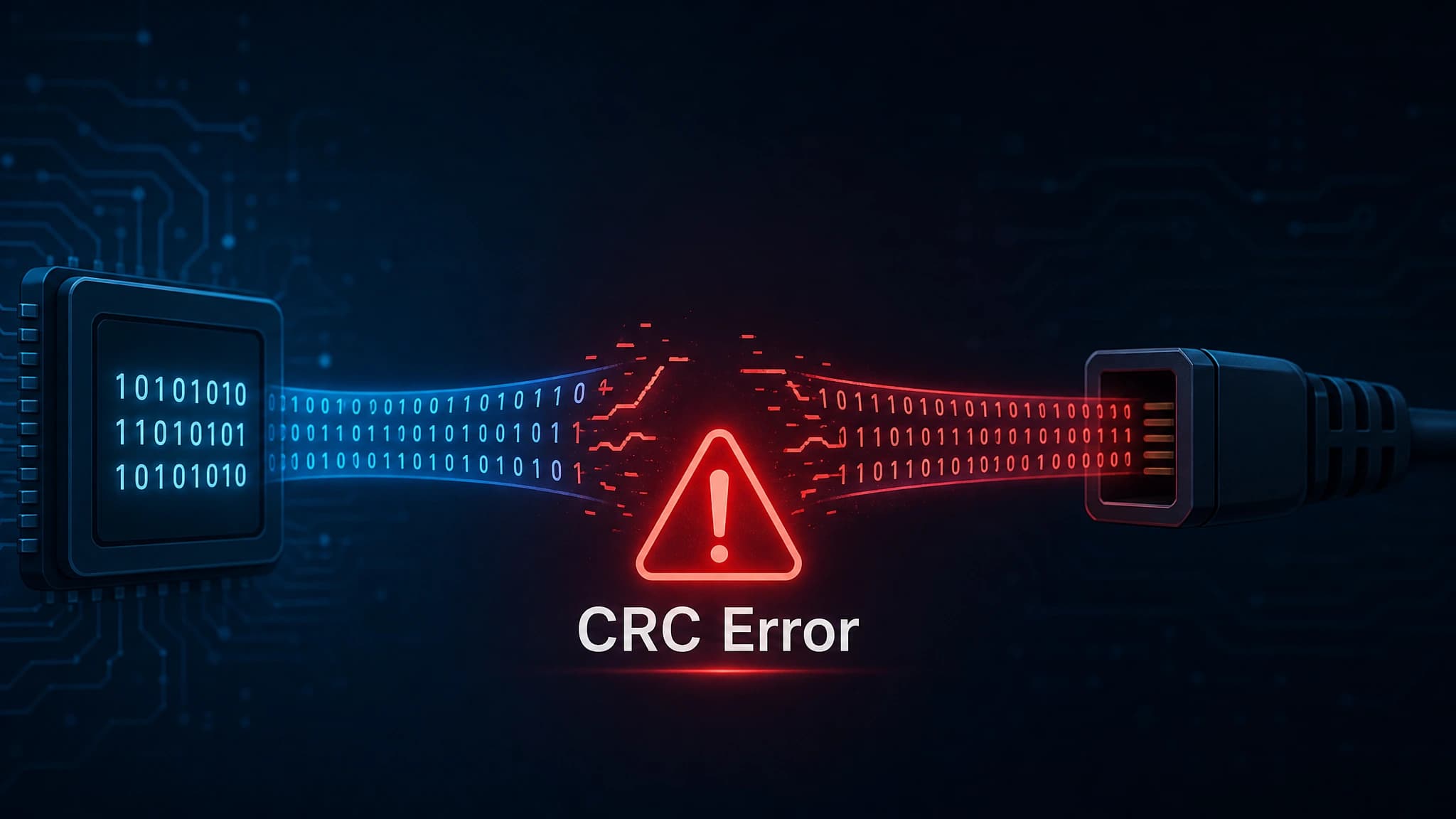
“Data error (cyclic redundancy check)” pops up on your PC as you try to copy a big file, install a new game, or open a ZIP archive. This is very annoying. Your computer will show you a CRC error if the data it received does not match the data it expected to read. It might sound scary, but it is actually a common way to keep data from getting damaged. We will talk about what causes CRC errors, how to fix them safely, and when you might want to get a new storage drive in this guide.
What Is a CRC Error?
A Cyclic Redundancy Check (CRC) is a digital network and storage device error-finding code that looks for changes made to raw data by accident. A short check value called the CRC is added to a file when it is made or sent. Later, when you open or copy that file, your system will figure out the CRC again. Windows stops the operation and shows a CRC error if the new value does not match the original value. This keeps you from using damaged data. On TechTarget’s CRC definition page, you can read more about the math that goes into this.
Common Signs of a CRC Error
There are different ways that CRC errors show up depending on what you are trying to do. This is what you might see as an error message:
- “Data error (cyclic redundancy check)”
- “The file or directory is corrupted and unreadable.”
- “Cannot copy: Data error CRC”
- “CRC failed” in WinRAR or 7-Zip
- “Disk read error” during Windows boot
In addition to error messages, you may also see files that will not open or copy, installers that stop working in the middle of the process, Windows Explorer freezing when you open a certain folder, or even a Blue Screen of Death (BSOD) with NTFS-related stop codes.
9 Common Causes of CRC Errors
Failing or Damaged HDD Sectors
Sometimes, CRC errors happen on old hard disc drives (HDDs) because of mechanical wear, physical shock, or bad sectors building up over time. The CRC check fails if the read/write head cannot read a sector correctly. You can find this by using diagnostic software to look at SMART attribute 05 (Reallocated Sectors Count).
SSD Problems
Solid State Drives (SSDs) do not have any moving parts, but they can still get CRC errors. Most of the time, this is not because of physical damage but rather firmware bugs, NAND flash memory cells that have worn down, or controller failures.
Corrupted Downloads
There are times when the hardware is fine but the file isn’t. Problems with incomplete downloads, server-side corruption, or transfers that get interrupted can cause CRC errors on Steam, Epic Games, and when downloading Windows ISOs and ZIP/RAR archives. Use MD5 or SHA-256 checksum tools, such as CertUtil or 7-Zip, to make sure the file is correct.
Bad or Faulty Cables and Connections
Data in transit can be messed up by a bad physical connection. When using cables with damaged shielding, this is especially dangerous for external hard drives, portable solid-state drives, and USB flash drives. When SATA data cables inside desktop PCs are loose or bent, they can cause problems. High-speed external drives that do not connect properly via Thunderbolt or USB4 are another common cause.
Faulty or Unstable RAM
When you write data to the drive, it first goes through your system memory (RAM). If your RAM is not working right, it can corrupt the data while it is in transit, which can cause a CRC mismatch when you read the file later.
File System Corruption
The drive can also fail the CRC test because of a logical error. This includes NTFS metadata errors, sudden shutdowns or power loss during writing, bad drive ejection (especially for USB drives), or a corrupted Master File Table (MFT), all of which can make a lot of files unreadable.
Optical Media Degradation
When you try to read data from an old CD, DVD, or Blu-ray disc, CRC errors can happen because of scratches, smudges, or “disc rot”, which is the physical breakdown of the data layer.
Overheating and Thermal Throttling
When drives inside small enclosures get too hot, the data on them can become corrupt. This is especially important for mini PCs that do not have good airflow or passive cooling. To keep an eye on your drive temperatures, you can use programs like HWiNFO64 or CrystalDiskInfo.
Malware and Ransomware
Malware sometimes changes file headers on purpose, which causes CRC errors. In the same way, ransomware that only encrypts some files can cause CRC mismatches. You can tell this is not a hardware CRC error by seeing if it happens to more than one type of file at the same time.
How to Fix a CRC Error — Step-by-Step
IMPORTANT: If you think your hard drive or SSD is physically failing, using intensive scan tools like CHKDSK /r right away could make the damage worse. Before you try to fix advanced hardware problems, you should always back up or recover important files.
Quick Software & File-Level Fixes (Safe & Fast)
Fix 1: Download or Check the Damaged File Again
The error most likely happens with a damaged file if it only happens with one downloaded game or file. Eliminate it, clear the cache in your browser or launcher, and then download it again. For Steam or Epic games, use the “Verify integrity of game files” service.
Fix 2: Check for Errors in Windows (The GUI Method)
There is a tool in Windows that can fix small file system errors. Right-click on the drive that is giving you trouble in File Explorer and choose Properties. Then, go to the Tools tab and click “Check” under the section that says “Check for errors”. Just do what it says to do to scan and fix the drive.
Fix 3: Run SFC and DISM (For Windows System File Errors)
Open the Command Prompt as an administrator and run it sfc /scannow on any core Windows files that are giving you CRC errors. You can fix the Windows image by running DISM /Online /Cleanup-Image /RestoreHealth if that does not work.
Advanced Hardware & Storage Troubleshooting
Fix 4: Check and Re-seat Physical Connections
Remove the power from your PC, turn it off, and open the case. Take the SATA data and power cables off of your drive and motherboard. Then, firmly plug them back in. If the problem is with an external drive, try a different USB cable or a different port on the motherboard.
Fix 5: Check SMART Status to Diagnose Drive Health
If you want to check the health of your drive, use UK-standard diagnostic tools such as CrystalDiskInfo, Samsung Magician, or Crucial Storage Executive. Watch important values like 05 (Reallocated Sectors Count), C5 (Current Pending Sector Count), and BB (Uncorrectable Sector Count). If these numbers are high or rising, the drive is in trouble.
Fix 6: Run CHKDSK via Command Prompt (With Caution)
Do a deeper repair after backing up your data. To do this, open Command Prompt as an administrator and type chkdsk X: /f /r (where X is your drive letter). In addition to fixing errors in the file system, this will try to get readable data back from bad sectors. Keep in mind that this could take hours.
Fix 7: Test for Faulty or Unstable RAM
You can use the Memory Diagnostic tool that comes with Windows or a third-party program like MemTest86 to look for problems in your RAM. Errors may mean you need to reseat your RAM or replace a broken module.
Fix 8: Safely Recover Data and Replace the Drive
Stop using the drive right away if CHKDSK can not fix a physical problem with it. To get your files back, use data recovery software or call a professional service. Then, replace the drive.
Also Read: Data Migration: How to Transfer Data to New Business PCs (2026 Guide)
Can a CRC Error Mean My SSD or Hard Drive Is Failing?
Not all the time. It is important to tell the difference between temporary errors (like a broken cable or a corrupted download) and hardware errors that will not go away. But there are warning signs that the drive is about to fail. On SSDs, firmware bugs or loose connections are more often to blame than NAND failure. On hard drives, CRC errors are more likely to point to mechanical wear. Your advice should always be to back up right away, figure out what is wrong, and replace the drive if it turns out to be problematic.
Case Study: Managing Storage Integrity in Modern Mini PCs
Smaller devices and bigger systems both use the same architecture. Due to the fact that mini PCs use standard M.2 NVMe and SATA SSD storage interfaces, they can get the same CRC errors as full-sized tower desktops. There are, however, risks that are unique to small form factor devices:
- Thermal Throttling: Small enclosures get warmer over time. Extreme heat can make an SSD controller unstable for a short time, which can lead to data write errors.
- Ribbon Cable Connections: A lot of high-end mini PCs, like the GEEKOM GT1 Mega, GEEKOM A8, or GEEKOM IT13, have two storage options: one is M.2 NVMe and the other is secondary SATA. Check that the flexible SATA ribbon connector is properly positioned and securely in place if you get a CRC error after upgrading or adding a second drive.
- Stability of External Storage: Because mini PC users often connect external drives via high-speed USB4 or Thunderbolt 4 ports, it is important to use premium-grade, high-bandwidth cables to avoid signal loss and the CRC errors that follow.
How to Prevent CRC Errors
Prevention is always better than cure. Before unplugging an external drive, you should always safely eject it. Make sure your PC is hooked up to a surge protector or Uninterruptible Power Supply (UPS) so that data does not get lost when the power goes out. Keep your system well-ventilated to avoid thermal throttling, and use the 3-2-1 backup rule to make sure you back up your important files on a regular basis.
Frequently Asked Questions about CRC Errors
Can a faulty SSD cause CRC errors?
Yes. You cannot scratch or break SSDs because they do not have any moving parts. However, data corruption and CRC errors can happen when NAND flash memory fails, controllers fail, or there are bugs in the firmware.
Is a CRC error a sign of a virus or malware?
Yes, it can be. Malware that encrypts files with ransomware can cause CRC mismatches, and some malware changes file headers on purpose. But hardware problems or bad cables are much more likely to be to blame.
What is the difference between a CRC error and a bad sector?
In a bad sector, there is a problem with the storage drive’s hardware or software that makes it impossible to reliably write or read data. When the system tries to read data from that bad sector and finds that the data is damaged, it shows a CRC error.
Can Windows automatically repair all CRC errors?
No, Windows tools like CHKDSK can only fix logical file system errors and map out bad sectors. They can not fix hardware damage or magically fix data that has been permanently damaged.
Should I immediately replace my hard drive if I get one CRC error?
Not all the time. A bad download or a cable that is not tight enough could cause a single CRC error. But you should back up your data right away and check the SMART status of the drive. If diagnostic tools show that its health is getting worse, you should get a new one.
Do CRC errors affect NVMe SSDs differently than traditional SATA drives?
The error is the same, but the reason for it is different. A CRC error on an NVMe SSD is more likely to be caused by extreme thermal throttling, a failing controller, or an M.2 connection that is not properly seated. On the other hand, a SATA HDD CRC error is usually caused by mechanical wear.
Protect Your Data and Your Hardware
When you use corrupted data, CRC errors let you know right away. When you know what is going wrong—whether it is a bad cable, a corrupted download, or a broken drive—you can fix the problem without losing your files. Check out GEEKOM’s selection of high-end mini PCs if you want a reliable, well-cooled system that can handle modern, fast storage without taking up too much space.