On almost every spec sheet, RAM and ROM appear side by side, and they are almost always confused. RAM is quick to grasp. ROM is another story: over the years, the term has shifted meaning, and today it is used to refer to different things depending on whether you are talking about a PC, a smartphone, or the chip that boots the system.
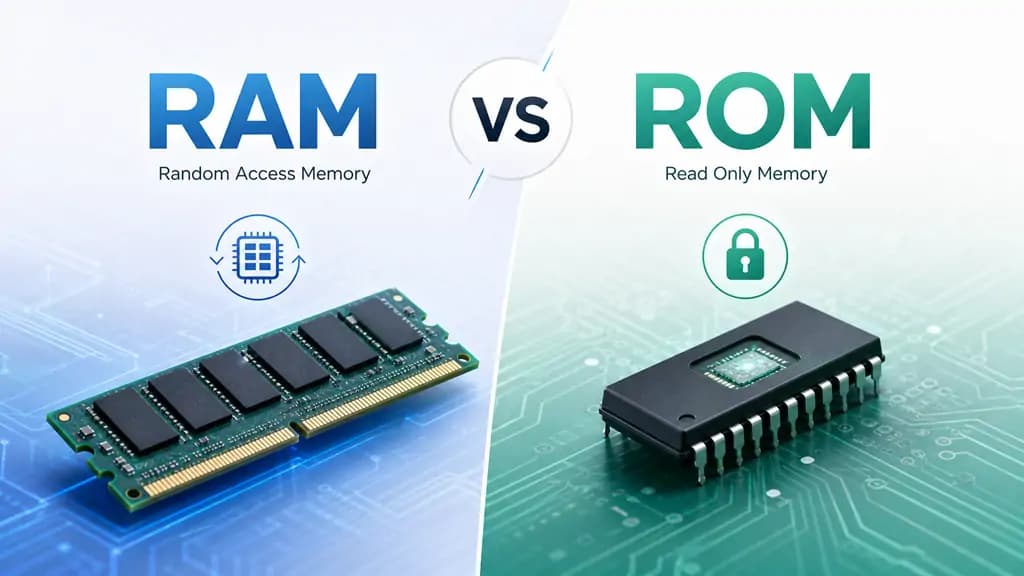
Quick Answer: The technical distinction, in one line, is simple: RAM is volatile working memory and empties when you turn the device off; ROM is non-volatile, read-only memory and keeps its data even without power. The problem is that this textbook definition tells only half the story. Much of the confusion between RAM and ROM does not come from the hardware but from the imprecise use of a single word. Let’s see why.
What Is Computer Memory?
In computing, “memory” refers to two different things that are worth keeping separate. There is working memory, where the system holds the data it is using right now, and there is storage memory, where data stays saved over time. In everyday language, the same word is often used for both, and that is where much of the confusion begins.
RAM and ROM historically belong to the first group, the internal memory the processor uses to operate. Actual storage (the hard disk of the past and the SSD of today) is a separate category, even though in common speech it often ends up confused with ROM.
What Is RAM?
RAM stands for Random Access Memory. It is the processor’s workbench: at startup, the operating system and the programs you open end up here, and this is where the processor runs them. There is a catch, though: RAM is volatile. Everything it holds is wiped at power-off and at every restart, because without constant power, it does not retain data.
Today’s RAM follows the DDR5 standard. Behind it is JEDEC, the body that decides how memory should be made: the first version, JESD79-5, was released in July 2020 and has been updated several times, up to JESD79-5D in November 2025. Compared with DDR4, a lot has changed. Bandwidth rises. It starts at 4800 MT/s, roughly 50% more. And power consumption drops because DDR5 runs at 1.1 V versus DDR4’s 1.2 V, around 20% less energy. Typical capacities today range from 8 to 128 GB.
Related Article: DDR4 vs DDR5 RAM: Is It Worth Upgrading in 2026?
What Is ROM?
ROM stands for Read Only Memory. It is non-volatile: it keeps its data even when the computer is off. Its historical job is to store the instructions the device reads at startup, that is, the firmware that gets the hardware going before the operating system even loads.
Here, a clarification is needed that many articles skip. ROM is not a single thing: there is a whole family of memories descended from the original. There is mask ROM, programmed at the factory and no longer modifiable, and then PROM, EPROM, EEPROM, and finally flash memory, which is a descendant of EEPROM. This evolution explains why the word “ROM” is used today even for memories that can in fact be rewritten. We will come back to this because it is at the heart of almost all the confusion.
Differences Between RAM and ROM
| Function | Workbench for the data and programs in use | Holds the firmware and boot instructions |
| Empties at power-off? | Yes | No |
| Access | Read and write, very fast | Mainly read, writing is rare |
| Speed | High | Lower than RAM |
| Typical capacities | 8–128 GB | A few MB (system firmware) |
| Current technology | DDR5 (SDRAM) | Flash memory / EEPROM, SPI chip |
| User-upgradable | Often yes, with replaceable modules | No |
The Fundamental Difference: Volatile vs Non-Volatile
Of all the differences, only one truly matters: volatility. RAM loses its data without power; ROM keeps it. Everything else (speed, capacity, the ability to write) follows from this design choice.
It helps to think of it this way: RAM is the space where work happens right now, and that gets cleared at the end of the day; ROM and storage are what stay written and are there again when you return. Confusing speed with persistence is the most common mistake. A memory is not “better” because it is faster but suited to a different task.
What Changes in Everyday Use
In practice, the two memories come into play at different moments.
RAM is what matters for multitasking. It determines how many applications and browser tabs you can keep active at once without the system slowing down. When RAM fills up, the computer has to make do, and smoothness suffers.
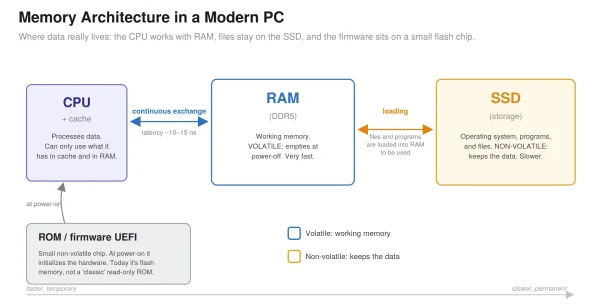
At system startup, the firmware comes into play—historically, the ROM. At power-on, the processor reads the boot instructions, initialises the components, and hands control to the operating system, which is then loaded from storage into RAM.
When you open programs, the two worlds meet. The application is saved on the SSD, but to be run it gets copied into RAM. The more RAM you have, the more programs and data stay ready to use without constantly drawing on storage, which is slower.
The chart below sums up which memory comes into play in everyday actions.
| Everyday action | Memory involved | What happens |
|---|---|---|
| Turn on the PC | ROM / firmware | The firmware (UEFI) initializes the hardware, then the operating system is loaded from the SSD into RAM. |
| Open Chrome (or another program) | from SSD to RAM | The program, saved on the SSD, is copied into RAM to be run. |
| Keep many browser tabs open | RAM | Each tab uses RAM: with more RAM you can keep more of them active without slowdowns. |
| Edit a not-yet-saved document | RAM | Changes stay in RAM until you save: a power loss before saving erases them. |
| Save or download a file | SSD (storage) | The file is written to non-volatile storage: it stays even after power-off. |
| Turn off the PC | RAM | RAM empties. The operating system and files (SSD) and firmware (ROM) remain intact. |
RAM, ROM, and the CPU: How They Work Together in a Computer
To understand the roles, it helps to follow the data from the moment you turn the computer on.
The processor cannot do anything “on its own”. At power-on, it reads the firmware from the small boot chip—once a true ROM and today almost always flash memory containing the UEFI firmware—runs the initial hardware checks, and starts the operating system’s loader. The operating system lives neither in RAM nor in ROM: it resides on storage and is loaded into RAM at startup.
From then on, the CPU works almost exclusively with RAM. The reason is speed: the processor is far faster than the SSD, and reading every piece of data directly from storage would leave it waiting most of the time. RAM acts as a bridge between a very fast CPU and relatively slow storage. There is also an internal hierarchy—the CPU’s registers and cache are even faster than RAM but tiny—designed precisely to bridge this gap.
Do the Files I Save or Download End Up in RAM or ROM?
A frequent question with a clear answer: neither in RAM nor in ROM, at least in the technical sense of the two terms. The files you save or download are written to storage, that is, to the SSD (or to a hard disk, or to a smartphone’s internal flash memory). It is non-volatile memory, so the file stays there even after power-off.
RAM only comes into play while you are working on a file. An open, not-yet-saved document lives in RAM: if the power goes out before you save, that work is lost because it has not yet been written to storage. It is exactly the difference between “open” and “saved”.
The point to remember is that ROM in the strict sense has nothing to do with your files: it serves the system, not you. When people say a file ‘is in the phone’s ROM’, they are really talking about internal storage. And this is where the term has drifted away from its original meaning.
What Is Storage (the SSD), and Why Is It Confused With ROM?
An SSD (Solid State Drive) uses NAND flash memory to store data permanently. It is non-volatile like a ROM, and that is the first reason for the confusion. The second is technical kinship: as we saw, flash descends from EEPROM, which belongs to the ROM family. Hence, the widespread but imprecise habit of calling any non-RAM memory “ROM”.
The substantial difference remains clear, though. An SSD is read from and written to continuously, has enormous capacities—from hundreds of GB to several TB—and on many machines can be replaced or added to. A ROM is the opposite: small, read-only in normal use, and not meant to be modified by the user. In a modern PC, the “true” ROM has shrunk to a single SPI flash chip that holds the UEFI firmware. Everything else you would call “permanent memory” is actually the SSD. As the Wikipedia entry on Read Only Memory also notes, calling today’s firmware “ROM” is by now improper at the hardware level, because that firmware resides on flash chips (eMMC, UFS, or SPI), not on a ROM in the classic sense.
What to Look at When Choosing a PC: RAM Matters, Not ROM
When you configure or buy a computer, there is no “ROM” to choose: the decision concerns RAM and storage, that is, the SSD. And between the two, RAM is the item that most affects everyday experience, because it determines how much work you can keep open at once.
In 2026, this choice carries more weight than usual, for a reason that goes beyond the technical: memory has become scarce and expensive. According to IDC, in 2026 the growth of DRAM supply will stall at around 16% year over year, below the historical average of 20–30%, and memory has come to account for roughly 18–20% of a PC’s bill of materials, about double its 2024 share. IDC also estimates a drop in PC shipments for the year of close to 5%. The cause is structural: the three manufacturers that control over 95% of the DRAM market (Samsung, SK Hynix, and Micron) have diverted production capacity toward HBM memory destined for AI data centres, leaving less room for consumer memory. Counterpoint Research and TrendForce have reported “unprecedented” price increases, with DRAM rising by 80–90% in a single quarter.
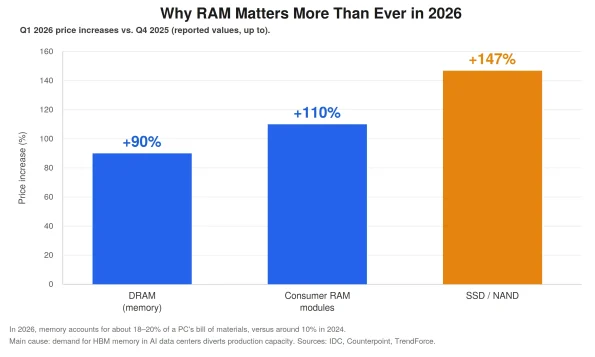
The practical consequence is simple: starting with enough RAM pays off more than ever, because chasing an upgrade later costs more, and skimping today on the wrong gigabytes is quickly paid for. For general use, 16 GB remains the sensible baseline; for heavy multitasking, creative work, virtual machines, or local AI models, 32 GB gives you breathing room. Size your storage to the volume of files you handle.
In this scenario, mini PCs reveal an often-underrated advantage: upgradability. Many laptops and mini PCs use soldered LPDDR memory, which is impossible to expand. GEEKOM mini PCs, by contrast, use non-soldered DDR5 SO-DIMM modules: GEEKOM itself points to the 16 GB RAM and 1 TB SSD configuration as the sweet spot for most users, while leaving the slots free to grow over time. On high-end models, like the A9 Max, expansion goes up to 128 GB of DDR5 and 8 TB of SSD.
Concrete confirmation comes from independent reviews: testing the A9 Max, Tom’s Hardware found that with 32 GB of DDR5, dozens of browser tabs open alongside large documents, video calls, and background applications produced no perceptible slowdowns. That is exactly the behaviour you would expect when RAM is sized with a margin.
A Test You Can Run Yourself
You do not need a lab to see RAM at work. On Windows 11, open Task Manager (Ctrl+Shift+Esc) and look at the Performance tab: a freshly started system typically uses 3–4 GB. Open 25–30 Chrome tabs, a couple of Office documents, and start a video call: usage easily climbs to 10–14 GB. On an 8 GB machine, at that point, the system is forced to offload part of the data to the SSD, and the slowdown is noticeable. It is the same experiment, flipped, which explains why 16 or 32 GB changes the feel of using a PC more than almost any other spec.
Recent article: Is 32GB RAM Overkill? The Ultimate Guide to RAM for Your PC
FAQs
Does ROM get erased when I turn off the computer?
No. ROM is non-volatile and keeps its data even without power. It is RAM that empties at power-off.
Is internal memory RAM or ROM?
Technically, neither; it is flash storage memory (an SSD on PCs, UFS or eMMC on smartphones). On phones, it is called “ROM” out of habit, but it is rewritable storage.
What do RAM and ROM mean on smartphone (or mobile phone) spec sheets?
RAM plays the same role it does on a PC: it determines smoothness and multitasking. The “ROM” on spec sheets, however, is not a Read Only Memory: it is the internal storage (UFS or eMMC) where the operating system, apps, and files reside, and which you read and write continuously. It is the same improper use of the term common in store flyers; do not confuse it with “virtual RAM”, which is just a portion of storage used as temporary support.
Do modern computers still have ROM?
Yes, but reduced to a minimum: a small flash chip that holds the UEFI boot firmware. It is flash memory, not a mask ROM like those of the past.
Are an SSD and a ROM the same thing?
No. An SSD is a large, rewritable, and often replaceable storage memory; a ROM is a small, read-only memory used for system startup.
Why does the computer slow down when RAM is full?
When RAM runs out, the system moves part of the data to the SSD—the so-called virtual memory—which is much slower than RAM. This constant shuffling produces the stutters and waiting times.
Can I increase ROM the way I do with RAM?
No, ROM and firmware cannot be expanded. What you can expand is storage: on a machine with free slots, you can add or replace the SSD. That is why the upgradability of the modules, RAM and SSD alike, is a purchasing criterion not to be overlooked.
More RAM or more storage?
It depends on use, because they answer different needs: RAM sets the ceiling for simultaneous work, and storage for the amount of data you keep. In 2026, with memory prices under strain, it is wise to first secure enough RAM (and the ability to expand it), then size your storage to your files.
Conclusion
The difference between RAM and ROM, technically, is clear-cut and has never changed: one is volatile and fast, the other non-volatile and read-only. What has changed is the use of the words, especially since smartphones and advertising rechristened storage space as “ROM”. When you have to choose a device, think in concrete terms: how much RAM you need for the work you actually do and how much storage for what you want to keep. The word “ROM” – leave it to the manuals and the firmware.