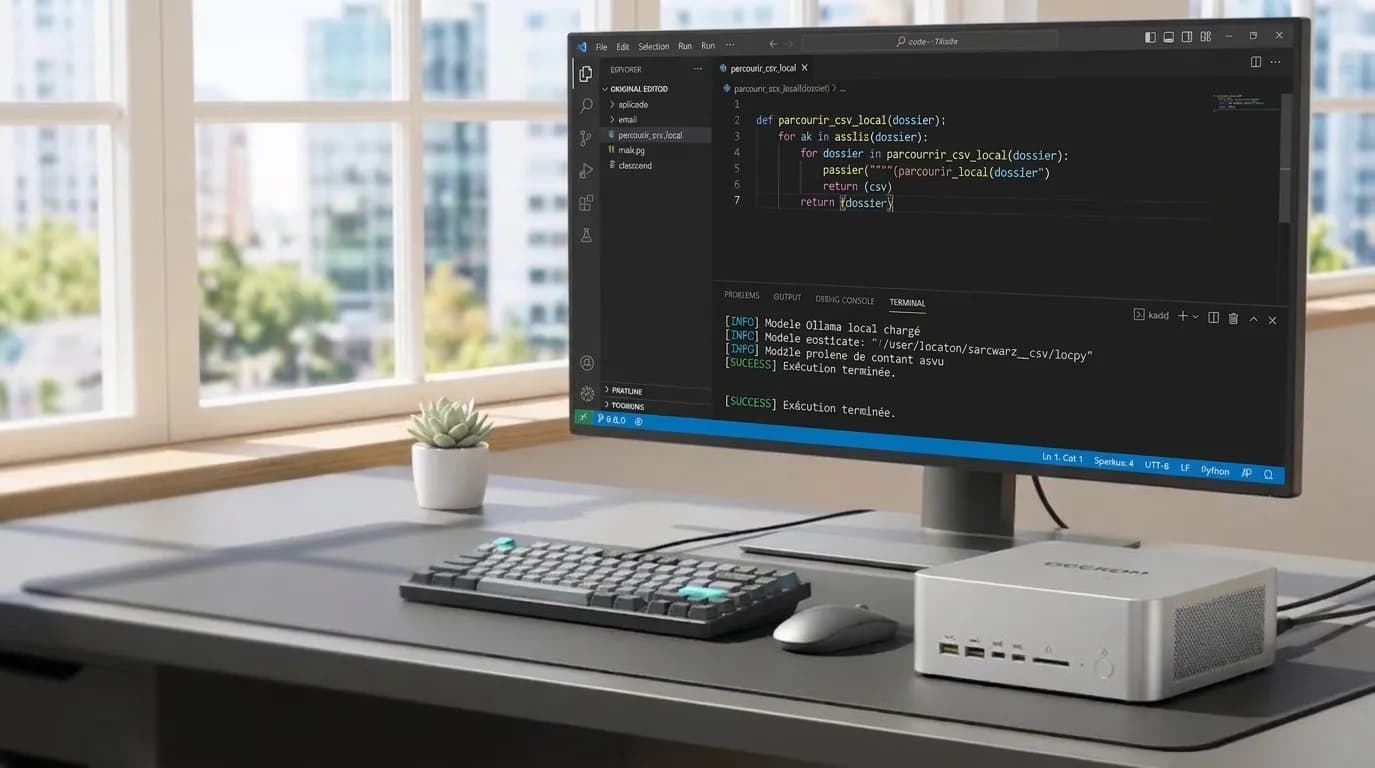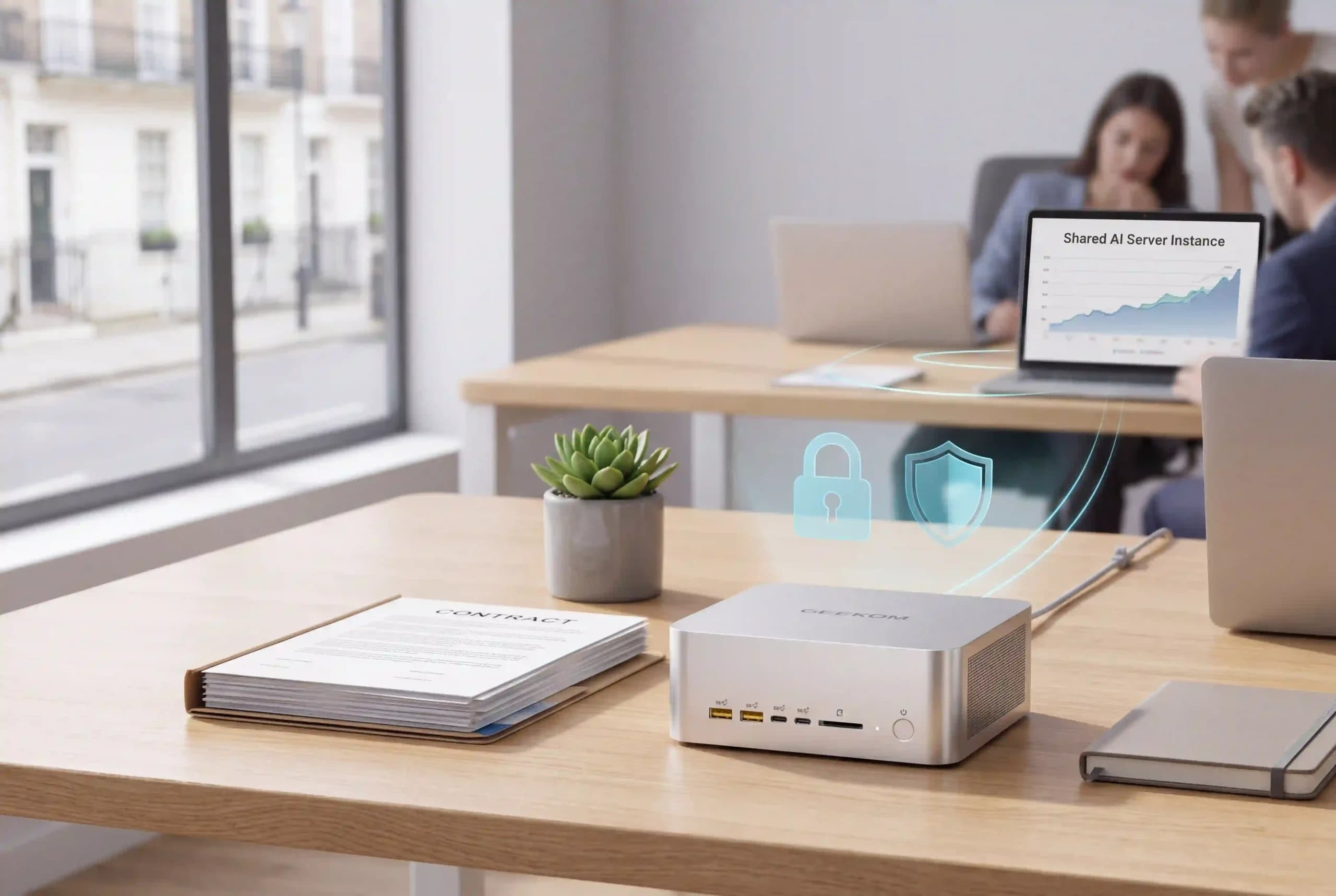
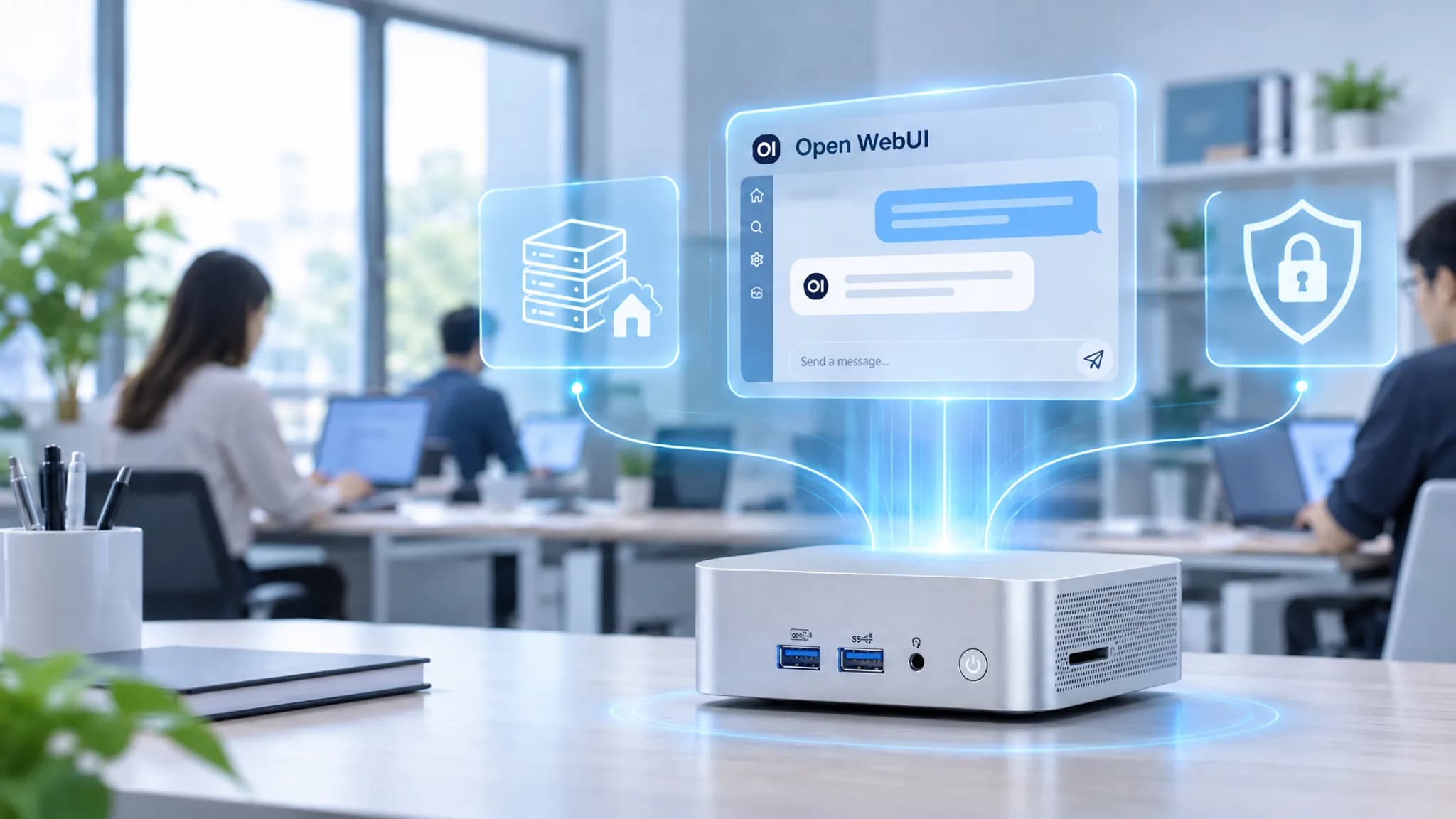
Quotes, meeting minutes, customer emails: in many offices, this kind of text now ends up in an AI chat. Usually in the browser, usually with a US-based provider, and often through an employee’s personal account. With Open WebUI and a mini PC, you can do the same thing in-house. This guide explains how to set up Open WebUI, which hardware is enough and how fast your own AI server responds. The benchmark figures come from GEEKOM’s own testing.
What is Open WebUI?
Open WebUI looks like the AI chat tools you already know, but it runs on your own server. You open it in a browser, sign in and start typing. Accounts, chat histories and uploaded files stay in the database on the device.
Open WebUI and Ollama: how they work together
To generate answers, Open WebUI needs a backend – in this guide, that’s Ollama. Ollama loads models such as Qwen or Gemma, keeps them in memory and listens for requests on port 11434. Open WebUI sends the question there; Ollama does the processing, and the answer appears in the chat. A ready-made image with Open WebUI and Ollama bundled in one container is also available. We keep the two separate anyway, so each part can be updated on its own.
Why your own AI server makes sense for a small business
According to the UK Government’s AI adoption survey report 2026, 32% of UK businesses now use at least one AI technology, up from 16% in 2025. Among businesses planning to adopt AI, 78% name limited AI skills, expertise or knowledge as a barrier – and that is exactly what this guide is for.
Data protection: what are the risks of cloud AI and ChatGPT?
With cloud AI, your prompts sit with the provider. What happens to them depends on your plan; on free accounts, they often feed into model training. If something goes wrong and personal data is affected, your business is still liable. A local AI server keeps everything in-house. You decide how long chats are kept and who can see what – and your own AI server can even run with no internet connection at all.
Cost comparison: hardware, electricity and maintenance vs cloud AI subscriptions
Here is a rough calculation for ten people over three years. Assumptions: £20 per person per month for the cloud service, 26.32p per kWh (Ofgem price cap, October–December 2026), 120 W, ten hours a day on 22 days a month. For a fuller three-year comparison, see our practical guide to private AI for small businesses.
The 120 W figure is one of the A9 Mega’s performance modes; at idle, it draws less.
Hardware for Open WebUI: which mini PC works as an AI server?
Almost any computer could run Open WebUI on its own. The language model sets the requirements, and what matters most there is the amount of memory and its bandwidth. For every word it generates, the model reads its weights from memory again.
How much RAM do local language models need?
As a rule of thumb, a model needs roughly as much memory as its file size, plus headroom for the context. A compact model with 4-bit quantisation gets by with 2 to 25 GB. Large models such as Qwen3.8-Flash-Next take up 111.4 GB in their 4-bit version. Mini PCs with Ryzen AI Max+ handle this with memory shared between the CPU and the graphics. Why that’s an advantage for LLMs is explained in our article on unified memory vs VRAM for local LLM inference.
Benchmarks: 64GB vs 128GB unified memory
GEEKOM tested both versions of the A9 Mega with the same models (full benchmark data). The figures show output speed in tokens per second.
| Model (4-bit) | File size | A9 Mega 388 (64GB) | A9 Mega 395 (128GB) |
|---|---|---|---|
| Qwen3.8-Flash-Next, short prompt | 111.4 GB | 18.9 t/s (via SSD) | 37.7 t/s (in memory) |
| Qwen3.8-Flash-Next, 128K prompt | 111.4 GB | 19.9 t/s | 33.2 t/s |
| Time to first token | 111.4 GB | 3.33 s | 0.46 s |
| Qwen3.6-35B-A3B | 22.7 GB | 68.0 t/s | not published |
| MiniCPM5-2B | 1.56 GB | 103.1 t/s | not published |
For comparison, a person reads roughly five to eight tokens per second. The tests were run with llama.cpp and the Strata engine, so results with Ollama may differ. For more detail, see our Qwen3.8-Flash-Next benchmark on the A9 Mega.
How many concurrent users can a local AI server handle?
How well does a local AI server hold up across a team? There are no published measurements for this; all the tests ran with a single request. An estimate is still possible. In small teams, people rarely type in the same second. A model producing 68 tokens per second delivers far more than one reader can take in. For five to 15 people, that is usually enough in practice. Ollama handles parallel requests through the OLLAMA_NUM_PARALLEL variable, but each parallel request needs extra memory.
GEEKOM A9 Mega as an AI server: which configuration suits your team?
Both models have Radeon 8060S graphics, 256 GB/s memory bandwidth, two 10GbE LAN ports and two M.2 slots for up to 8 TB.
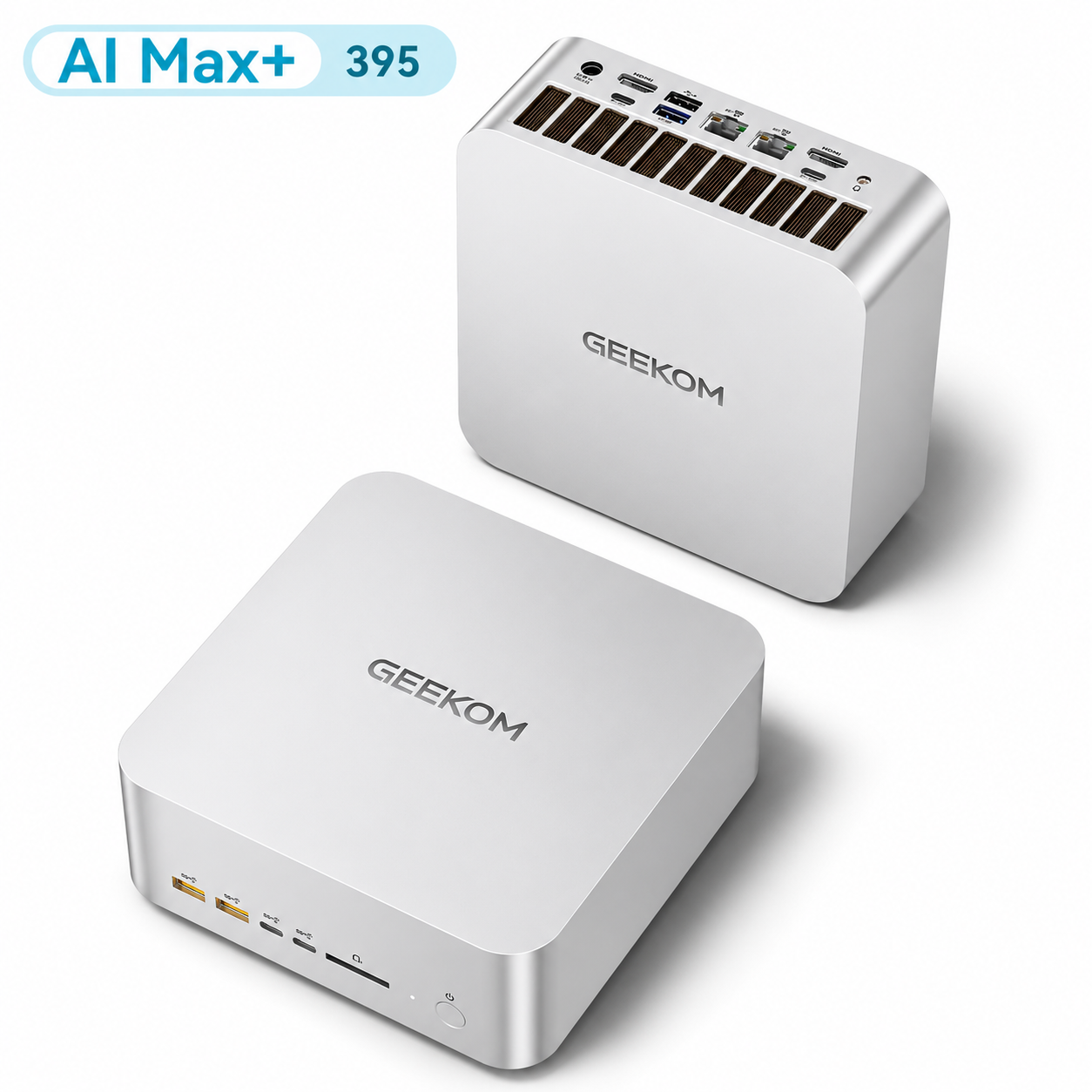
A9 Mega with 64GB (Ryzen AI Max+ 388): for small teams and compact models
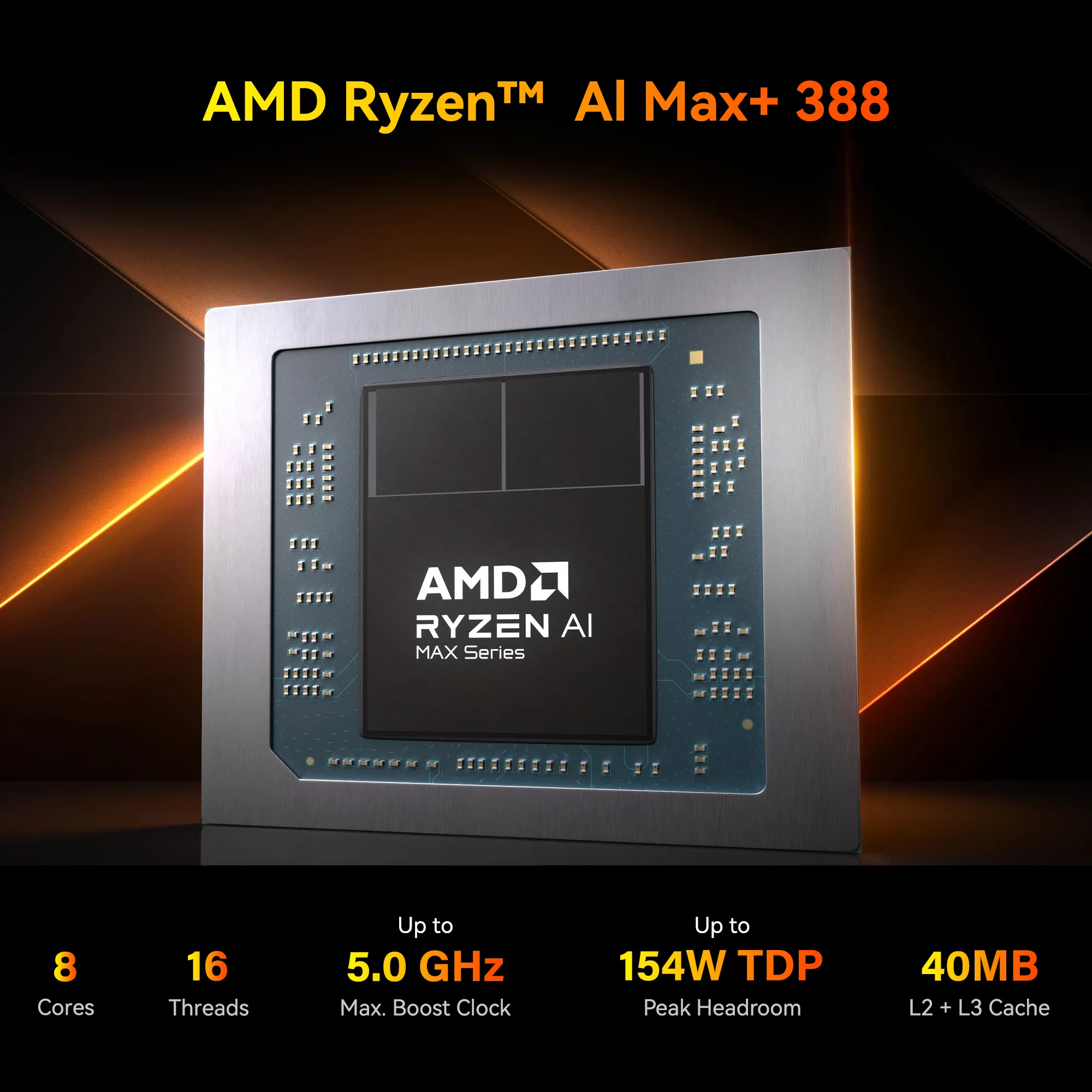
Eight cores, 64GB, 2TB SSD, currently £2,399. Ideal for models of up to around 35 billion parameters. Qwen3.6-35B-A3B runs quickly here and is a good all-rounder for writing, emails and summaries. The large flagship model works too, but more slowly, via the SSD.
A9 Mega with 128GB (Ryzen AI Max+ 395): for large models, long contexts and more users
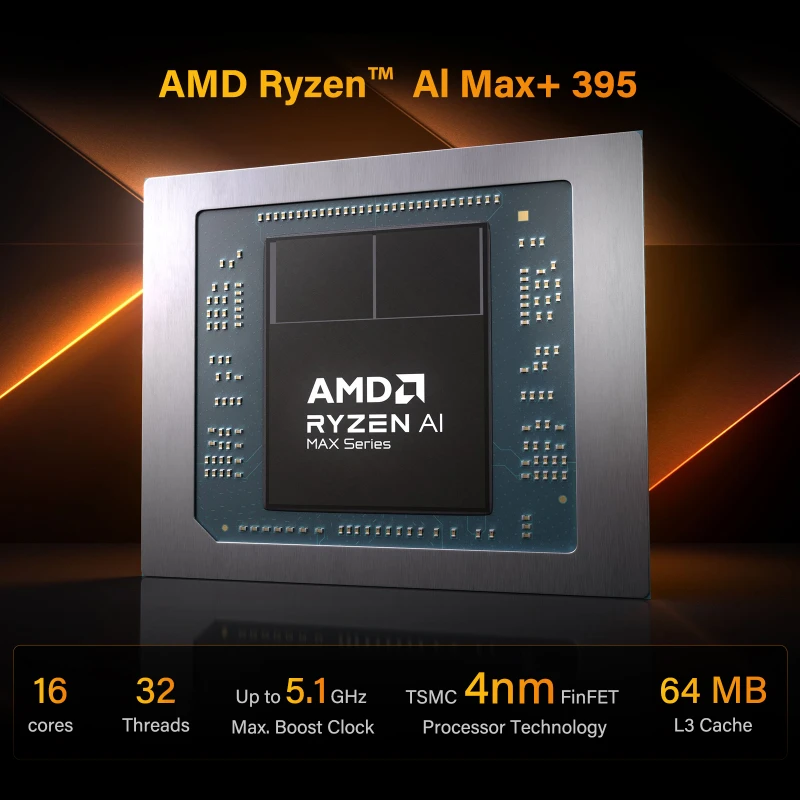
16 cores, 128GB, 2TB SSD, currently £3,399. Here, a model of more than 100 GB fits entirely in memory. That doubles the speed and all but eliminates waiting time. Teams that have long contracts or entire manuals analysed will benefit most.
How to set up Open WebUI with Ollama: step-by-step guide
Before you set up Open WebUI, you need a Linux system. This guide assumes Ubuntu, as that’s where passing AMD graphics through to Docker is easiest. We use the official Open WebUI Docker image and a separate Ollama instance.
Step 1: Install Docker and Docker Compose
sudo apt update && sudo apt install docker.io docker-compose-v2
sudo usermod -aG docker $USER
Then log out and back in once. Run docker compose version to check that everything is working.
Step 2: Create the Open WebUI Docker Compose file
Create a folder – for example, ai-server – and put this file in it. It starts Ollama and the Open WebUI Docker image together:
services:
  ollama:
    image: ollama/ollama:rocm
    devices:
      - /dev/kfd
      - /dev/dri
    volumes:
      - ollama:/root/.ollama
    restart: unless-stopped

  open-webui:
    image: ghcr.io/open-webui/open-webui:main
    ports:
      - "3000:8080"
    environment:
      - OLLAMA_BASE_URL=http://ollama:11434
      - WEBUI_SECRET_KEY=long-random-value
    volumes:
      - open-webui:/app/backend/data
    depends_on:
      - ollama
    restart: unless-stopped

volumes:
  ollama:
  open-webui:
Step 3: Key parameters explained
ollama/ollama:rocmis the Ollama build for AMD graphics./dev/kfdand/dev/drigive the container access to the GPU.3000:8080maps Open WebUI’s default port, 8080, to port 3000 on your server. Ollama itself is deliberately kept internal.OLLAMA_BASE_URLtells Open WebUI where to find Ollama.WEBUI_SECRET_KEYsecures sign-ins. Generate a value withopenssl rand -hex 32. Without a fixed key, every user is signed out after each restart.volumesstore models and chats permanently, even when containers are recreated.
Step 4: Start Open WebUI, create an admin account and load your first model
docker compose up -d starts both services. Then open http://SERVER-IP:3000 in your browser. The first account you create automatically becomes the administrator. You can then load models directly in the interface via the model selector, or with a command: docker compose exec ollama ollama pull model-name.
Step 5: Commands for running, restarting and updating
| Task | Command |
|---|---|
| Check status | docker compose ps |
| View logs | docker compose logs -f |
| Restart | docker compose restart |
| Update | docker compose pull, then docker compose up -d |
Common Open WebUI setup problems and fixes
Three classic issues trip up almost everyone on their first attempt. Is the model list empty? Then OLLAMA_BASE_URL is almost always pointing to the wrong address. Are answers only trickling in? A look at the logs with docker compose logs ollama shows whether Ollama has actually found the GPU or is dutifully running on the CPU. And if port 3000 is already in use, simply change the left-hand number in the port line – to 3001, for example.
Alternative: connect Open WebUI to llama.cpp (llama-server)
A side note: the GEEKOM benchmarks above didn’t come from Ollama at all, but from llama.cpp and Strata. An Open WebUI and Ollama setup is more convenient, but llama.cpp often squeezes a bit more speed out of the hardware. Start the server directly on the host, for example with:
./llama-server -m model.gguf --host 0.0.0.0 --port 8080Because llama-server offers the same interface as the OpenAI API, Open WebUI can talk to it directly. In Admin Settings under Connections, enter http://SERVER-IP:8080/v1 – and that’s it. You no longer need Ollama in this case.
Setting up Open WebUI for your team
Managing users, roles and permissions
There are three roles: Admin, User and Pending. Before colleagues can register at all, you need to allow sign-ups in the Admin Settings. Anyone who then signs up waits with Pending status until an admin approves them. Groups are particularly useful: your accounts team, for example, can see different models and knowledge collections from your marketing team.
Adding company documents to Open WebUI with RAG
The acronym RAG stands for a simple idea: before the model answers, it checks your own documents. Under Workspace > Knowledge, upload PDFs such as your staff handbook or current price list. In the chat, type # and select the collection. The answer is then based on your company knowledge rather than whatever the model once picked up on the internet.
Security and maintenance in day-to-day use
Secure access: company network, VPN and reverse proxy instead of the open internet
Port forwarding for port 3000 on your router? Please don’t. In the office, your internal network is all you need. Anyone working from home connects via VPN, as with any other company service. And if the AI should be reachable at its own address over HTTPS, put a reverse proxy in front of it – Caddy or nginx, for example. For the basics of running a mini PC as a server, see our guide to building a home server with a mini PC.
Backups and updates
The open-webui volume matters most. It holds every account, every chat and every uploaded document. If it’s lost, your team starts again from scratch. So back it up before every update, without exception. In a production setup, we would also pin a specific version number in the image instead of main. Otherwise, the next pull might fetch a version you haven’t tested yet.
Local doesn’t automatically mean UK GDPR compliant
A common misconception: just because the server sits on your own premises doesn’t mean everything is UK GDPR compliant. You still need a lawful basis for the processing, and you should document it in your records of processing. Someone also has to decide when old chats are deleted. On the plus side, keeping the model local means personal data isn’t sent to an external AI provider. You remain responsible for transparency and for people’s data protection rights, though. The ICO’s guidance on AI and data protection sets out what it expects from organisations using AI.
Conclusion: your own AI server in five steps
Install Docker, create the Compose file, adjust the parameters, start it up and invite your team. That’s all there is to it. If you want to set up Open WebUI, you can do it in an afternoon. For small teams using compact models, the 64GB version is enough. If you work with large models and long documents, go for 128GB. You’ll find the right machine in the GEEKOM A9 Mega mini PC.
FAQs
Is Open WebUI free for businesses?
Yes. From version 0.6.6, it has its own licence: the Open WebUI branding must stay visible once more than 50 people use the system in a month. Enterprise licences are available if you want your own branding.
Is Open WebUI UK GDPR compliant?
Not on its own. But it makes UK GDPR-compliant use much easier, because no data goes to third parties.
How much electricity does a mini PC use as an AI server?
The A9 Mega offers performance modes of 80, 120 and 140 W, plus 154 W in GEEK Mode. At 120 W full load for ten hours a day on 22 working days a month, that comes to about £7 a month.
Does Open WebUI work without an internet connection?
Yes, once the models and containers have been downloaded. To see how far you can take offline AI, read our practical guide to private AI for small businesses.
Which port does Open WebUI use by default?
Inside the Docker container, Open WebUI listens on port 8080. In this guide, the port line 3000:8080 makes it available on port 3000 of your server. If 3000 is already taken, change the left-hand number.
Can I change Open WebUI’s interface language?
Yes. Each user sets their own language in their settings. How well the assistant replies in a given language depends on the model you choose.