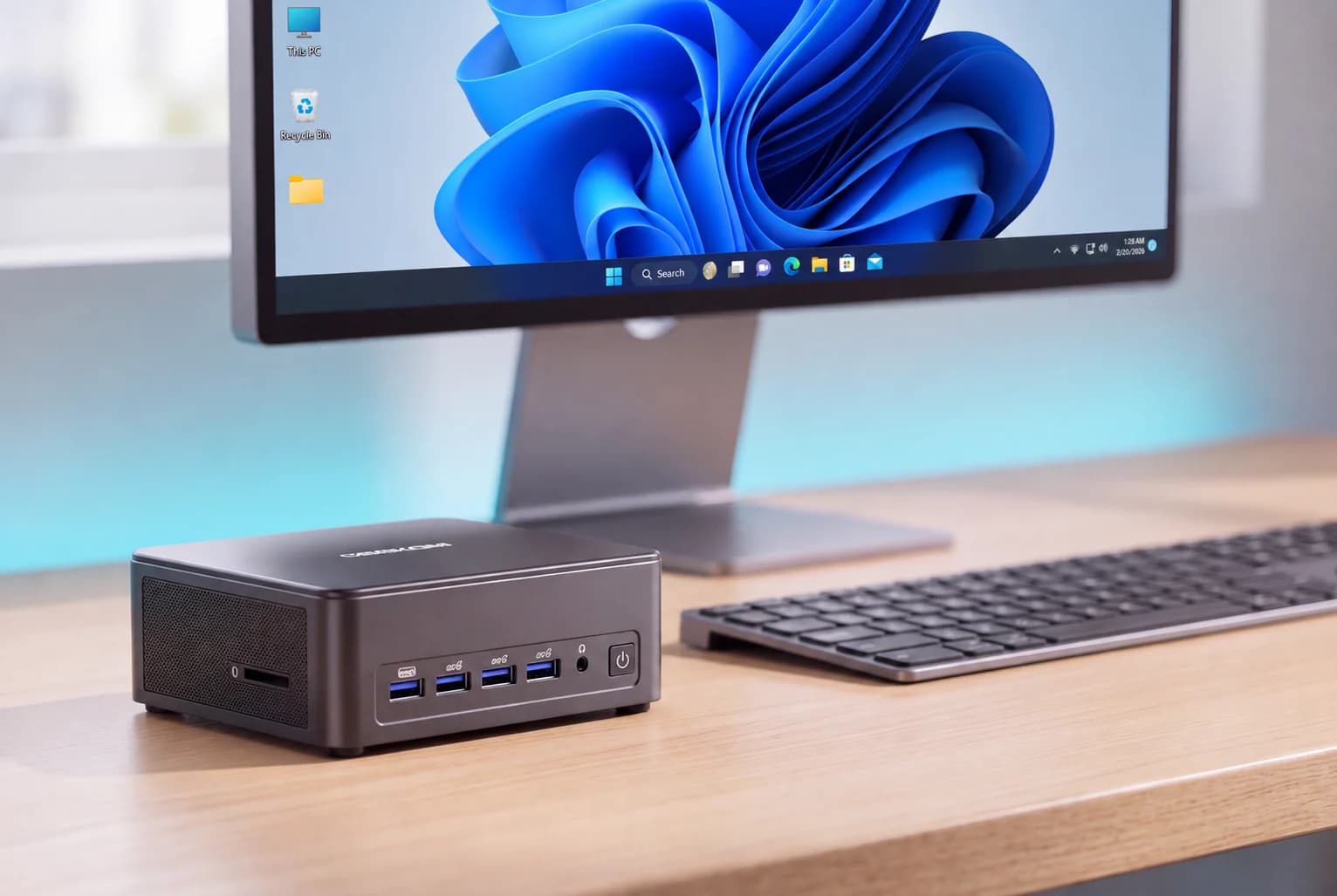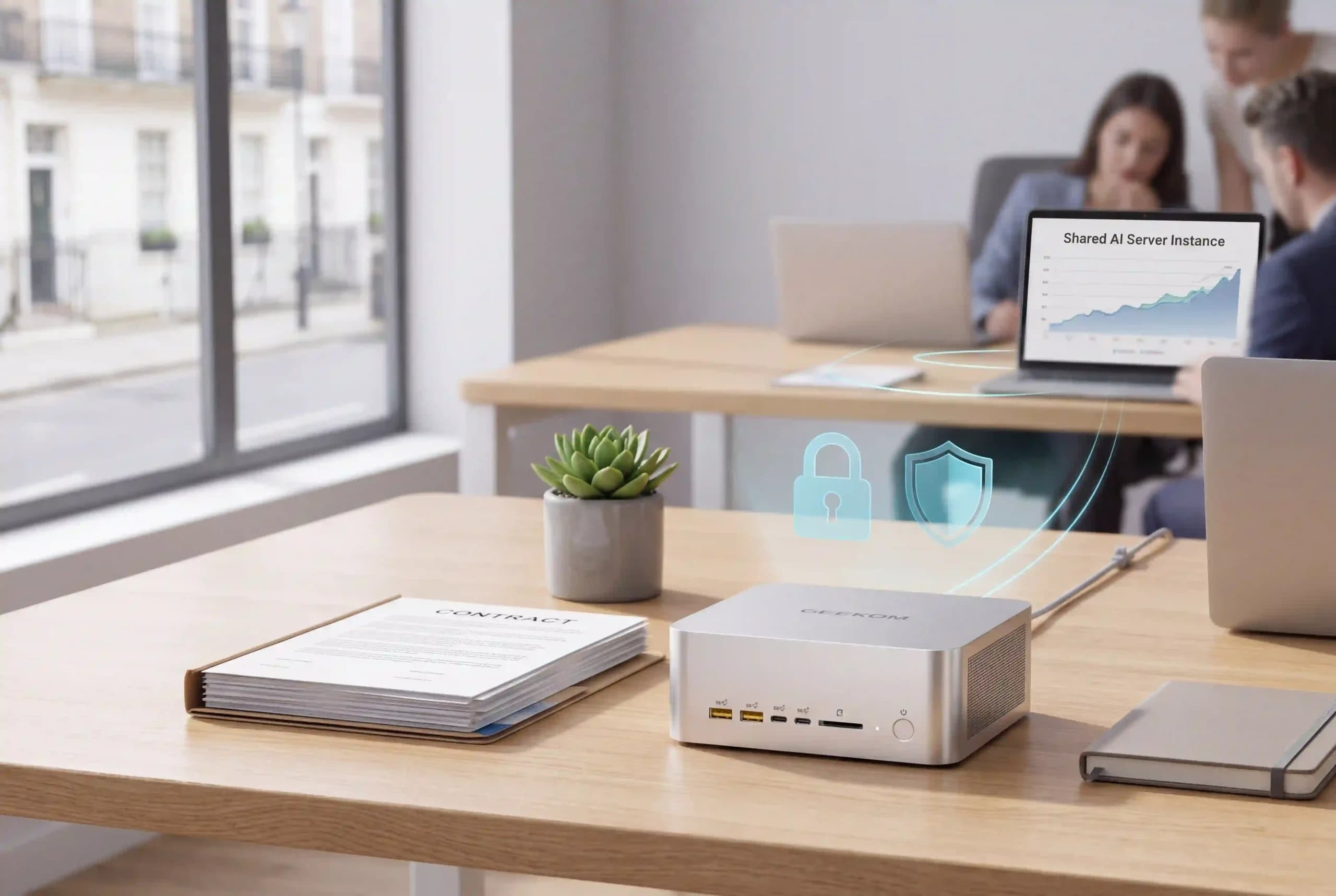
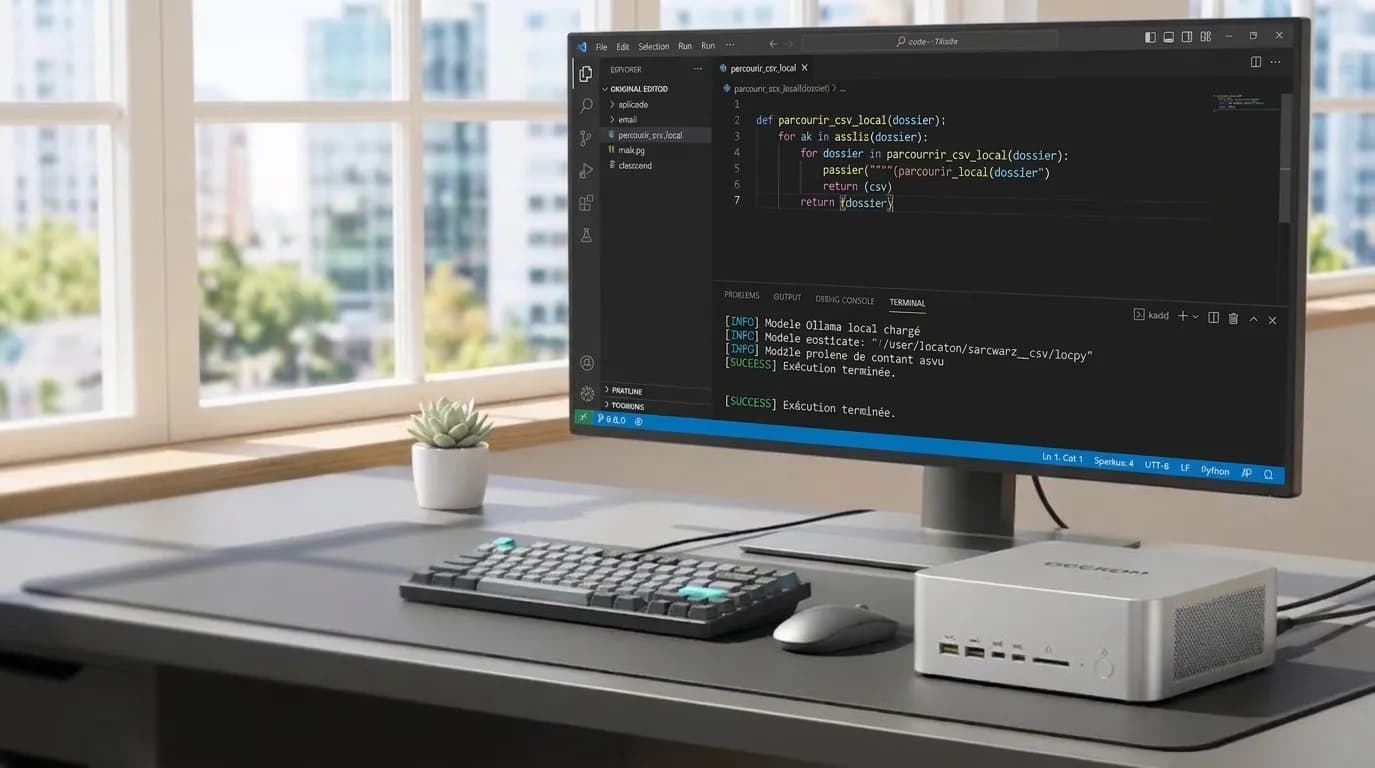
Using AI to help you code doesn’t mean sending your code halfway round the world. With a well-specced mini PC, the model runs at home, on your own machine. Whether it’s a Python script to write, an obscure function to pick apart or an error that refuses to go away, it handles the job, and the cloud barely gets a look-in.
Which model should you choose, and how do you connect it to your editor? That’s what we cover here, using Ollama and VS Code, without giving up control of your data.
Why use a local AI for coding?
Running a coding AI on your own machine, rather than through an online service, keeps you in charge of your working environment. In practice, you gain on three fronts:
- Your code stays with you. Requests handled by the local model aren’t sent to a remote server, which is a real advantage when you’re working on sensitive code or internal projects.
- It works even without a connection. Once the model has been downloaded, inference runs offline.
- No subscription. Ollama is free for running models locally; the trade-off is that you need hardware that’s up to the job.
The tricky part isn’t the installation. It’s choosing a model that suits both your machine and the way you code. Here’s how to set it all up with Ollama and VS Code.
What you’ll need
To build this assistant, you need three things: a capable machine, a development environment and a model designed for code.
A mini PC with enough memory
On the hardware side, aim for a recent processor and an SSD with plenty of free space; a GPU or APU that can accelerate the model is a real bonus. The deciding factor, though, is memory: the more you have, the larger the models you can run. The exact amount depends on the model you choose, and we’ll come to that shortly in the comparison.
The heaviest models need a machine with a lot of memory. That’s where a mini PC like the GEEKOM A9 Mega, with up to 128GB, makes the difference, while a standard mini PC would struggle. Not sure how much you need? Our guide to choosing between 16GB and 32GB of RAM will help you decide.
Ollama, VS Code and a specialist model
Three tools are involved: Ollama, which downloads and runs the model; Visual Studio Code, your editor; and a specialist model that writes or explains code. If a local AI still feels a bit hazy, check out our guide to running an LLM locally. It covers a different model and LM Studio, but the fundamentals are the same.
Which AI model should you choose for coding?
Not every model needs the same resources. Start with how much RAM you have, then think about what you want the assistant to do.
Model comparison by available RAM
For modest or general-purpose machines, the Qwen2.5-Coder variants do the job. Qwen3-Coder 30B, on the other hand, is aimed at systems with a lot of memory.
*Approximate sizes: check them on ollama.com, as they vary by version and quantisation.
**File size isn’t the same as the memory used at runtime: the context, the quantisation and any open applications all add to the total. A 19GB model can need considerably more once it’s running, especially with a large context (64K tokens or more).
Which model is best for Python and complex projects?
To get started, Qwen2.5-Coder 7B holds its own for Python scripts, fixing functions and making sense of existing code. The 1.5B model is lighter. The 30B-A3B takes on heavier tasks, but don’t expect quick responses.
Q4 quantisation reduces memory use, but the trade-off is that response quality may suffer. For more detail, see the differences between unified memory and VRAM for local LLMs.
Installing your AI and connecting it to VS Code with Ollama
Here’s how to do it on Windows, from the downloads through to your first Python script.
Step 1: Install Ollama and VS Code
Download Ollama for Windows and Visual Studio Code from their official websites, then install both.
Open PowerShell from the Start menu and check that Ollama responds:
ollama --versionIf a version number appears, you’re ready to carry on. If nothing appears, close PowerShell, reopen it once the installation has finished and try again.
Step 2: Download a coding model
For this tutorial, we’ll use Qwen2.5-Coder 7B. In PowerShell, type:
ollama pull qwen2.5-coder:7bThe first download needs an internet connection and around 4.7GB of disk space. Once it has finished, check that the model appears in the list:
ollama listStep 3: Connect Ollama to VS Code
In VS Code, open the Extensions tab and install the Ollama extension from the Marketplace. Then follow these three steps:
- Open VS Code’s built-in chat.
- Click the model picker at the bottom of the input box.
- In the Ollama section, choose your local Qwen2.5-Coder 7B model.
Ollama’s official documentation states that VS Code 1.127 or later is required. The extension should normally detect your models via 127.0.0.1:11434.
Model not showing up? Check that Ollama is running, then run ollama list again. Bear in mind that this integration covers the chat only: inline autocompletion in the editor isn’t guaranteed.
Step 4: Generate your first Python script
To try out your coding AI with Python, paste the following into the chat:
Write a Python function that scans a folder, identifies the CSV files and displays their names and sizes. Add comments to explain the code.Read through the response, copy the code into a Python file and test it on a folder that doesn’t contain sensitive data. If it fails, send the error message back to the model.
The Continue extension is also worth a try for local autocompletion, provided you have the right model and configuration.
Going further: Claude Code + Ollama
Need to work across several files at once? Ollama can be paired with Claude Code, an agentic coding tool.
Installing Claude Code on Windows
Claude Code can explore a repository, suggest changes and run certain commands, depending on the permissions you give it.
Open PowerShell and run the command provided in the official Claude Code installation guide:
irm https://claude.ai/install.ps1 | iexThen open a new PowerShell window and check the installation:
claude --versionConnecting Claude Code to an Ollama model
Is Ollama running? If so, run:
ollama launch claudeChoose a local model that supports Claude Code’s tools, not a cloud variant. According to the documentation for this integration, large repositories call for a context window of 64K tokens or more, which significantly increases memory use.
Claude Code handles the files, while Ollama provides the model that responds. Even so, don’t expect it to work fully offline: Claude Code documents certain connectivity requirements, and some features may rely on external services. Check your setup before giving it any sensitive code.
A local alternative to GitHub Copilot
Running a coding model locally with Ollama is a genuine private alternative to GitHub Copilot. The two are not quite like-for-like, though. And it shouldn’t be confused with Microsoft Copilot, the productivity assistant built into Windows and Microsoft 365: here, we’re talking about the coding tool. These are the main differences:
In short, running locally takes more setup and requires suitable hardware, but you stay in control of your data. GitHub Copilot, by contrast, installs in minutes and doesn’t need a powerful machine, at the cost of cloud processing. The right choice depends mainly on your priorities: privacy and control on one side, simplicity on the other.
Privacy and offline use: what’s actually true
A local AI limits how much code is sent outside your machine. That doesn’t, however, make your whole environment private.
What local execution really protects
A request handled by a local Ollama model doesn’t need to go to an external inference API. Extensions, updates and telemetry, however, may open other connections.
GitHub Copilot’s settings illustrate the point well: read the privacy policy of every tool you use.
How to check your setup
Check that the model you’ve chosen is actually installed on your machine. Then go through your extensions, their privacy settings and your network connections.
Download finished? Disconnect from the internet briefly and test the features you actually need. The guide to using Continue without an internet connection sets out the precautions to take. Some features, particularly connected services, may stop responding.
Local AI for coding: FAQs
What’s the best AI for coding locally?
There’s no single winner. To get started, Qwen2.5-Coder 7B offers a good balance between quality and hardware requirements. On a smaller machine, fall back on the 1.5B; for heavier tasks, Qwen3-Coder 30B-A3B performs better, provided you have the memory to match.
Can you code with AI for free?
Yes. Ollama, VS Code and several models can be used without a subscription. There are two caveats, though: check each model’s licence before any commercial use, and remember that you still pay for the hardware and electricity.
How much RAM do you need to code with a local AI?
It depends on the model. Allow around 8–16GB for a small quantised model, 16–32GB for a mid-sized model and 64GB or more for the largest ones. These are guidelines, not guaranteed thresholds: the context and any open applications all add to the total.
Is a local coding AI really private and usable offline?
When running locally, your requests don’t need to go to an external inference service, and inference runs without an internet connection once the model has been downloaded. But that only applies to the model itself: some extensions, connected features or telemetry may still use the network. Check the tool’s privacy settings before giving it any sensitive code.
What setup should you choose for coding with a local AI?
The simplest approach is to start small. Qwen2.5-Coder 7B runs on a reasonably specced machine and already covers the essentials: writing a script, fixing a function and understanding a piece of code. You can adjust your hardware later, based on the models you actually use and the projects you take on. When you start aiming for larger models or very long contexts, such as several files or an entire repository, memory is usually the first bottleneck. A high-capacity mini PC such as the GEEKOM A9 Mega, with up to 128GB, handles this kind of workload where a standard setup quickly reaches its limits.