More people are running local AI on a workstation PC because it gives them private prompts, costs that they can plan for, and tools that they can use even when they are not online. A mini PC can stay at home as a quiet, always-on service, while a tower can make better use of a big graphics card. It depends on the models you want to run, the speed you want, and how much space, heat, and power you can handle.
What Is a Local AI Workstation?
When you set up a home model workstation, you can use it to run models, image tools, speech-to-text software, or document-search tools on hardware that you are in charge of. You do not have to send the files, prompts, and results to a hosted service. They can stay on the machine. It could be a small desktop or a full tower. What matters is that its memory, graphics hardware, storage, and cooling suit the work.
Cloud AI vs. Local AI
It is easy to use cloud services. A remote service provides the hardware after you set up an account and send a prompt. On the other hand, you have to pay fees every month, use the internet a lot, and have less control over where your files and text go. The setup for running a model yourself is a bit more involved, but you have more control over the data path and can work offline after installing the necessary files.
The latency changes too. Even if a cloud service is very quick, each request still has to go through a network. There is no need for that round trip when a model on your own computer starts to respond. Do not take this to mean that all local setups feel fast. If your graphics card is not very good, a big file can still take a long time to open. People usually agree to that trade-off because they value privacy and ownership.
What You Can Really Do at Home
A good PC can help you with writing and chat when you are not online, as well as make images, transcribe and translate texts, and search through your own files. Retrieval-augmented generation, or RAG, is the part that searches for documents. Before coming up with an answer, the software looks for relevant information in a local folder or database.
Types of text models come in many sizes. For short answers, you could start with a small 7B or 8B file and then move on to a bigger 14B or 32B file when you have more graphics memory. Making images has its own needs, especially when it comes to VRAM. Even though transcription is usually easier, long audio files still need a powerful processor and fast storage.
Who Really Needs an AI Workstation PC?
Building one is useful for developers, creators who use private media tools, researchers who need to keep sensitive information secret, and people who do not want to pay a monthly fee. It also works for work that should not use third-party services or when the internet is not stable.
It is already possible to save time with a quiet computer that runs one useful model, indexes a few folders, or types up meetings. Instead of buying specs you will never use, match the hardware to a real job.
What Hardware Does an AI Workstation PC Need?
A lot of what this kind of setup can do depends on the graphics processor and how much memory it has. Things like the CPU, system memory, storage, and cooling are still important.
Graphics Card: Why the GPU Comes First
VRAM is usually the first number to check when making text or images. It limits how much of a model fits on the GPU, which has a big impact on speed. For smaller quantised files and light image work, an 8GB card is a good place to start. When you have 16GB, you can store bigger text models and make images more easily. A card with 24GB or more lets you store bigger files, tweak settings more, and make fewer sacrifices.
| VRAM level | What it works for | Expectation in practice |
| 8GB | Smaller quantised text files, simple image work, and transcription | A good place to start, but the model you choose is important |
| 16GB | More capable text tools, larger image work, and longer sessions | A good balance for a lot of personal workstations |
| 24GB or more | More advanced creative work, bigger files, and more experiments | More headroom and fewer compromises |
It is possible for a model to run in system RAM when it does not fit in VRAM, but output usually moves more slowly. The LM Studio guide to GPU offload explains this split: it can put less on the GPU and leave the rest in regular memory. That gets you going, but it does not make a small graphics card big.
How to Keep Up with the GPU with the Processor and NPU
The CPU gets more important when part of a job cannot stay on the GPU because it prepares files, runs the operating system, and takes care of tools around the model. Multitasking, transcription, document indexing, and other CPU-based tasks are easier with more cores, but they cannot take the place of graphics memory for demanding tasks like rendering.
An NPU is a small speed booster that some new processors come with. With its low-power features and ability to handle certain on-device tasks, it works well. While useful, it is not a replacement for a separate GPU when you need to run heavy text or image workloads. It is not the main engine; think of it as an extra tool.
RAM: Make Room for the Rest of the System
For a basic setup, 16GB is the bare minimum that you should think about. It is fine for the OS, a small runner, and simple multitasking, but it quickly runs out of space. The best place to start for most people is with 32GB. Get 64GB if you want to search for documents for a long time, run multiple programs at once, work with large files that take up more space than VRAM can handle, or use a shared-memory computer.
The processor and built-in graphics share the same physical pool of memory in some small AMD systems that use unified memory. Large amounts of data can fit in a very small computer because of this, but shared memory has less bandwidth than a dedicated graphics card. It is the best choice when capacity and small size are more important than peak output speed.
Setting Up Storage: Fast NVMe Makes It Easier
It is easy for model files, image checkpoints, transcription data, and document indexes to pile up. You should at least get a 1TB NVMe SSD if you want to keep more than a few files on it. A 2TB drive is better for working with images, backing up, and more than one model. It also cuts down on the time you have to wait to download, load, copy, or update big files.
Temperature, Build Quality, and Sustained Load
Hardware can be busy for hours making text, images, or transcripts of long recordings. Compact systems may slow down to manage heat, so the power settings and fan design of a small PC play a big role in how well it keeps up. Look for a system that has good airflow and enough power to keep working well for a long time.
Picking the Right Shape: Mini PC or Tower
It is not just benchmark results that matter. Your desk and routine do too. A tower gives you the most space to improve. Some people want a small, fast computer that they can put next to their router, monitor, or home server. This is when a mini PC comes in handy.
A Small PC for Local AI
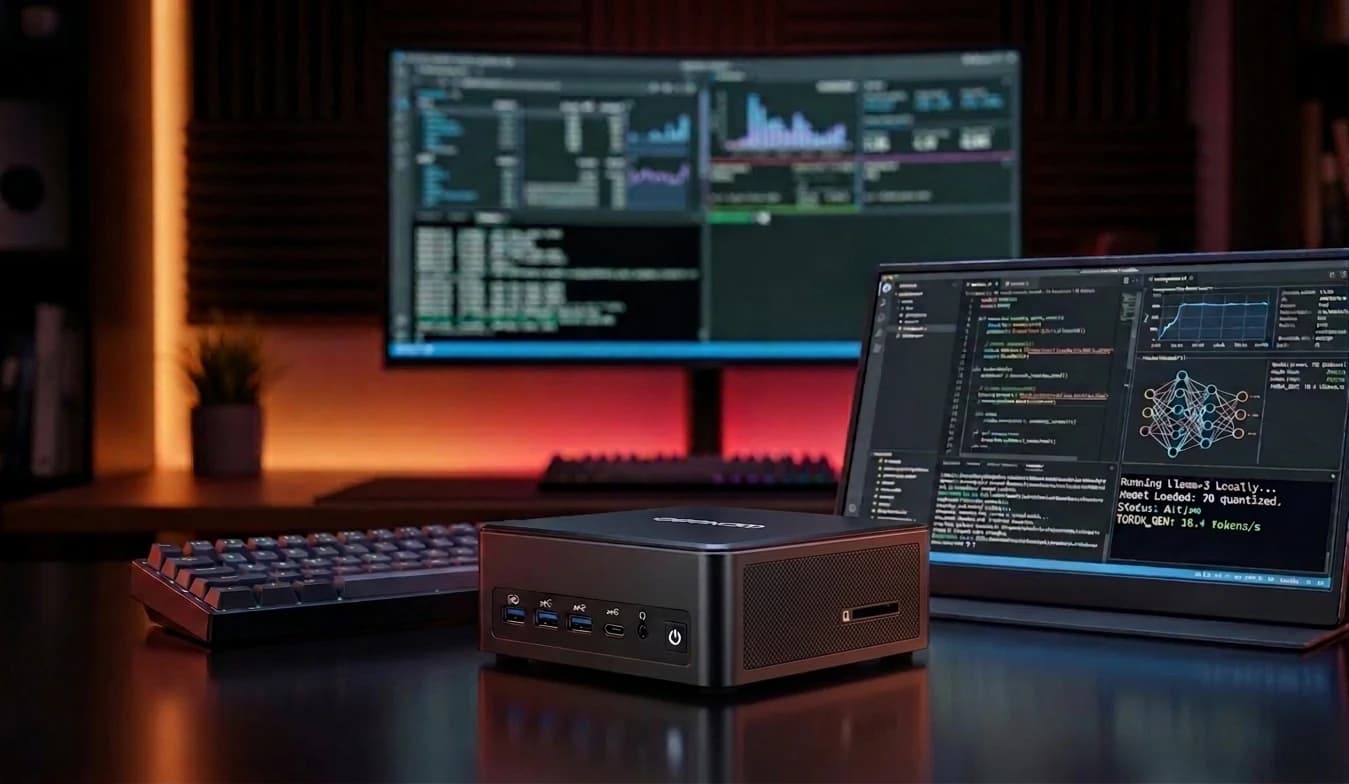
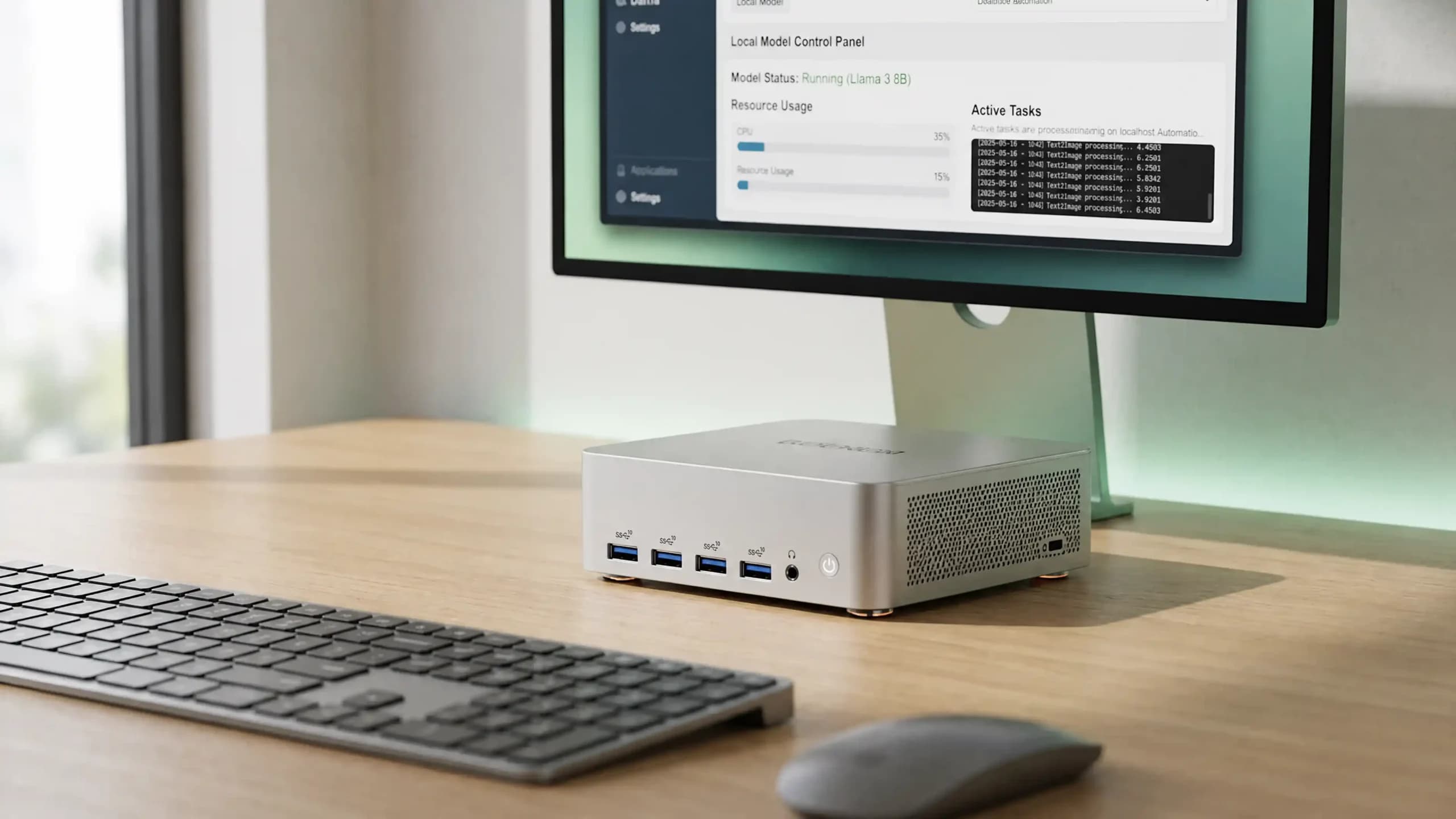
There are times when you want a clean computer that you can leave on to search for documents, work as a personal assistant, do transcription, or do light development work. A mini PC is better suited to a living room or small office than a tower in those cases.
Most mini PCs use built-in graphics or shared memory, so they can handle tasks that do not need workstation-level throughput and do not take up too much memory. If a small desk footprint and low power use are more important to you than a big graphics card, check out the GEEKOM Mini PC lineup.
Tower PC for Local AI
A full tower makes sense when you want to fit a large discrete graphics card with 16GB or 24GB of VRAM, add more drives later, or swap parts as your models grow. The trade-off is space, noise and power draw. A tower needs more room under the desk, and a high-end GPU under sustained load will make its fans heard. If you mainly run smaller models, document search or transcription, much of that extra headroom may sit unused, and a mini PC will do the same job more quietly.
Software Stack: What You Need to Run Local AI
Model Runners
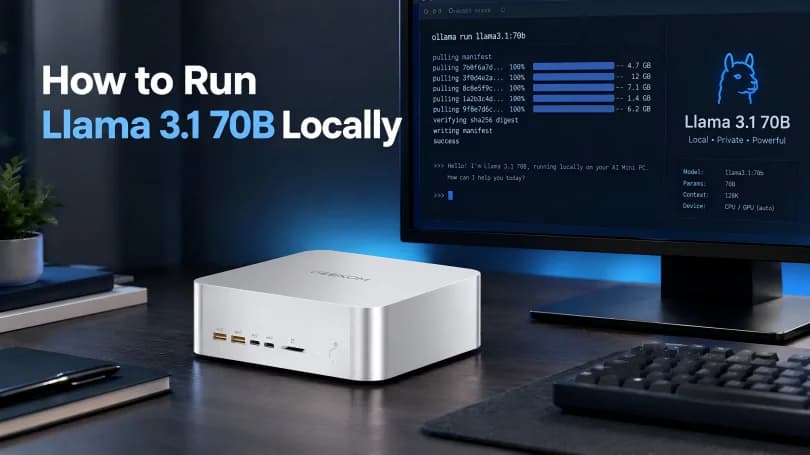
This is the program that loads files and controls generation. Ollama is well-known for its easy-to-use command line and local APIs.
The desktop interface that comes with LM Studio is very useful because it lets you control context and GPU offload. Another desktop option is Jan. Start with just one runner. In the beginning, you only need to learn how to deal with downloads, memory, and settings.
In the Ollama FAQ, it is said that ollama ps shows which files are being loaded and if the GPU is being used. That is a simple way to be sure that your graphics card does what you thought it would do.
How to Choose a Model
The Llama, Mistral, Qwen, and other families have some good points. It is possible for some models to better follow directions, write code, and work with people who speak more than one language. Start with a smaller, more recent model that fits well instead of going after the biggest name. There is a big tool that takes hours to respond, but a small one that you use will teach you more.
|
What to know Each family has its own strengths — directions, code, or languages Practical tip Match the family to the job, not the reputation |
|
What to know A smaller, recent model that fits often beats the largest one Practical tip A model you use beats a bigger one too slow to answer |
|
What to know Lower precision shrinks the file so it runs where full precision won’t Practical tip Expect a small quality trade-off — that’s normal |
|
What to know A model that just fits is running at the edge Practical tip Cut the context length before buying new hardware |
To store weights, quantisation needs fewer bits. Because it takes up less space, a Q4 file might be easier to run at home than an FP16 copy. The quality might change a little, though. But that is just how personal computers work. Cut down on the context length when a model runs but barely fits, before you decide you need a new computer.
Choice of Tools and Interfaces for Documents
AnythingLLM can help you organise document-based workflows, and Open WebUI adds a browser interface that you can host yourself. Get one model up and running first, then add a layer for search or interface. It is harder to figure out what is wrong when there are more parts to remember.
How to Set Up Your AI Workstation at Home, Step by Step
1. Make sure your hardware is ready.
Make sure you know the version of the OS, the GPU model, the VRAM, the installed RAM, and the amount of free space on the SSD. After you have updated your graphics drivers, put in a runner. Clean out a small computer’s air vents.
2. Put in one model runner
Ollama is the best way to get a simple command-line tool or local API. Pick LM Studio or Jan if you want a plain screen. Leave things as they are at first and do what the installer says. When you add your own flags before you know how the system normally works, it can be harder to figure out what is wrong.
3. Get your first model and load it
Start with a small quantised file that can fit in the memory you have. It is available in the runner’s library or as a documented command. That is it! Remember to save the extra space on your SSD.
4. Type “First Prompt” and examine GPU Offload.
Ask for an outline or a short piece of writing. Watch how the system works and how long it takes to respond. With Ollama, you can use ollama ps to see if the file is loaded and if GPU acceleration is turned on. Before you switch models, make sure you have checked the hardware settings of the runner and your driver installation if you are not using the GPU.
5. Do not change anything until it works.
To free up space, try a file with fewer bits. If long prompts make things take longer or cause mistakes, cut them down. Before you change the offload or GPU layers in a runner, make sure you know what they do. Do one test and write down what you find. You can save time by doing that.
PCs That GEEKOM Recommends for Local AI
Which one is best for you depends on whether you want a compact, always-on machine for a small office or a lot of shared memory for bigger models. Check the live product page to see which configurations are available in the UK.
High-Performance AI PC: GEEKOM IT13 Max
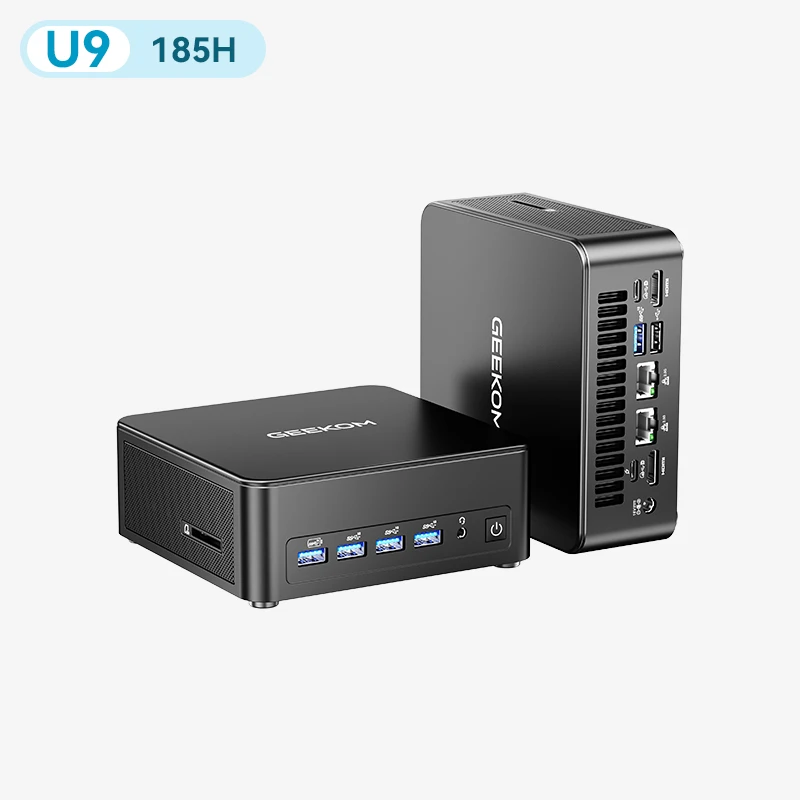
In a small desktop form, the GEEKOM IT13 MAX has the Core Ultra 9 185H processor and Intel Arc graphics. For heavy GPU-only work, it does not make as much sense. It is better for a fixed desk, home office, or quiet always-on box. It is only small, but do not think of integrated graphics as a 24GB separate card because of that.
Top-of-the-Line AI PCs: GEEKOM A9 Mega and A9 Max 2026 Edition
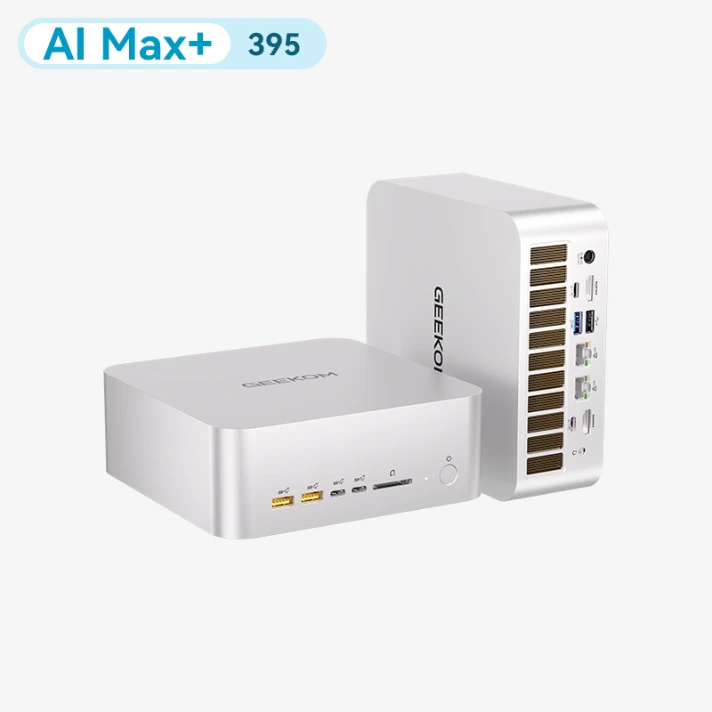
The GEEKOM A9 Mega is good for people who want a small chassis with more shared memory. It can be helpful when a model needs more memory than a normal gaming GPU can provide.
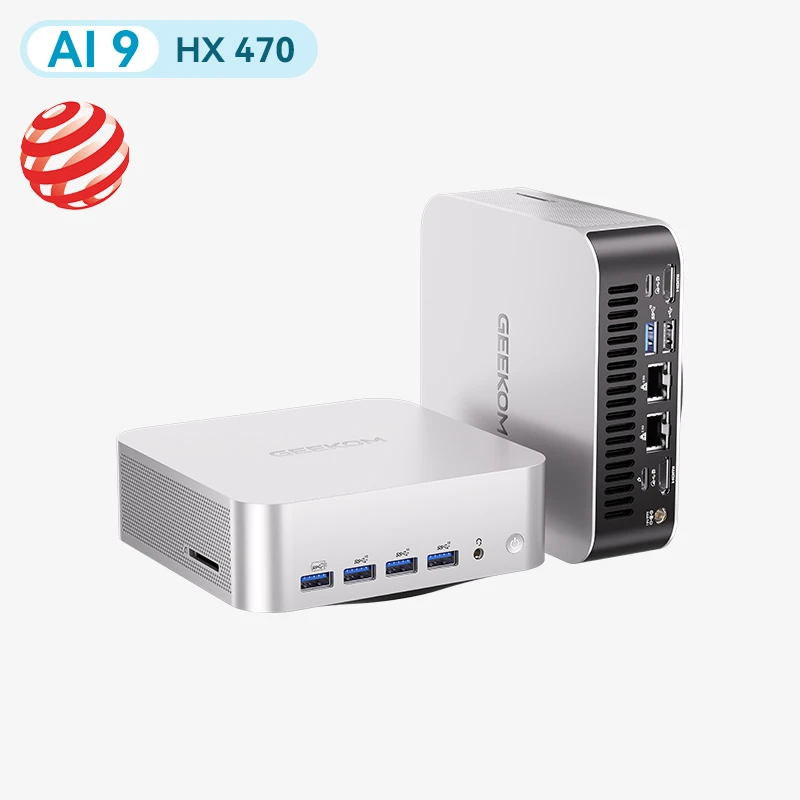
The GEEKOM A9 Max 2026 Edition is a more balanced small option that is based on the Ryzen AI 9 HX 370 or HX 470 configuration and has Radeon 890M graphics. That is why it works well for private text tools, document workflows, and everyday development. What you can actually run depends on the amount of memory you have installed and the hardware available in your area.
FAQs
Is It Possible to Use Local AI on a Mini PC?
Yes. For one person, a mini PC can run smaller models, transcription tools, private document searches, and other similar tasks. Make sure you have enough memory and space on your SSD; built-in graphics cards often make text take longer to generate than a powerful discrete GPU.
How Much VRAM Do You Need for Local AI?
8GB is a good size for smaller quantised files to start with. You can get more done with 16GB, but 24GB or more is better for bigger files and demanding image work. How much is right depends on the model, quantisation, length of the context, and settings for the runner.
Is a Mini PC or a Tower Better for Local AI?
It depends on the work. A mini PC suits always-on tasks such as document search, transcription and smaller text models, and it takes up little space and power. A tower is the better fit if you plan to run large models or heavy image generation on a discrete GPU with lots of VRAM.
Do You Need Internet to Run Local AI?
To get updates, drivers, installers, and model files, you need to be online. If you install everything first, you can run a local setup without an internet connection. There may still be some interfaces or integrations that need a connection, so check their settings before you work with private files.