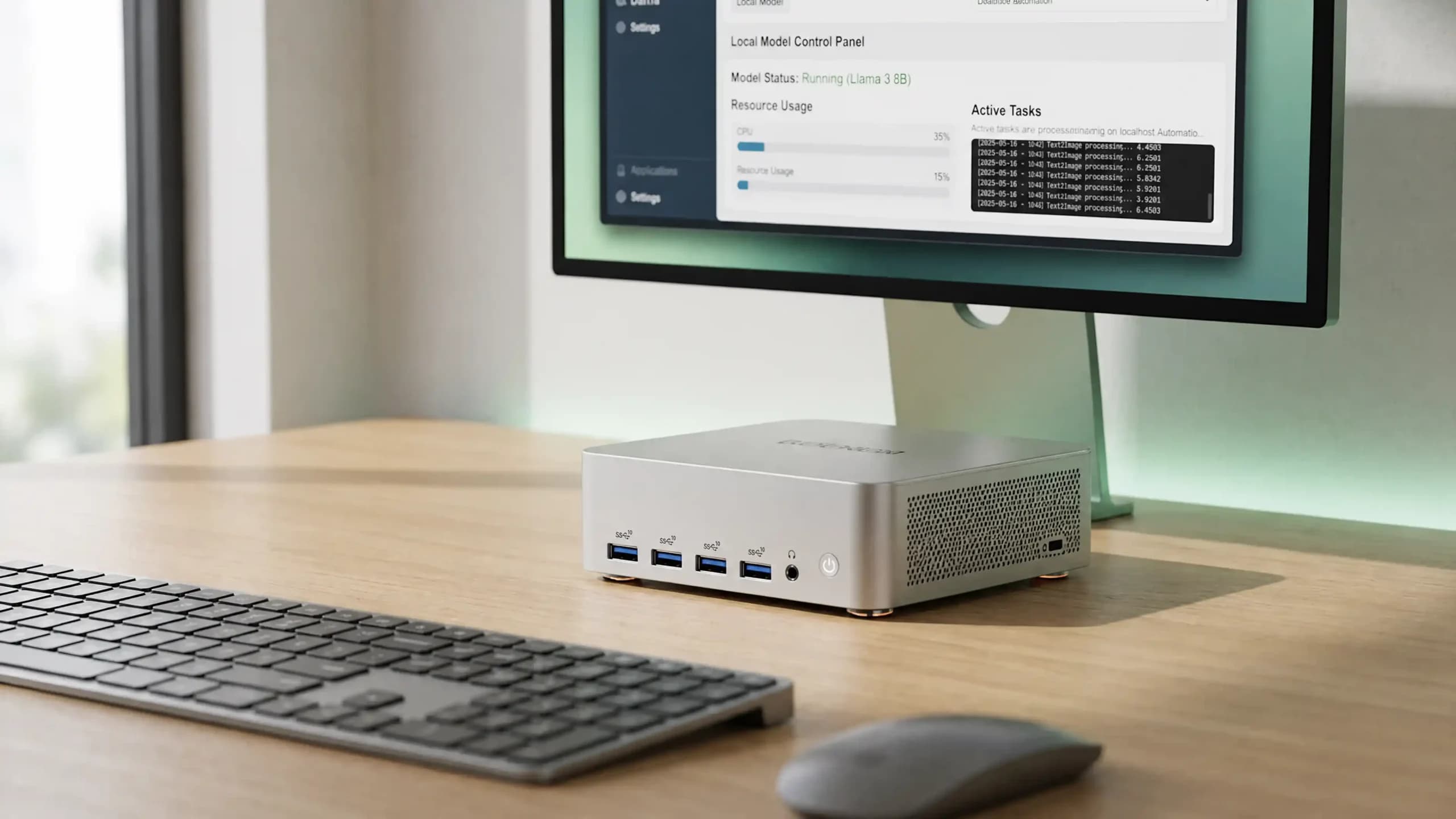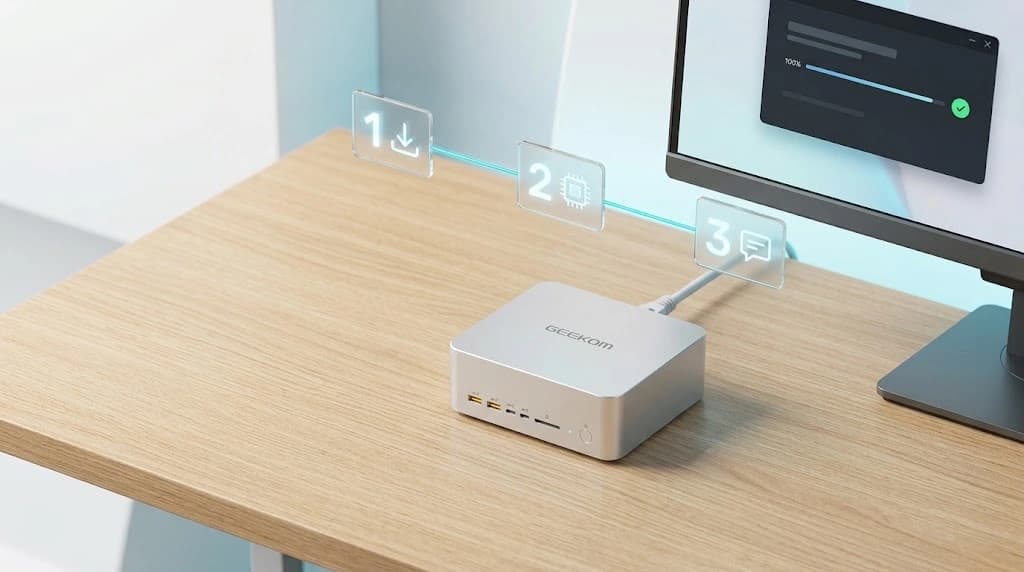
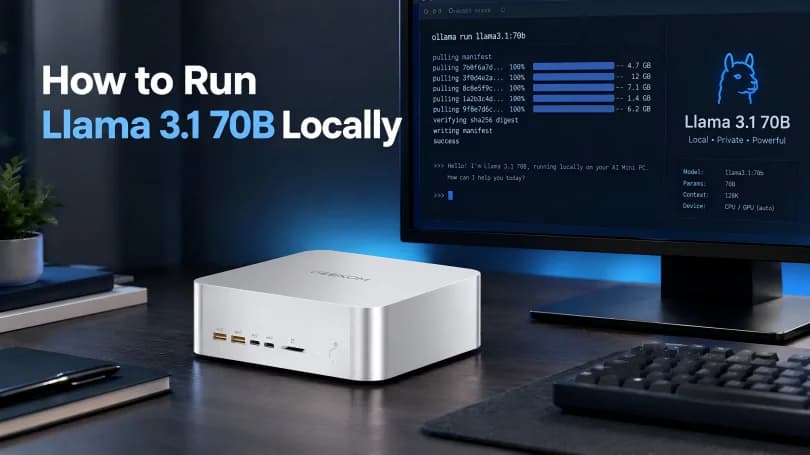
There are many things you can do without a computer tool. You can keep Llama 3.1 70B running on the screen in front of you with a small AI PC, whether it is on your desk or in a small office. A 70B file is hard to work with, though. An NPU sticker is not nearly as important as RAM size and memory speed. It is also important to have the driver and model files.
On AMD hardware, start with a small context and a lot of memory. When you start AMD ROCm, this guide tells you how to set it up and do a few checks. For this job, a small PC might be helpful. A desktop computer with a high-end graphics card will work better.
Why Use an AI Mini PC for Local LLMs?
The talk, notes, source files, and other files stay on the mini PC when you run a model. Then, that helps keep the data from going somewhere else. Also, you do not have to pay anything for each suggestion you send. Even if your connection drops, it will still work. To set up in a home lab or small office, this small box works better than a full tower.
It does not say how fast it is going; it just says where it is running. Either the graphics card or the CPU could do this. It depends on the software, the AMD APU, and the amount of free memory. Although some people believe that split runs are too slow, they work well for tests. Still, a desktop GPU system is better if you need to answer or give long prompts to different people.
Can a Mini PC Really Run Llama 3.1 70B?
Yes, but only up to a point. Llama 3.1 70B has 70 billion parameters and a context window of up to 128k tokens, according to Meta data. That is too much for most small PCs to handle. It is best to use a quantised copy of GGUF, which usually means Q4 or Q5. This saves a lot of space.
The quantisation guide in llama.cpp says that this model’s Q4_K_M is about 43.1GB. Not the total amount of memory used, but the size of the file. Aside from runtime, other things that use memory are the operating system, the screen, and active chat.
That is why 128GB is a better place to start for a Q4 70B test. 64GB leaves very little margin: the file may load, but there is little room left for the context cache and the operating system. How to set up Hugging Face Llama 3.1 says that the FP16 chat cache needs about 4.9GB for 16,000 tokens and 39GB for 128,000. Try the machine at 4k first, then move it up.
Having an easy setting does not mean that you will only get one answer. Runtime, memory speed, the split between the CPU and GPU, and the temperature all affect how it feels to use.
Hardware Requirements: What Your Mini PC Needs
Memory Is the Real Bottleneck
Take a look at the memory first, then move on to something else. It takes 40 to 43GB to make a Q4 GGUF copy.
The graphics on AMD AI mini PCs are built-in and use shared system memory. Sharing RAM is not the same as having high-end dedicated VRAM bandwidth, but an APU with a lot of memory can address more of the model than a small GPU.
An APU or GPU With Verified ROCm Support
If an AMD processor has Radeon graphics, do not assume that it is ready for ROCm. Specific graphics targets, ROCm releases, operating systems, kernels, and drivers must all be supported. You should first look at the most recent AMD ROCm compatibility matrix.
Find a Ryzen AI or Ryzen AI Max platform that is listed as the best APU path. One example that fits is the GEEKOM A9 Mega with Ryzen AI Max+ 395 and 128GB. According to GEEKOM, it has Radeon 8060S graphics and supports local deployment of models including DeepSeek R1 70B. Real-world performance will still depend on the model, quantisation and context length you choose.
Storage and Thermals for Sustained Inference
Give yourself room for a lot of model files on a fast NVMe SSD. Multiple downloads of 40GB or more, documents, and development tools can fit on a 2TB drive. Answer speed is mostly not affected by drive speed; it mainly affects loading time.
You should also cool things down. Keep the device in an open position, make sure the power mode is right, and check the speed over a few minutes instead of just one short prompt.
| Part to check | Good place to start | Why it is important |
| System memory | 128GB for useful Q4 70B headroom | The operating system, weights, context cache, and runtime buffers all need space. |
| AMD graphics/APU | A Ryzen AI or AI Max device listed for the chosen ROCm release | ROCm is specific to the device and software version; it is not a Radeon feature that works with all devices. |
| Storage | A 2TB NVMe SSD is recommended | Large GGUF files accumulate quickly, and fast storage cuts down on load times. |
| Cooling and power profile | Clear airflow and a sustained-performance mode | Computers with long inference workloads may slow down when they get hot. |
Setting Up a Mini PC With AMD ROCm
Care is needed when installing apps on a mini PC with AMD ROCm. For an officially listed Ryzen AI or AI Max APU, the best way to get started is to use native Ubuntu with the exact AMD-supported kernel and driver. Some Ryzen APU ROCm features can be used in Windows, but not all of them.
Confirm ROCm Compatibility for Your APU or GPU
Keep track of the exact name of the processor and built-in graphics, then compare it to AMD’s list. The operating system and kernel combinations that the Ryzen ROCm Linux support matrix lists are those that are supported. A system will not use ROCm just because it has Radeon graphics.
Install ROCm With the Matching Driver and Toolkit
Avoid copying an old package URL from a forum and instead use AMD’s version-matched Ryzen ROCm installation guide. AMD’s required OEM kernel, the inbox driver, and an APU-specific installation command are used for the official Ryzen APU process:
sudo amdgpu-install -y --usecase=rocm --no-dkmsBefore you run it, make sure you meet AMD’s build requirements. There are different ways to install a separate Radeon card. For future troubleshooting, write down the version of Ubuntu, the kernel, ROCm, and the BIOS.
Verify That ROCm Can See the Hardware
You should do the following checks after restarting and any group-permission steps in AMD’s guide:
rocminfo | grep -i "Marketing Name:"amd-smi versionTwo commands are used to check ROCm and AMD SMI. The first command checks to see if ROCm sees an agent. ROCm-SMI may have been mentioned in older guides, but AMD is pushing users to use amd-smi instead. Neither command shows that the model is actually using the GPU.
Choosing and Quantising the Model
Bits are used less for each weight when they are quantised. Some storage space and maybe even some output quality are given up for a file that takes up less memory. Most llama.cpp files are saved in GGUF format.
| Format | Approximate weight memory | What does it mean on a mini PC |
| FP16/BF16 | About 140GB before runtime costs | Not a good 70B route for a typical mini PC, but it is good for reference. |
| Q5 GGUF | More than 50GB most of the time; check the individual conversion | On a 128GB system, it might be worth thinking about, but more headroom is needed. |
Q4_K_M GGUF | The weights are about 42–43GB | Ideal for a local setup with lots of memory. |
Q4_K_S GGUF | Some conversions will take about 40GB | Some models have worse quality and performance, but it saves a little more memory. |
Use a reliable model page on Hugging Face. Read the licence and write down the exact conversion. A GGUF is a conversion, not Meta’s original download. A big window can take up more memory than the model file, so keep the first context small.
How to Run Llama 3.1 70B Locally: Step by Step
Use a 4k context and a short prompt to begin. Make sure the mini PC works before you expand it.
Option A — Ollama AMD Setup: The Easier Route
The latest Ollama Linux instructions can be used to install it. Next, pick a current 70B tag. The 43GB Q4_K_M download is included in the llama3.1:70b listing. Never assume that an older tag is still available for Llama 3.1; instead, check the latest library.
ollama pull llama3.1:70bollama run llama3.1:70bollama psThe PROCESSOR column will show either 100% GPU, 100% CPU, or a split. That lets you know where this model run is really landing. ROCm detection by itself does not prove that the model is using the GPU.
Option B — Run llama.cpp with ROCm
This will give you a better look at the GGUF file, the GPU offload, and the context settings. Follow the project’s current instructions to make the HIP-enabled version. After that, adjust the options for the hardware in front of you:
git clone https://github.com/ggml-org/llama.cpp.git
cd llama.cpp
cmake -B build -DGGML_HIP=ONcmake --build build --config Release --parallel./build/bin/llama-cli -m /models/your-llama-3.1-70b-q4.gguf -ngl 999 -c 4096 -p "Explain in three sentences why running an LLM locally improves privacy."-ngl 999 in llama.cpp tries to move as much of the model as possible to the GPU. That does not mean all of the layers will fit. If the file does not load, first lower the context, then check the model file and the free RAM. A bandwidth limit or a split run is often the cause of slow replies.
How to Get Better Results From a Mini PC
You can not learn much about a 70B setup from a quick answer. Instead, try a few real prompts. Keep the reply rate and the time it takes to read a prompt separate, since they do different things.
You can change only one setting at a time after starting at 4k. With less background information, the chat cache has more room. If a bigger quant has more memory, it might be able to make things better. There are times when using all of your CPU’s threads at once is slower. You can see how many layers make it to the GPU. Checking the offload or trying a different thread count can be easier with these llama.cpp performance notes.
For best results, you can leave the power on full and let air move freely. This outcome relies on RAM, the model file, the amount of chat data, the runtime, and the temperature. Just looking at the number of tokens per second does not tell you everything about a mini PC because of this.
Issues That Do Not Work
No graphics hardware can be seen by ROCm.
You can check the AMD compatibility matrix again. Installing any new package and hoping it works is not a good idea. You can start by checking the APU graphics target, the latest version of Ubuntu, the kernel, and the driver.
CPU is being used by Ollama.
You can run ollama ps after loading the model. You can compare the AMD driver you installed with Ollama’s most recent GPU support advice. The model can still fall back to the CPU even if ROCm is visible.
The model loses its memory.
You can make the context shorter and the parallels weaker first. If that does not work, try a computer with more RAM or a smaller quantisation. Computers can not get more memory when they set up shared memory.
Too few people are answering.
You can start by checking whether the run is only on the GPU, only on the CPU, or a mix of both. If you do not have much RAM, you can cut down on the background. You should only lower the number of GPU layers if you need to free up memory. You can then switch to a cooler, sustained power mode. Some jobs are easier to do with a smaller model every day.
How about this mini PC for the job?
If there is enough memory, the AMD platform fits the ROCm release, the Q4 or Q5 file makes sense, and the offload has been checked, a capable AI mini PC can handle local 70B work. Simply having an NPU badge and downloading 43GB will not answer those questions.
This small GEEKOM system works best with the A9 Mega, which has more memory. Before you buy, choose the Ryzen AI Max+ 395 / 128GB configuration. As an alternative, GEEKOM’s A9 Max 2026 Edition (AMD Ryzen AI 9 HX 470) can run models locally and has upgradeable memory, but it is not the same 70B/ROCm setup. You can find out more on GEEKOM’s AI PC page.
FAQs
Llama 3.1 70B-Can a Mini PC Run It?
You need plenty of memory for the weights, chat cache, runtime, and operating system, and the version must be properly quantised. An extra-large system with lots of memory is better than a standard 32GB or 64GB mini PC. Getting the model loaded is one thing. A quick answer is another thing.
How Much RAM Does Llama 3.1 70B Need?
You need roughly 40–43GB for Q4 weights before the chat cache and system overhead. In comparison, a 128GB setup gives you a lot more space. The exact need depends on how much chat data you have, the model file, and how the program is set up.