
A screen that turns on but says “No Signal” needs a different check than one that is completely dead. A broken screen is not always the problem. Often, it is a loose power cable, the wrong input, or a video connection that has come loose. Check the following things quickly first. If those do not help, only then move on to the PC and monitor hardware.
Key Takeaways
- If your monitor will not turn on and has no light, check the power cable, power brick, and wall socket first.
- If the LED is on but the screen is black or says “No Signal”, check the chosen input before making any other changes.
- A power cycle can clear a stuck state: unplug the monitor, hold the power button for 15–30 seconds, then wait a minute before plugging it back in.
- An HDMI, DisplayPort, or USB-C connection that is loose or broken is a common reason for a monitor saying “No Signal”.
- If you test a different cable, computer, or monitor, you can find out if the problem is with the screen, the cable, or the PC.
| What you see | What it usually points to | Start with |
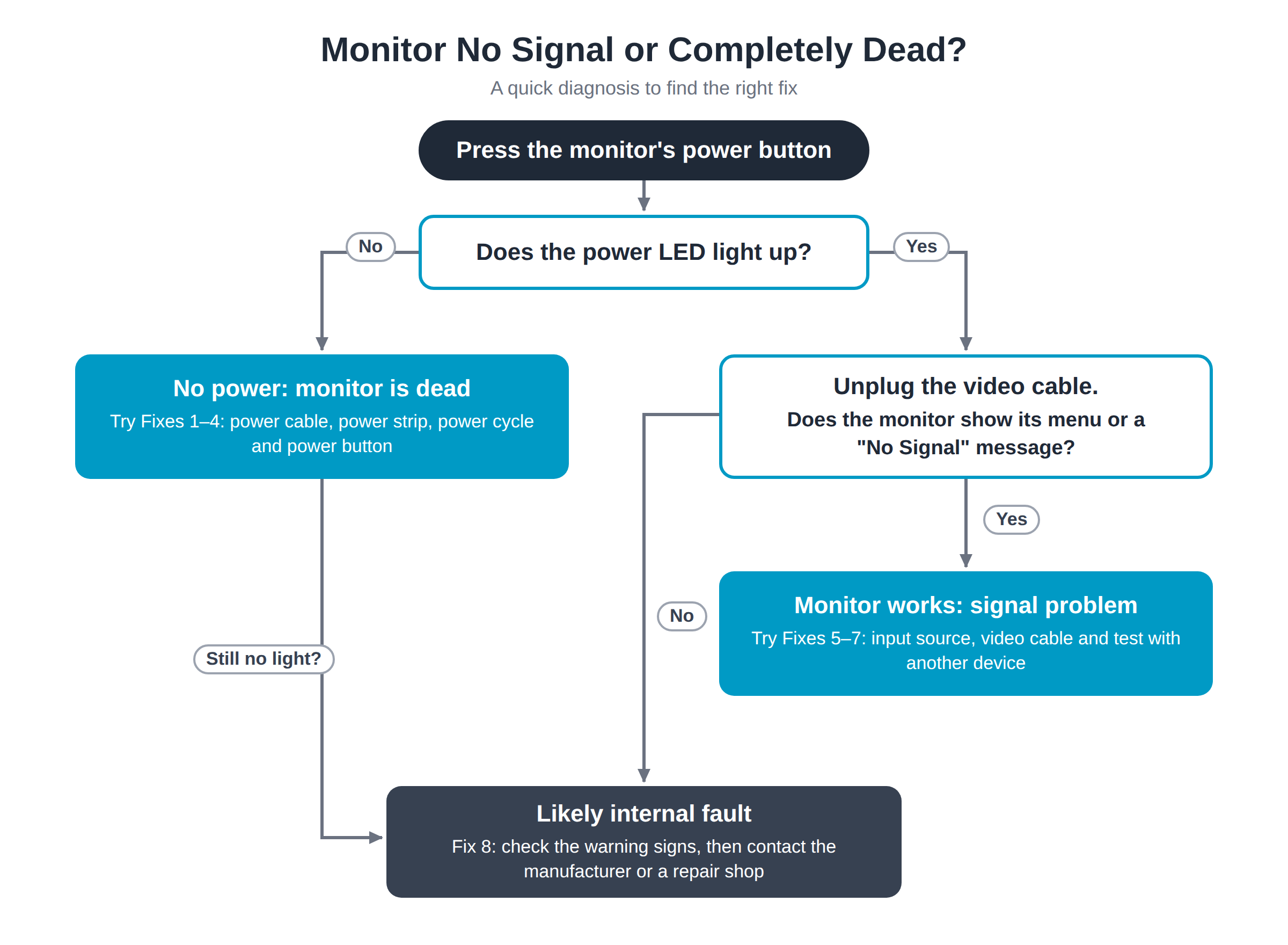
| No light, no menu, no response | Power, wall socket, power brick, or monitor power board | Fixes 1–4 |
| Power light on, but “No Signal” | Wrong input, cable or PC video output | Fixes 5 and 6 |
| Amber or orange light, black screen | Usually standby or no incoming video signal | Fixes 5–7 |
| Screen starts, then dies or flickers | Possible backlight, power-board or panel fault | Fix 8 and professional advice |
1. Check the Power Cable and Wall Socket
Unplug the power cable at both ends, then plug it back in firmly. Make sure the cable fits flush with the monitor socket and the wall socket or power strip. If it just looks connected, it may not be. If your display has an external power brick, make sure the brick’s light is on, and the cable that connects it to the monitor is not loose.
Next, plug a lamp or phone charger into the same socket to confirm it works before you blame the monitor. Look for cuts, broken pieces, heat marks, or bent pins along the power cable. Dell’s monitor power troubleshooting guide also says to reseat the cable and, if possible, use a compatible replacement cable.
2. Rule Out a Faulty Power Strip or Surge Protector
Power strips and surge protectors can break, turn off on their own, or trip without showing that something is wrong. Take the monitor plug off the strip and plug it directly into a wall socket that you have already checked. After that, try the screen again.
If you can see the screen when you plug it directly into the wall, you should replace the strip or protector instead of testing the monitor again. Do not keep using a strip that smells like burned rubber, feels hot, has broken plugs, or trips over and over again. This is a quick check that can save you time when a monitor will not turn on even though the plug and power cable are fine.
3. Power Cycle the Monitor to Clear a Frozen State
Even if the hardware is fine, a monitor can get stuck after going to sleep, a power cut or a failed wake-up. Switch it off and unplug the power cable from the wall socket. Press and hold the monitor’s power button for 15–30 seconds, then wait about a minute before plugging it straight into a working wall socket.
This drains any leftover charge and clears temporary faults in the power circuitry. Simply switching it off and on again is not the same thing. Once it is plugged back in, press the power button and give it a few seconds – some screens take a moment to wake up. If the LED still stays off, move on to Fix 4 to check the power button and LED.
4. Test the Power Button and LED Indicator
Press the power button on the monitor, then wait three to five seconds and look closely for the LED. It is in a different place and colour on each brand, so if you need to, look it up in the manual for yours. No light at all usually points to a power problem. An amber or orange light usually means the screen is in standby mode or there is no video signal coming in. A white or blue light usually means the screen has power.
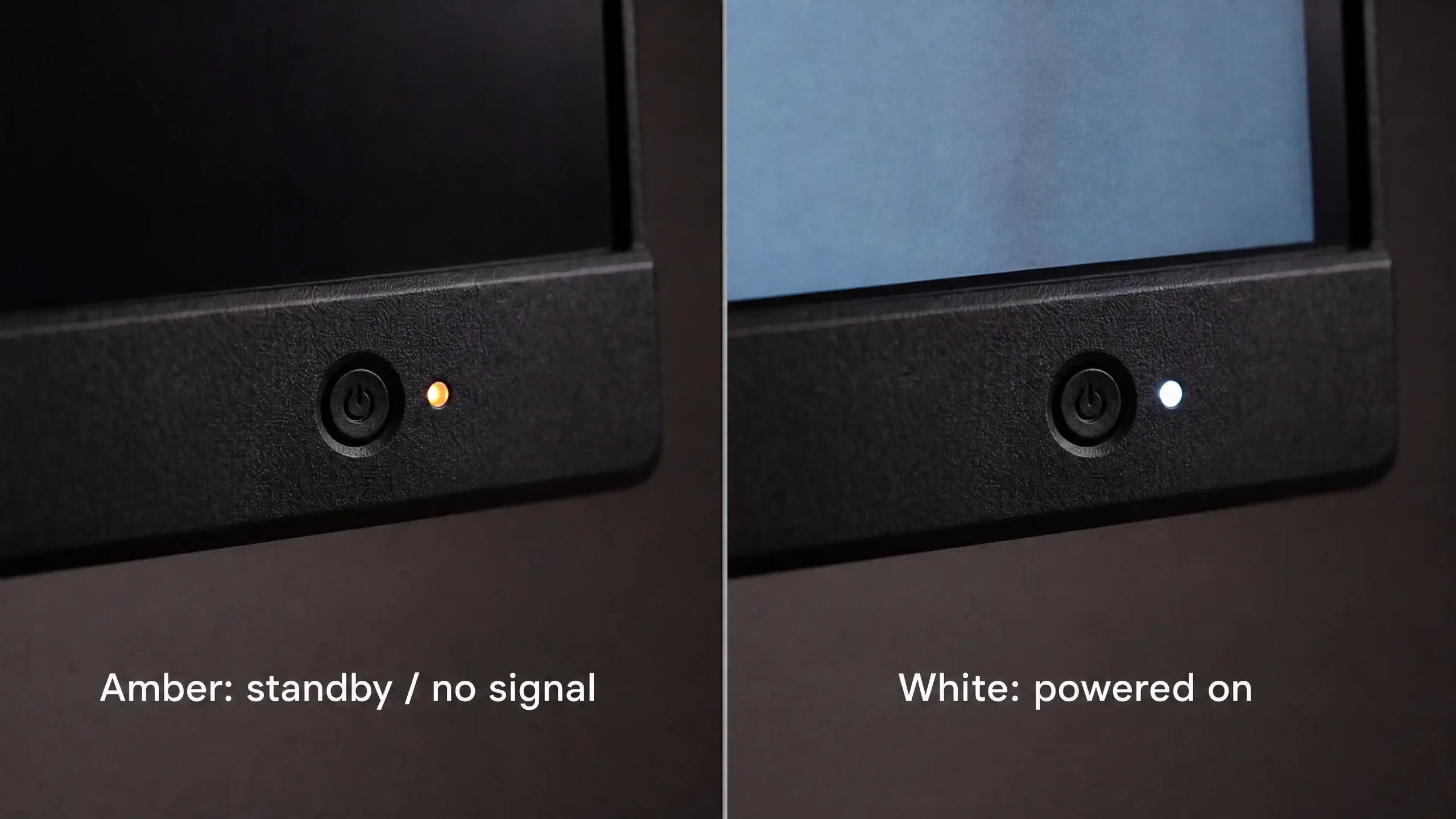
If the power light is on but there is no display, that does not mean the screen has failed. It means the monitor has power, so move on to the input, cable and PC checks. An orange LED on a blank screen is a good sign that the monitor is awake and ready to look for a signal. Look at the table again, and then try fixing the inputs and cables that need it before sending in a support request.
5. Check the Input Source Is Set Correctly
When a monitor says “No Signal”, it is usually working fine but listening to the wrong input. You can switch between HDMI 1, HDMI 2, DisplayPort, USB-C, and any other port listed by your model by pressing the Source, Input, or Select button on the monitor. Choose the input that matches the cable that is plugged into the monitor.
For example, if you plug a cable into the DisplayPort port and set the screen to HDMI 1, you will not see a picture. This can happen if you switch between your work laptop, your game console, and your desktop PC, or if you do a factory reset. If the monitor says “No Signal” on the right input, press a key or move the mouse to wake up the computer. Then, check the cables again. Dell’s display troubleshooting guidance also lists checking the input source as one of the first steps.
6. Check for a Loose or Damaged Video Cable
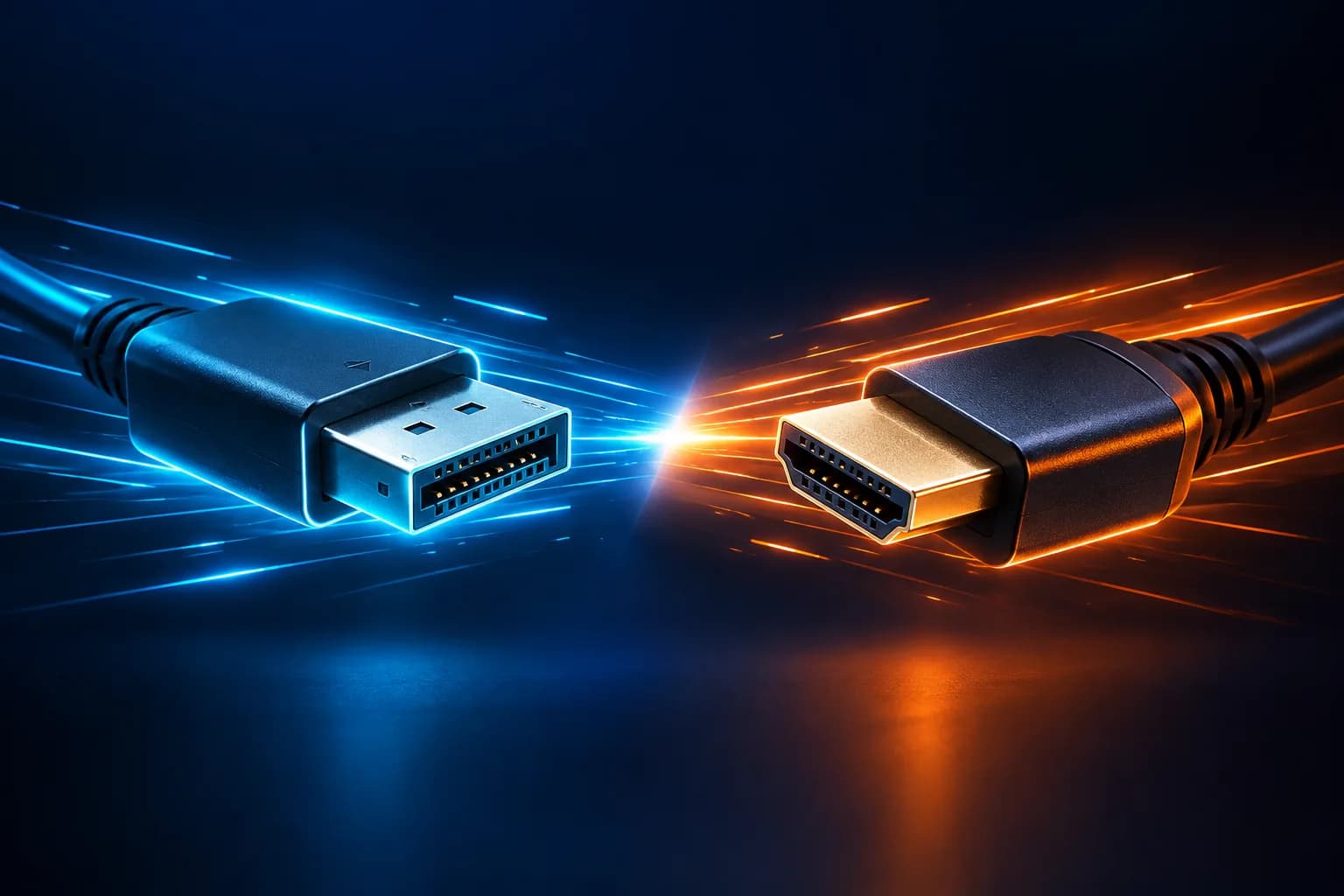
First, turn off the computer and monitor. Then reseat the HDMI, DisplayPort or USB-C cable at both ends. Push each connector fully home and make sure any DisplayPort latch clicks into place. Even if a connector looks joined, it may be just far enough out to cut off the signal. Look for pins that are bent, damage near the plug, sections that are sharply kinked, or a cable under strain behind the desk.
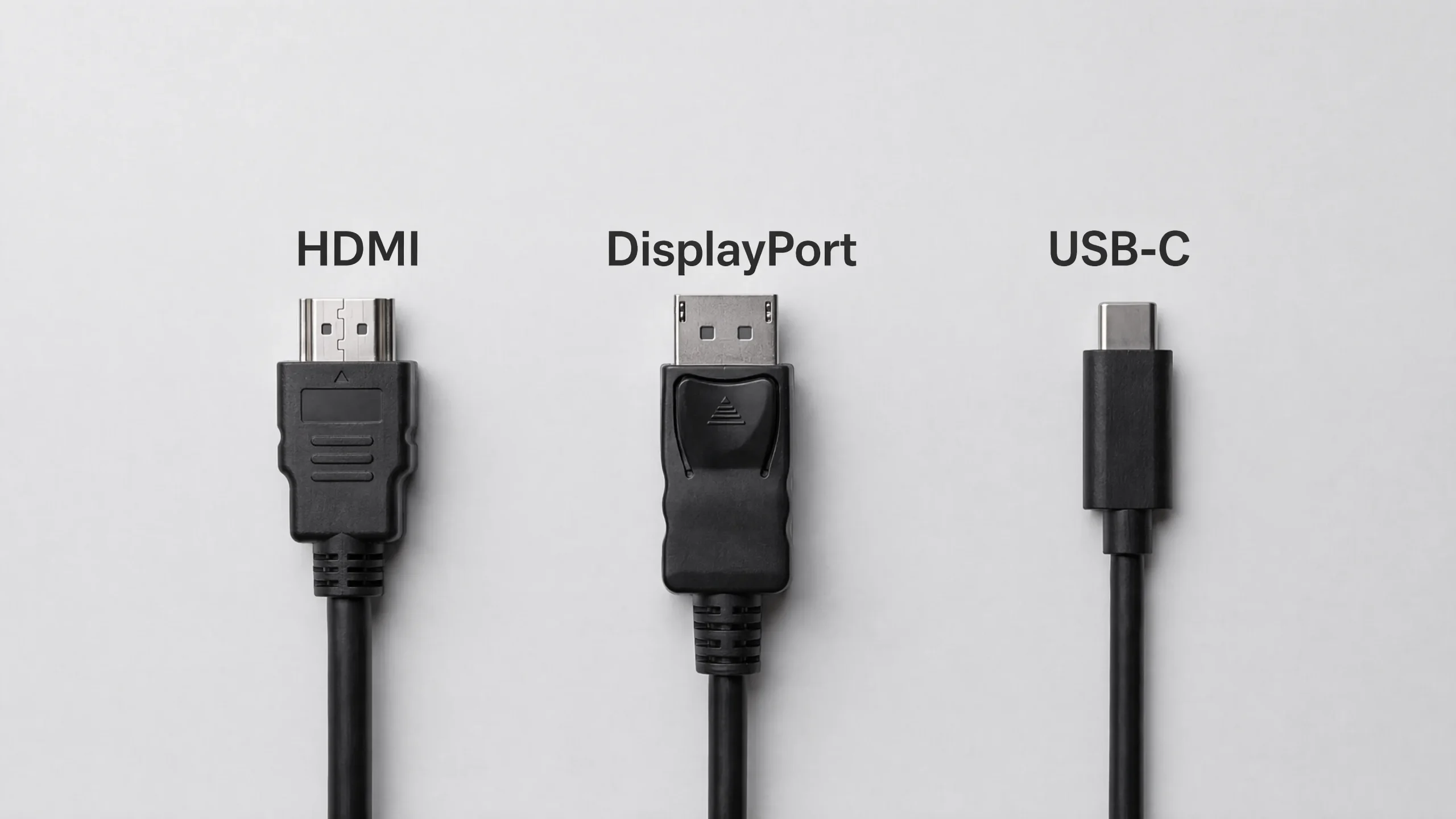
A broken or partially seated cable is one of the most common reasons a monitor shows “No Signal”. Use a spare video cable if you have one. For 4K at 120Hz or higher, make sure the cable is rated for HDMI 2.1. You can also try a different video port on the computer or monitor. Do not assume every USB-C cable carries video. Some USB-C cables can only charge devices or send basic data; they cannot handle DisplayPort Alt Mode. A connection that you know works is the fastest way to rule this out.
7. Test the Monitor (and the PC) on Another Device
The best way to tell the difference between a monitor problem and a PC problem is to cross-test them. If you can, connect the monitor to a laptop, desktop, game console, or docking station using a cable that you know works. If the monitor works on the second device, the original PC is the likely cause. Check the graphics driver, cable and any adapter, and on a desktop with a separate graphics card, make sure the cable is plugged into the card rather than the motherboard port.
If you can, try connecting a monitor or TV that you know works to the first PC to see if it works the other way around. If the second screen also shows no signal, the PC is not outputting video. Even if the computer’s fans and lights are working, it might not be able to start up or initialise its graphics hardware. This is important when there is no signal on the monitor, but the PC is running; a PC that is running does not mean that the display output is working.
If You Use a Mini PC
Mini PCs often have several video outputs, so check that you are using one that carries video. On many models, that includes the HDMI ports and a USB4 port with DisplayPort Alt Mode. If you run dual monitors, test each screen on its own first. A mini PC also uses an external power adapter, so confirm its light is on and the PC has actually woken from sleep before you blame the monitor.
8. Inspect for Internal Hardware Failure
After checking the outside, look for signs that something is wrong on the inside, such as if the monitor turns on and then turns off right away, if it buzzes or clicks, if it smells hot or burned, if it has a very faint image when you shine a torch on it, or if it does not have an image at all in its own menu or self-test. A broken power board, backlight, mainboard, or panel could be the cause.
Do not open the monitor yourself. Internal capacitors can hold a dangerous charge even when it is unplugged, and replacing a panel or board is rarely worth the cost once the warranty has expired. With the video cable unplugged, if the screen shows an on-screen menu or a message that says “No Signal”, that means the monitor is at least turning on. This suggests that the problem is more likely with the PC, input, or cable.
Monitor No Signal vs Completely Dead: How to Tell the Difference
If a monitor is completely dead, it usually does not have an LED, a manufacturer logo, an on-screen menu, or a power button that works. Check to see if the problem is with the power cable, wall socket, power brick, power strip, or internal power hardware. Try a power cycle and a different wall socket first.
It is a different story when the monitor powers on but shows nothing. A white, blue, yellow, or orange LED, a black panel, an input label, or the words “No Signal” may show up. It looks like the monitor has enough power to work, but it is not getting a usable video signal. It is most likely the chosen source, the HDMI/DisplayPort/USB-C connection, the adapter, the computer output, or the graphics hardware. If your computer turns on but there is no display, try a different cable and screen before you reinstall the drivers or buy a new monitor.
This is important to know because a powered screen can usually show its own menu. Return to the power and internal hardware checks if it still does not show any menu or self-test picture, even with the video cables disconnected.
When to Call a Professional
If the monitor is still under warranty, shows clear signs of internal failure, or fails its own self-test after you have ruled out the cable and PC, you should contact the manufacturer or a qualified repair shop. Write down the model number, how the LEDs behaved, the exact error message, and the names of the devices or cables you checked. With that information, help comes a lot faster.
Before giving the go-ahead to fix an older basic monitor, compare the written repair estimate to the cost of a new one. It might make sense to fix a new high-resolution, colour-critical, or specialised display, but it is usually not worth repairing an entry-level model with a broken power board or backlight. Stop using the monitor right away if you smell burning, see damage, or keep having to turn it off and on again.
Frequently Asked Questions
Why Is My Monitor Not Turning On Even Though It’s Plugged In?
Plugged in does not mean that you are getting power. The power strip, wall socket, power cable, external power brick, or the power board inside the monitor can all break. Before you think the screen is dead, plug something else into the socket, reseat both ends of the cable, and power cycle the monitor.
Why Does My Monitor Say No Signal?
If the monitor says “No Signal”, it means that it has power but is not getting any useful video from the chosen input. Most of the time, it is because the PC is not sending video, the video cable is loose, or the HDMI, DisplayPort, or USB-C source is not working properly. Start with Fixes 5 and 6.
How Do I Factory Reset a Monitor?
To get to the monitor’s on-screen menu, press the Menu button or use the joystick. Then, find Factory Reset or Reset All under System, Settings, Other Settings, or a similar area. This clears custom picture and input settings. A factory reset is different from a power cycle, and it only works if the monitor turns on and can display its menu.
Monitor Says No Signal but the PC Is Running — Why?
Even if a PC has fans and lights, it might not be able to set up its graphics hardware or send video through the chosen port. The GPU, a monitor output, a cable, an adapter, or the way the computer starts up could be the problem. Check the monitor on a different device and another screen on the PC.
How to Know If a Monitor Is Dying?
Blackouts that come and go, flickering, dim or uneven lighting, a slow start-up, colour patches, lines, burn-in, or a screen that turns on and off are all common signs of decline. If the problems stay the same when you connect the monitor to another device, it is more likely that the monitor is broken.
Can a Faulty PC Cause My Monitor Not Turning On or Show No Signal?
Yes. A faulty PC might stop sending video, which could make a working monitor appear to be off by leaving it in standby mode or showing “No Signal”. This does not usually explain a screen that does not have any LEDs. Using a different computer or screen to test will show you which side needs more work.
Get Your Screen Back Up and Running Fast
Work through the checks in this order: confirm the power cable and wall socket, bypass the power strip, power-cycle the monitor and read the LED. Then select the right input, reseat or swap the video cable, and test with a different device to tell whether the fault lies with the screen or the PC. That way, you will not end up buying a new monitor when the real problem is a loose HDMI cable, the wrong input or a faulty wall socket.
If the monitor does not light up after basic power checks, smells like burning, shuts down often, or does not have a menu even when you remove the video cable, stop there and contact warranty support or consider a replacement. Most “No Signal” problems are minor, and they are much quicker to fix once you can tell a signal fault from a power fault.