Introduction
There is a power button, coffee, and waiting. Keep waiting. It seems like the dots on the screen will never stop spinning, and when you finally get to the sign-in screen, the desktop is slow and will not do anything for a few minutes. A Windows startup that takes a long time is one of the most annoying tech problems you can run into every day.
But before you throw your computer away, take a deep breath. Wondering how to fix slow startup Windows? Most of the time, a PC that takes a long time to boot up is due to too much software, driver conflicts, or storage problems that can be fixed without a full system wipe. In 2026, PCMag’s review of Windows 11 shows that slowness is still one of the main complaints from users, and it is not always the hardware’s fault. Here are 10 tried-and-true ways to speed up the booting of your computer, starting with the easiest fixes and working your way up to more complex diagnostics. Do not forget to restart your PC after each step to see if the problem is fixed.
1. Disable unnecessary startup apps
Most of the time, Windows starts slowly because you are asking it to do too many things at once. Dozens of background programmes try to start up at the same time every time you log in. These include Spotify, chat clients, and hidden software updaters. Turning off startup programmes will stop this slowdown.
To open the Task Manager, press Ctrl+Shift+Esc. Next, click on the Startup apps tab. In Windows 11, this tab’s icon looks like a speedometer. Sort the list by “Startup impact” and look for high-impact programmes that you do not need right away when the computer starts up.
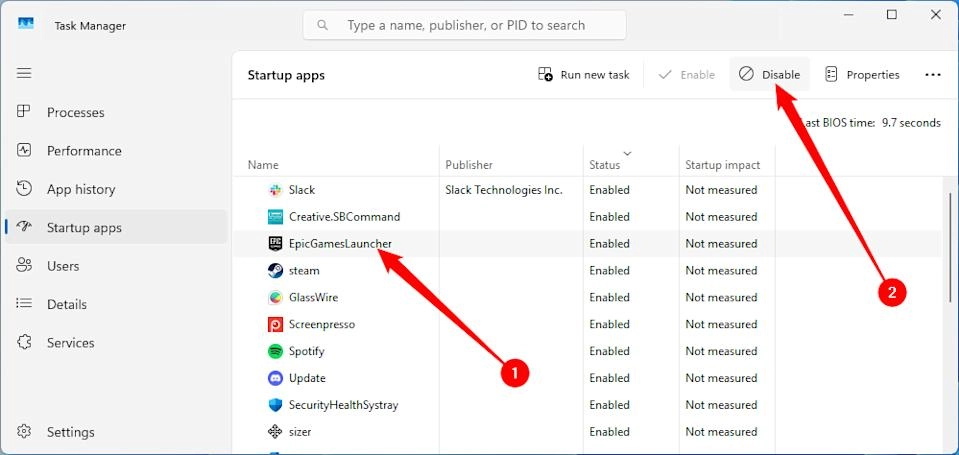
To turn these off, right-click on them and choose “Disable.” You can open these apps by hand later, but they will not slow down your computer in the first few minutes, which are very important.
2. Toggle Fast Startup (test both ways)
If you turn on Fast Startup in Windows, it will work right away. It saves a picture of your system’s state to the hard drive when you shut it down. This should make it wake up faster in theory. But Fast Startup can cause problems on some systems, especially those with older drivers or dual-boot setups, which makes boot times very slow. It can also stop Windows from applying updates fully, leaving your system only partially updated, which can make it unstable.
If you want to test your system, you should disable this feature. Click on Power Options in the Control Panel and then click on Choose what the power buttons do on the left. Click “Change settings that are not available right now,” then uncheck the box next to “Turn on fast startup.” Save your changes and start over. Leave it off if your boot time gets faster. Just turn it back on if things get worse. You can get the option back by opening a higher Command Prompt and typing powercfg /hibernate on.
3. Update Windows and drivers in the right order
Outdated software slows things down without being noticed. Anytime Windows can not talk to your hardware during the boot sequence, everything stops. Make sure that the most recent patches are installed by going to Settings > Windows Update. Nevertheless, driver updates are usually more important than OS updates when the boot process is slow.
Before updating your graphics drivers, you should update your storage controller drivers. After that, you should update your motherboard chipset drivers, and finally, you should update your network drivers. Avoid using generic Windows drivers and always get these updates from the website of the company that made your PC or motherboard. Boot stalls that happen out of the blue after a normal update are often caused by a mismatch between a new version of Windows and an older version of a driver.
4. Repair corrupted system files (SFC & DISM)
If you lose power quickly or an update goes wrong and your Windows installation gets slightly damaged, the startup process will stop while it tries to read damaged files. Built-in command-line tools can fix these for you automatically.
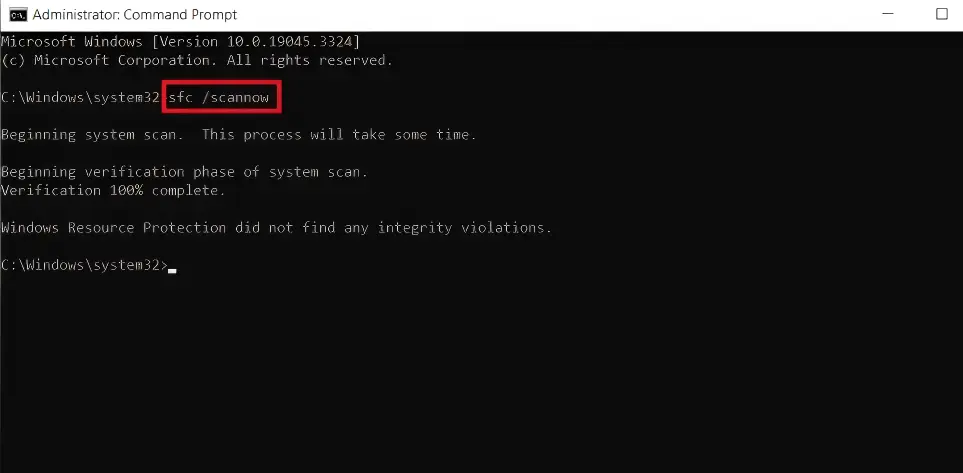
Go to the Start menu and type “cmd.” Then, right-click on the Command Prompt and choose “Run as administrator.” Type sfc /scannow and press Enter to start. The System File Checker will look for damaged local files and replace them.
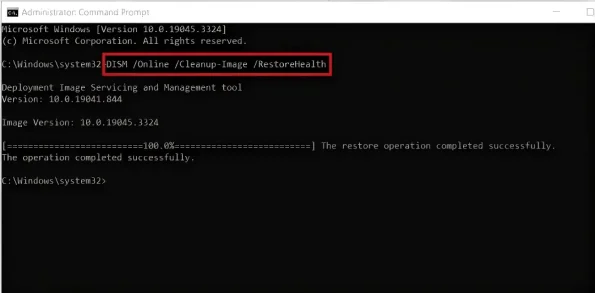
Type DISM /Online /Cleanup-Image /RestoreHealth and press Enter when it runs out of time. This tool for Management and Servicing Deployment Images fixes the Windows image underneath. Both scans are necessary to fix slow boot problems that go deep. They each take a few minutes.
5. Scan for malware
It is common for malicious software to hide itself deep in the startup sequence so it can run before your antivirus can catch it. This sneaky behaviour uses up a lot of CPU and disc space, which makes your login take a lot longer than usual. Use Windows Security or a third-party antivirus you trust to do a full system scan. To get the best results, start up your PC in Safe Mode before running the scan. This stops malware from hiding behind running programmes. Hold down Shift and click “Restart” to get into Safe Mode. Then go to “Troubleshoot” > “Advanced Options” > “Startup Settings.” But keep in mind that third-party antivirus suites that are too big and heavy can cause your computer to start up slowly. If you just put in a new security suite and the slowdown started soon after, that software is probably to blame.
6. Perform a clean boot to isolate third-party conflicts
If disabling startup apps didn’t work, a background service might be the culprit. A “clean boot” starts Windows with only essential Microsoft services, allowing you to isolate third-party conflicts. Press Win + R, type msconfig, and hit Enter. Go to the Services tab, check the box that says Hide all Microsoft services, and then click Disable all. Next, go to the Startup tab and ensure all apps are disabled in Task Manager. Restart your PC. If it boots quickly, you know a third-party service (like RGB lighting controllers, VPNs, or cloud-sync utilities) is causing the delay. Re-enable the services in small groups, restarting each time, until you find the exact software responsible.
7. Check storage health and free space
The hidden bottleneck of 100% disk usage
This is probably the most common and little-known reason why Windows starts up slowly. Your hard drive is the thing that slows down Windows when it needs to load a file. First, make sure you have enough free space. For best performance, you should leave about 15% of an HDD free and 25% of an SSD free. Remove useless files with Disc Cleanup or Storage Sense.
Next, open Task Manager when the computer starts up and look at the “Disk” column. Your drive is having trouble if it stays at 100% usage for a few minutes. By typing chkdsk /f /r in an elevated Command Prompt, you can do a simple file system check. On the other hand, persistent 100% disc usage usually means that hardware is failing. Use the manufacturer’s diagnostic tool, such as Samsung Magician or Crucial Magician, to check the SMART health status of your SSD or HDD. A drive that is failing or old drive will make the computer boot very slowly, even if Windows is on a different disc. If the SMART data shows any errors, you need to replace the drive right away.
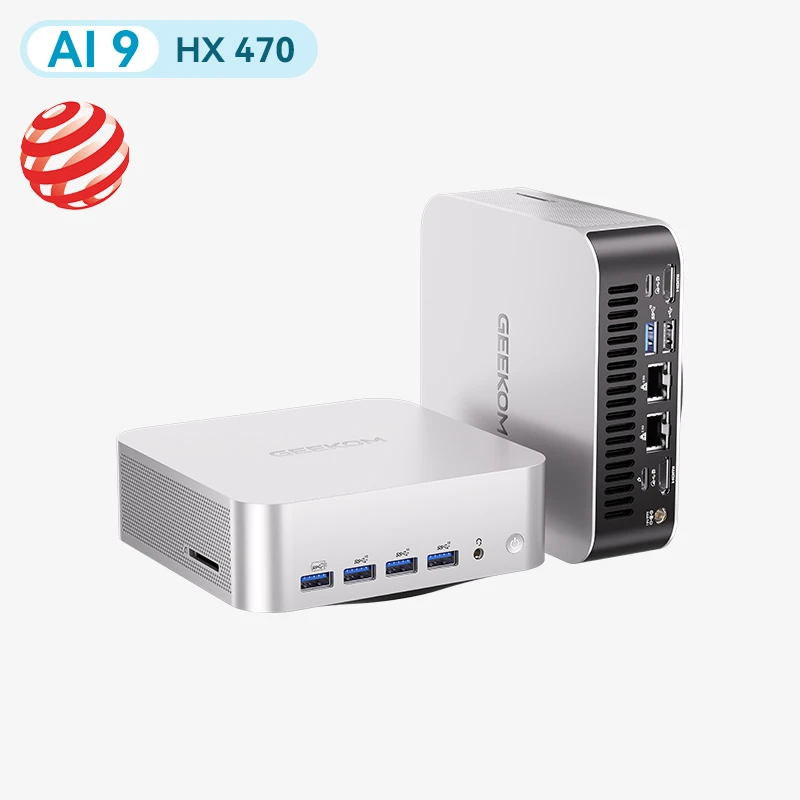
SATA drives and SSDs that are getting old often break down, slowing down systems that are otherwise healthy. This is why new, efficient computers, like the GEEKOM A9 Max mini PC, come with lightning-fast NVMe storage as standard. This completely gets around the problems that come with older drive technologies.
8. Advanced tuning
Power users may want to look into a few less common changes. You can change your Virtual Memory (paging file) settings to stop Windows from quickly moving data to a slow disc when the computer starts up. Running a full defragmentation on a mechanical HDD can bring startup files closer together. However, you should never defrag an SSD because it hurts the flash memory. Cleaning the Windows Registry carefully can sometimes help, but you should only do this as a last resort and make sure you have a full backup first. For the last step, if you want to find the exact driver or service that is slowing down the boot process, you can use advanced diagnostic tools such as the Windows Event Viewer (look under Applications and Services Logs > Microsoft > Windows > Diagnostics-Performance) or the Windows Performance Recorder and Analyser (WPR/WPA) to find the service that is delaying things the most.
9. Consider a hardware upgrade
When software tweaks aren’t enough
If you have tried all the software fixes and your PC still takes minutes to start up, it is likely the hardware that is slowing it down. The most important fix you can make is switching from a mechanical HDD to an NVMe SSD. This is the single best way to fix slow startup Windows, often cutting it from minutes to seconds. Also, make sure you have enough memory. Technically, Windows 10 and 11 can run on 4 GB of RAM, but this is the very least you should have. It will make it very slow to boot up and switch between tasks. You should try to get at least 8 GB, but 16 GB is better.
But if your CPU and motherboard are more than four or five years old, upgrading bits and pieces will not help as much. The clean-slate option is often the most cost-effective way to go instead of spending money to update an old system. The GEEKOM mini PC range has modern, efficient machines that come with fast NVMe storage, lots of RAM, and a fresh Windows installation all in one small step. If you are not sure what specs you need for a quick and responsive daily driver, reading a full “how to choose a mini PC” buyer’s guide can help you find one that starts up quickly and works well.
10. Reset or reinstall Windows (last resort)
If SFC and DISM can not fix damaged system files or years of software decay make it impossible to fix, you might need to reset the operating system. The first thing you can do is an “in-place repair upgrade,” which reinstalls Windows over the top of your existing files and programmes. If the slow boot problem does not go away, the best software fix is to do a full, clean installation from a USB drive. Always make a copy of your important files before you try to reinstall, and keep in mind that you will need to download your drivers and Windows updates again after the new installation is finished.
Conclusion
How to fix slow startup Windows is actually a process of removing things one by one. You can often get your system’s speed back in minutes by making simple changes first, like turning off startup programmes that you do not need and turning on Fast Startup. If those do not work, more in-depth tests, such as driver updates, malware scans, and storage health checks, will usually find the problem. There is almost always a software conflict or a storage drive that is having trouble when the PC starts up slowly at first but then speeds up normally after logging in.
Related blog: How to Clear & Free Up Disk Space on Windows Computers
If you think your software is corrupt, the SFC and DISM tools will help you the most. If you think your drive is failing, you must do a SMART health check. But if your hardware has reached the end of its useful life and is having trouble keeping up with modern operating systems, no amount of software tweaking will fix it for good. In that case, the safest and most cost-effective thing to do is to buy a new, more efficient system. The goal is to have a computer that starts up in seconds instead of minutes. That is completely possible with the right hardware.