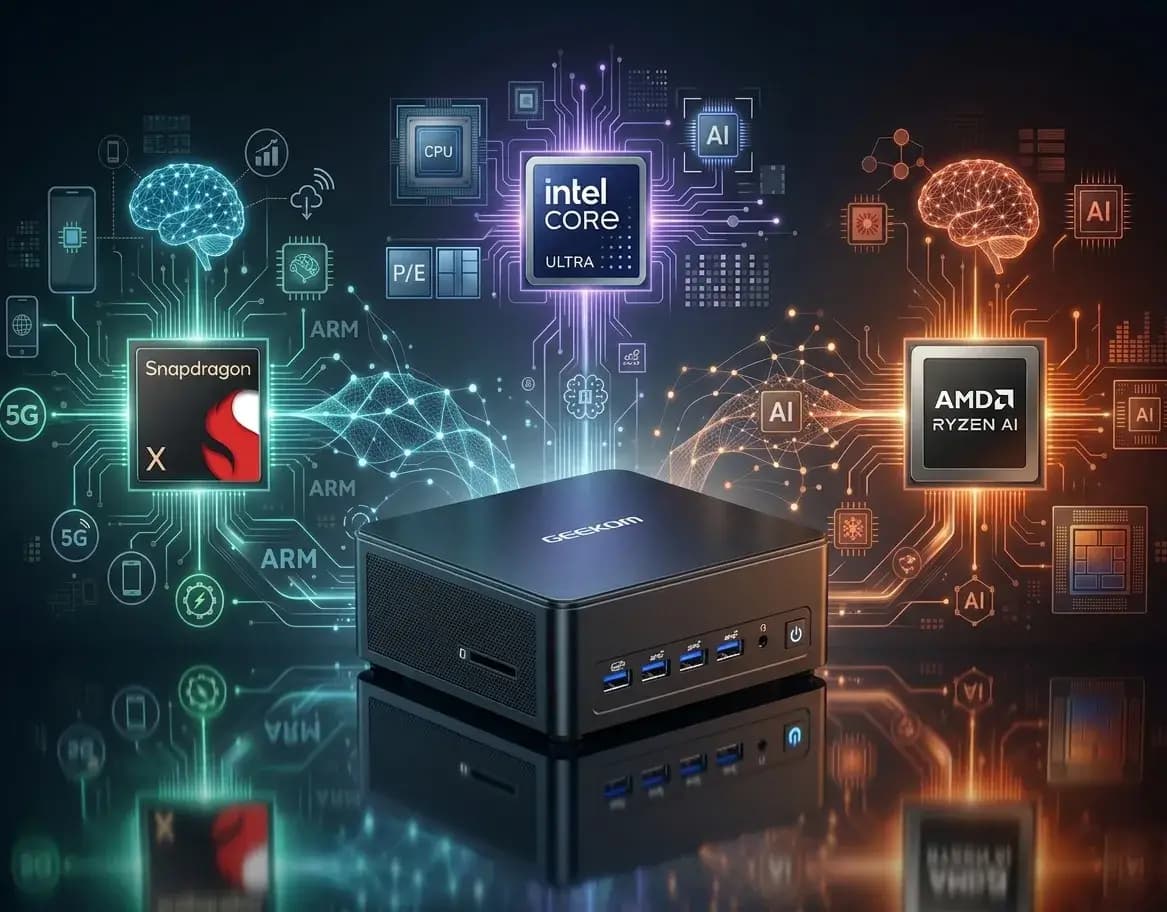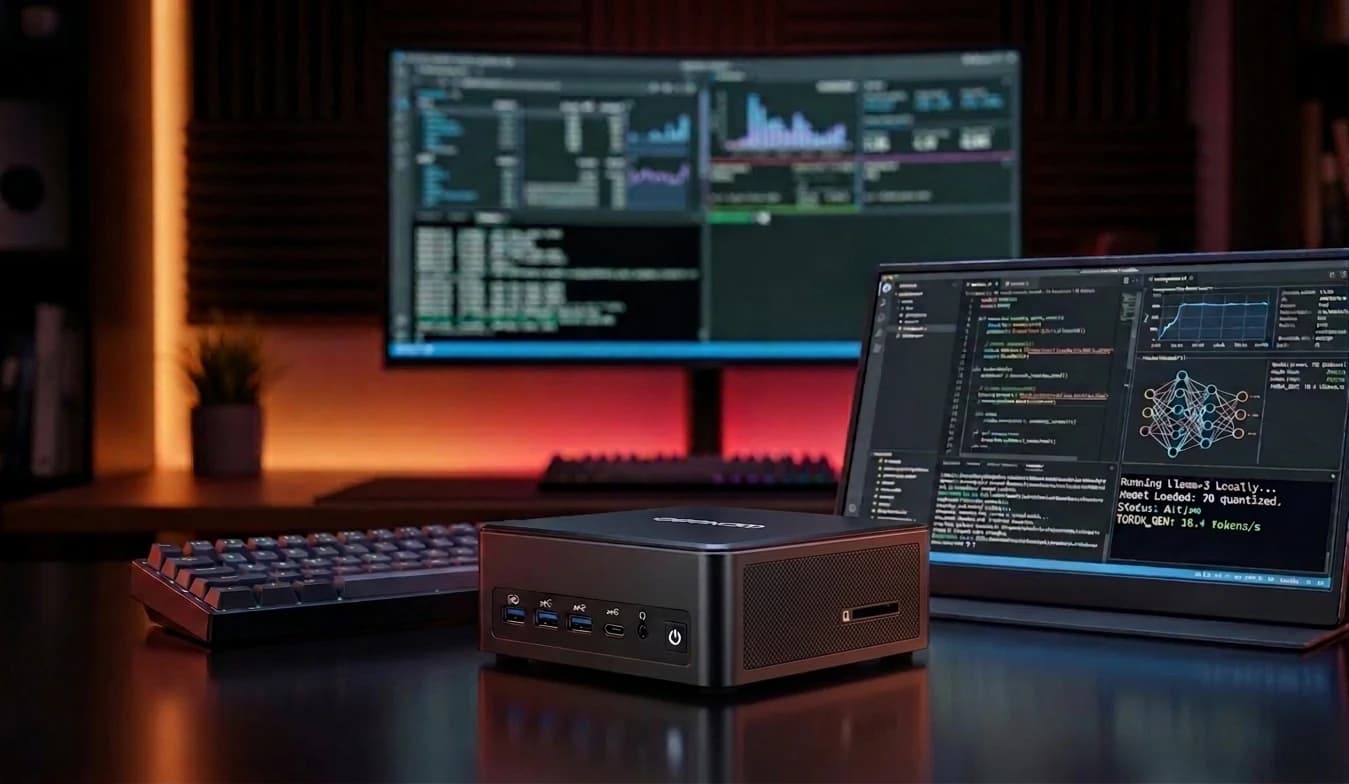

How much RAM in an AI mini PC you need starts with one thing: the model you plan to run — that’s what really decides whether you need 64GB. For a personal assistant, coding help and searching a small set of documents, 32GB is usually plenty. You only need to step up to 64GB if you want to run 30B-class models, use long prompts, keep several apps open at once, or work with larger document setups. Mini PCs and desktops with a separate graphics card also divide memory in different ways. This is why common PC shopping rules may not work here.
Most of the Time, Memory Is the First Thing That Stops You
The RAM in an AI mini PC has a job before anything else: the weights, runtime and operating system all need somewhere to sit before it can even open a model. CPU speed only matters after that. A faster processor won’t help — a 70B model won’t finish loading if you’ve run out of RAM.
This changes the best way to shop. First, choose the size of the model you want. Then make room for the model itself, the history of your conversations, and the apps you usually keep open. Multitasking is not the only thing that RAM affects on a small computer. What kinds of models are even available is up to it.
Related reading: What Is RAM on a Computer? How Memory Affects Speed and Performance
What Is Different About How a Mini PC Shares Memory
A desktop with a graphics card that stands alone keeps two separate pools. The CPU, normal programs, and Windows or Linux all use system RAM. This video card has its own VRAM. That separate, fast memory lets the GPU work without using up a lot of RAM for the operating system.
This is not possible with built-in graphics. The graphics hardware in most mini PCs gets its memory from the system RAM. This kind of memory is known as unified or shared. The operating system, the model, its context cache, and the built-in GPU all get their power from the same pool.
So on a mini PC, more RAM directly means more room for the integrated graphics — which can be the difference between opening a bigger model and not running it at all. The trade-off is speed: dedicated VRAM generally handles intensive generation faster. Shared memory still earns its place, though, because it gives you far more capacity in a smaller, cheaper machine.
The limitation is clear from AMD’s explanation of shared memory for models that run on your own hardware. When a model gets too big for the GPU-accessible portion, the CPU and graphics hardware take turns working on it. Even though it can open, it takes longer to output than a model that stays in the faster graphics path.

How Much Memory Does a Model Need?
Before doing any RAM maths, you need to understand quantisation. A mini PC can rarely run a large model in full FP16 precision. Instead, a quantised Q4 version stores each number in just four bits — shrinking the model while still giving useful results for most everyday tasks.
To give you a rough idea, Q4 weights are about 0.5GB to 0.6GB per billion parameters. That is just the model weights themselves. The operating system and the inference program both need space to work, and every conversation builds a KV cache. A quick question does not use much cache. A lot of research or document searching can use up a lot of extra space. Working memory as a whole grows, but the weights stay the same size.

You should only use the next table as a guide. The outcome is different depending on the quantisations, runners, context settings, and memory allocation choices made. From Ollama’s Q4 library, we can see that 7B is 3.8GB, 13B is 7.4GB, and 70B is 39GB. The site still says that your system should have a lot more memory than that.
| Size of the Model | About Q4 Memory | Recommended RAM | How That Works in Real Life |
| 7B–8B | About 4–5GB of VRAM; 8–10GB using CPU or shared memory | 16GB | A basic starting point for chat, summaries, and light code help. |
| 13B–14B | About 8–11GB | 16-32GB | With Windows and the context cache, 16GB gets crowded. 32GB is better. |
| 30B–34B | About 18–20GB | 32GB or more | It is possible on a shared-memory machine with enough space, but it will take longer than a smaller model. |
| 70B | About 40–48GB | 64GB is tight; 128GB is better | 64GB needs close attention and does not give you much room to move. |
If you only have CPU memory or shared memory, it is safe to plan for about twice the raw VRAM-style weight number. OS, runner, cache, graphics allocation, fragmented memory, and normal programs all use that extra space. If you have to shut down everything before you can load a model, you will not enjoy using the computer very much.
What You Can Do With 16GB, 32GB, 64GB, and 128GB
16GB: Enough to Get Started
16GB can hold a lot of Q4 7B and 8B models. It is good for when you are not online, to help you with short writing tasks, basic code explanations, document summaries, or to get an idea of Ollama and other programs like it. It is more of an entry point than extra space.
The margin goes away quickly. The machine can run out of memory if you leave a big browser window open, add a vector database, send a long prompt, or use another memory-hungry app. It becomes clear when you try to keep your normal work area open too.
Most People Should Stop at 32GB
For most people, 32GB of RAM in an AI mini PC is the best value. It handles 13B–14B models more comfortably, with plenty of room for smaller ones. It also makes long prompts and simple document searches more comfortable. You can still use the mini PC like you would a regular work computer.
Sometimes a quantised 30B option works, but it is getting close to the limit for a system with shared memory. The outcome changes with the software and the exact model. There is not much reason to pay more than 32GB if all you want is help with coding or a general chat tool.
64GB: More Room for Bigger Jobs
64GB is a good size when you need to keep a lot of small models on hand or when you want to move up to 30B. It lets you use longer contexts and set up document retrieval without slowing down the rest of the computer. When a computer’s graphics hardware shares RAM, it gives the graphics hardware more space.
It is possible for 64GB to open a Q4 70B model. It does not mean it will feel good when you use it. This could mean you need a shorter context, tighter quantisation, or a split between the CPU and GPU. In all of these cases, replies come more slowly. Do not think of 64GB as a stable long-term workstation for 70B. Instead, use it to try out 70B.
One extra reason to choose 64GB: it can be cheaper than being forced to replace the whole mini PC too soon — though it’s still not the right buy for everyone.
128GB: Made for Everyday 70B Work
128GB is for people who run 70B models often, have a wider range of mixture-of-experts options, use multiple services at the same time, have a lot of documents, or do development work that does not take over the PC. Most low-cost mini PCs cannot handle this much memory, but some high-end models can.
You don’t need 128GB if you mostly run a 7B or 14B assistant. It’s worth it for heavy, repeated workloads — but if your models are small and you rarely fill the memory you have, 32GB or 64GB usually makes far more financial sense.
It Is Not the Same Thing to Use a Model Comfortably as It Is to Load It
You can see how fast text comes in by looking at the number of tokens per second (tok/s). Some things that can make a loaded model painfully slow are dividing it between the CPU and GPU, having a big context cache, or using software that is not very good at using resources. For a summary you leave to finish, one to three tok/s is fine. It is annoying to have to wait for answers in a live chat.
The figures here are illustrative, not measured results from any specific GEEKOM mini PC. They assume Q4-class models running on an AMD Ryzen AI mini PC capable of handling them, and they will vary with the chip, memory bandwidth, prompt length, context size, runner and GPU offload.
| Model size | Output speed (Q4) & real-world feel |
| 7B | ~35–45 tok/s — fast enough for chat and short coding tasks |
| 13B | ~20–30 tok/s — comfortable for everyday chat and coding |
| 30B | ~12–18 tok/s — noticeably slower, but usable |
| 70B | ~5–9 tok/s — batch/patient work only, too slow for live chat |
Before you buy, you should focus on two things. It is up to the computer to open the model and respond quickly enough. Waiting is okay if you pick capacity over speed.
RAM Is Not Enough to Explain Everything
Although memory is important, it is not the only thing that matters. The NPU is built into newer AMD Ryzen AI chips, and software knows how to use it. Faster responses are not guaranteed just because the processor has an NPU badge; many text programmes still rely on the CPU and built-in graphics.
When using shared memory, bandwidth is important. There is dual-channel memory that you should check out because the CPU and built-in graphics use the same RAM. The ability to upgrade is also important; permanently installed memory is soldered, but SO-DIMM slots allow upgrades in the future. Although an NVMe drive cannot replace RAM, it can speed up the process of loading files and searching documents.
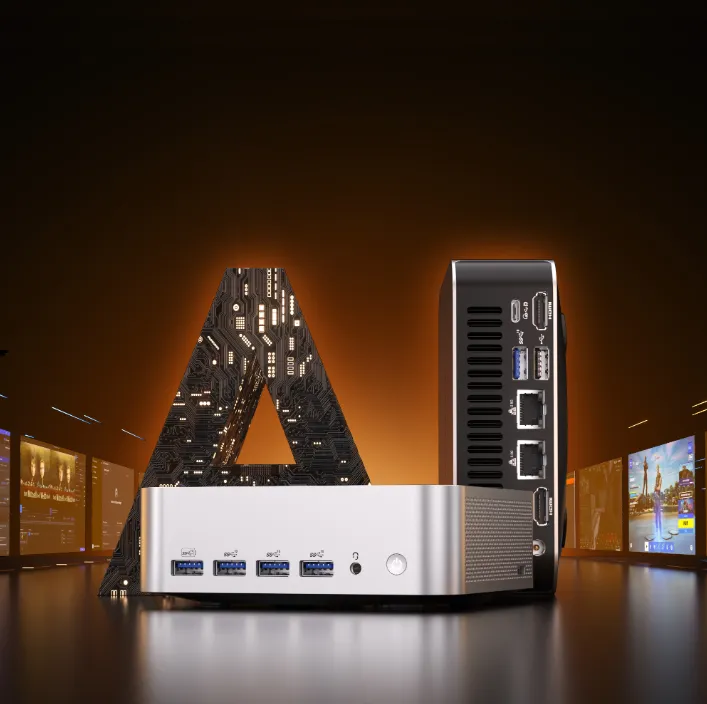
With two memory slots, XDNA™ 2 NPU, Radeon™ 890M graphics, and either a Ryzen AI 9 HX 370 or HX 470 processor, the GEEKOM A9 Max is a small option. If you need more memory, make sure you check the exact version that is sold where you live.
FAQs
Should a mini PC have 32GB of RAM for this work?
I think so for most people. This setup works well with 7B to 14B quantised models, offline helpers, coding, and searches for smaller documents. This is when things get tight: 30B-class models, very long contexts, or a lot of services that use a lot of memory.
64GB RAM: Can a 70B Model Run?
Yes, but only just: with Q4 and careful settings, it will load, though slowly. For regular 70B work rather than occasional testing, choose a 128GB-class machine.
Does shared system RAM work the same way as dedicated VRAM?
Not quite. Shared RAM gives the integrated graphics a larger pool to draw on, which boosts capacity — but you won’t match the top-generation speeds of dedicated VRAM on a discrete graphics card.
Will a mini PC’s NPU make text models run faster?
Not by itself. For speed, the runner, model format, CPU, built-in graphics, and memory bandwidth are also important. Supported features can help. Prior to making the NPU the deciding factor, make sure that your software can work with the hardware.
Before Picking the Memory, Pick the Model
The rule is simple: decide which model you want to run first, then size the RAM in your AI mini PC to hold it comfortably. Get that order right, and the capacity you need — 32GB, 64GB or 128GB — follows naturally.